

View Project Details
The Project View page shows the complete details of a single real estate project in Abstract ONE. All information added during the Add Project wizard — basic details, amenities, location advantages, logo, and elevation image — is displayed here in one place.
From the Project View page, you can:
- Review project information and media
- Track lead statistics for the project
- View running campaigns linked to the project
- Open the edit form to update project details
Access Project View
You can open the Project View page in two ways:
- From the Project List, click the three-dot menu on a project card and select View
- After creating a project, click View Project on the success screen
Sidebar → Manage Project → Project List → View
Lead Statistics
At the top of the page, lead summary cards show how leads are distributed for this project:
| Card | Description |
|---|---|
| Total Leads | Total number of leads assigned to this project |
| Inpipeline Leads | Leads currently in the sales pipeline |
| Pending Leads | Leads with pending follow-up or action |
| Booked Leads | Leads that have been successfully booked |
| Lost Leads | Leads marked as lost |
Each card shows the count and percentage of total leads for quick reference.
Project Overview
The main section displays the project elevation image alongside a summary panel on the right.
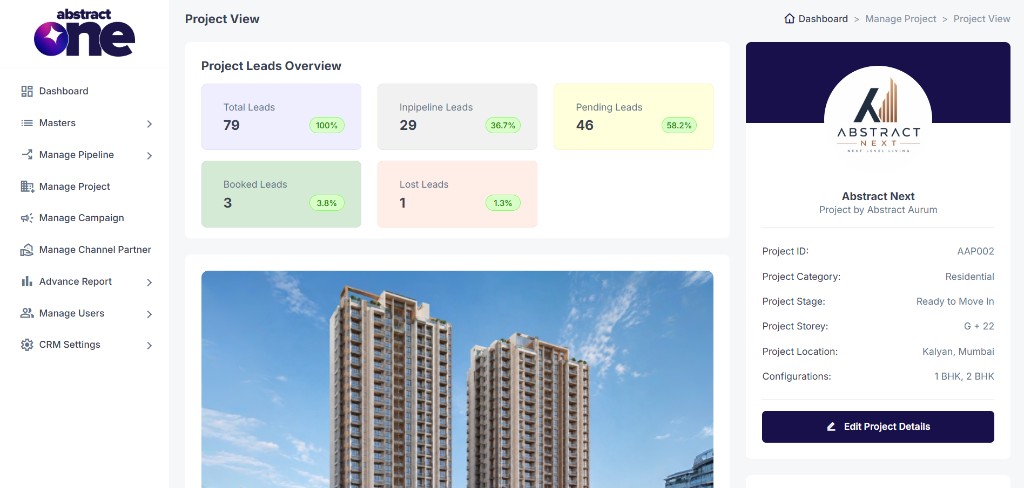
The right panel includes:
| Field | Description |
|---|---|
| Project Logo | Logo uploaded during Add Project |
| Project Name | Project name and developer (e.g. Abstract Next — Project by Abstract Aurum) |
| Project ID | Unique project identifier (e.g. AAP002). Used in API integrations and lead submissions. |
| Project Category | Project type (e.g. Residential) |
| Project Stage | Current stage (e.g. Ready to Move In) |
| Project Storey | Building height (e.g. G + 22) |
| Project Location | Area and city |
| Configurations | Unit types (e.g. 1 BHK, 2 BHK) |
Click Edit Project Details at the bottom of the panel to update the project.
Project USPs
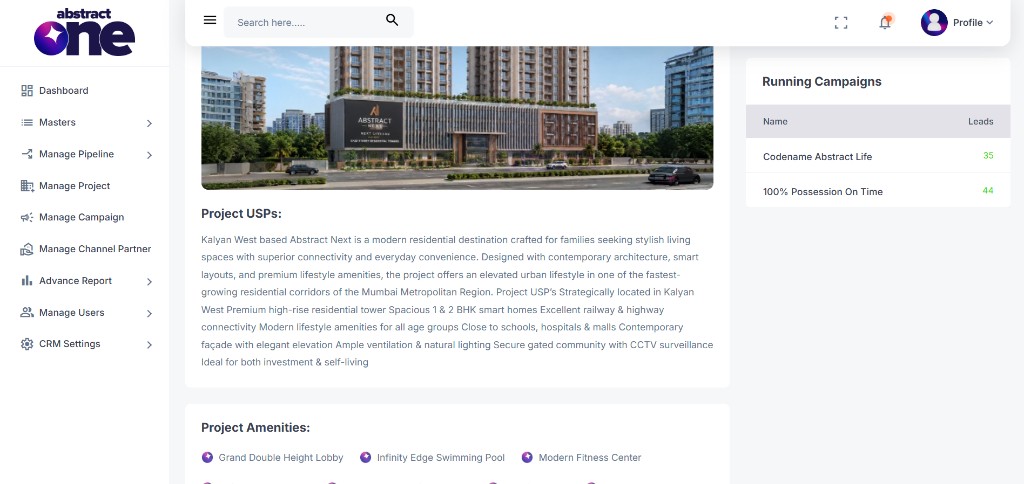
Below the elevation image, the page shows the project USPs (Unique Selling Points) entered during Add Project. This section displays the full descriptive text highlighting the project's key features and benefits.
Running Campaigns
The Running Campaigns section is displayed separately on the Project View page. It lists all active campaigns linked to this project.
| Column | Description |
|---|---|
| Name | Campaign name (e.g. Codename Abstract Life, 100% Possession On Time) |
| Leads | Number of leads generated through that campaign for this project |
This section helps track which marketing campaigns are active and how many leads each campaign has brought in for the project.
Project Amenities
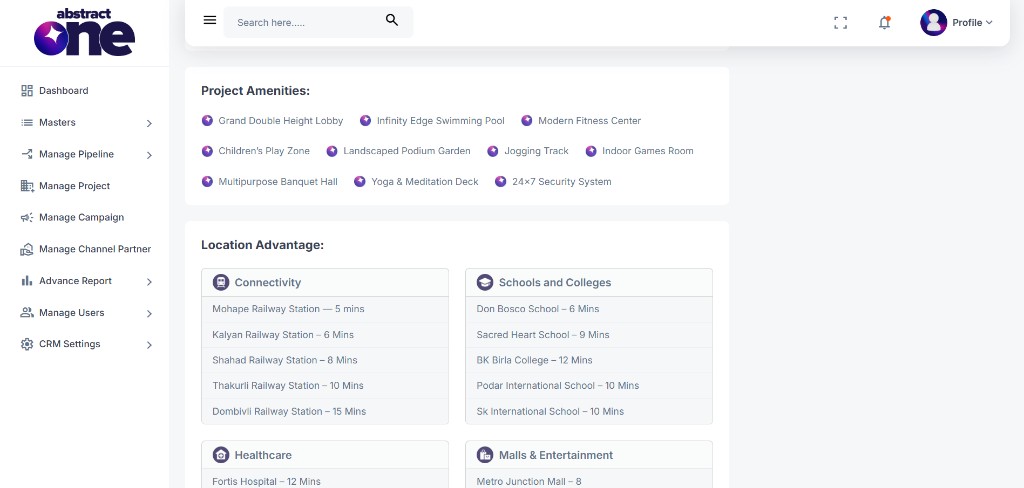
All amenities added in Step 2 of Add Project are listed with icons — such as Grand Double Height Lobby, Infinity Edge Swimming Pool, Modern Fitness Center, and more.
Location Advantages
Nearby location advantages added in Step 3 of Add Project are grouped into four categories:
- Connectivity — railway stations, highways, and transport links
- Schools and Colleges — nearby educational institutions
- Healthcare — hospitals and medical facilities
- Malls & Entertainment — shopping and leisure destinations
Each entry shows the place name and approximate travel time.
Important Notes
- All project data on this page comes from the information entered during Add Project in CRM.
- The Project ID is required for API integrations and third-party lead submissions.
- Lead statistics update automatically as leads are added, moved, or closed for this project.
- Use Edit Project Details to update any project information.