

How to Reset Password
Superadmins who are unable to access their account due to a forgotten password can securely reset their password using the Forgot Password process in Abstract ONE.
The password reset process includes:
- Login ID verification
- OTP verification via registered email
- Secure password reset
Access Forgot Password
To reset the account password:
- Open the login page: https://app.abstractone.in/login
- Click on Forgot Password?
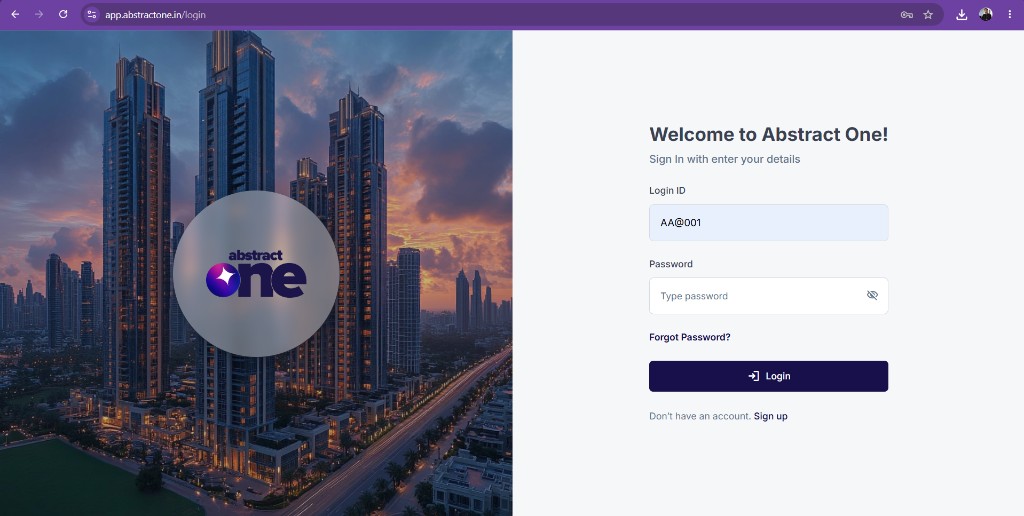
After clicking the option, the superadmin is redirected to the Forgot Password page.
Step 1 — Enter Login ID
On the Forgot Password page:
- Enter the registered Login ID
- Click the Submit button
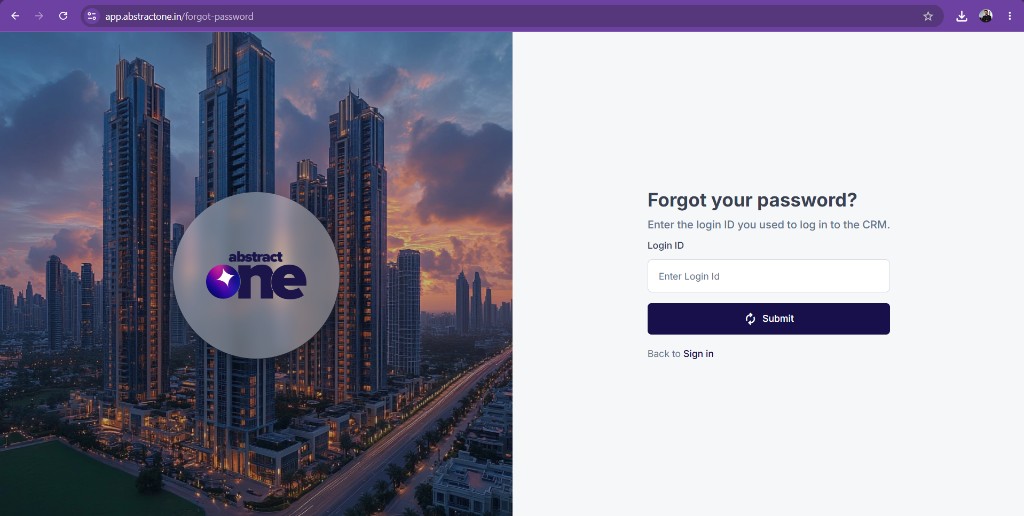
The system validates whether the Login ID exists and is active in CRM.
Invalid Login ID
If an invalid or non-existing Login ID is entered, the system displays the following validation error:
User ID does not exist
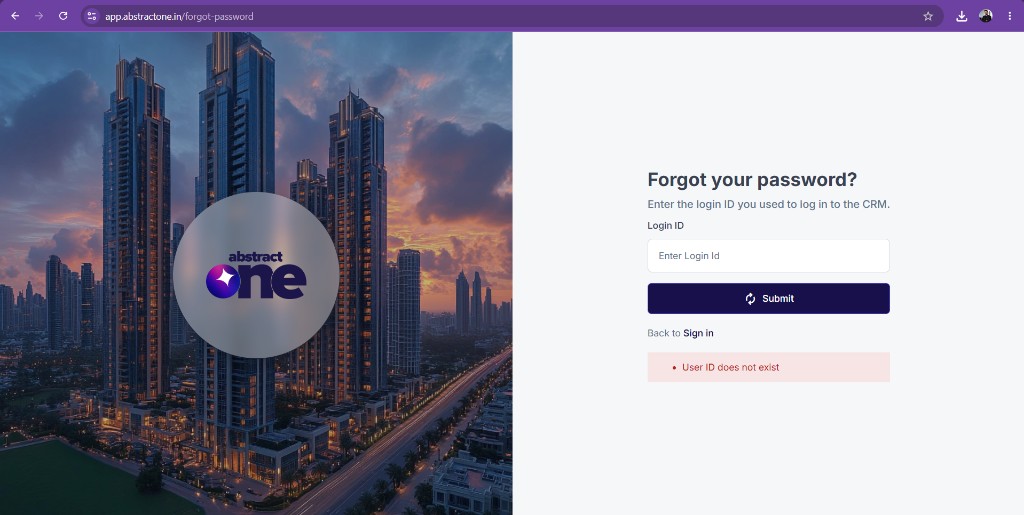
The superadmin must enter a valid and active Login ID to continue.
Valid Login ID Verification
If the Login ID exists and is active in CRM:
- The superadmin is redirected to the OTP Verification page
- A 4-digit verification OTP is sent to the superadmin’s registered email address
Step 2 — Enter OTP
On the OTP Verification page, enter the 4-digit OTP received on the registered email address and click Submit.
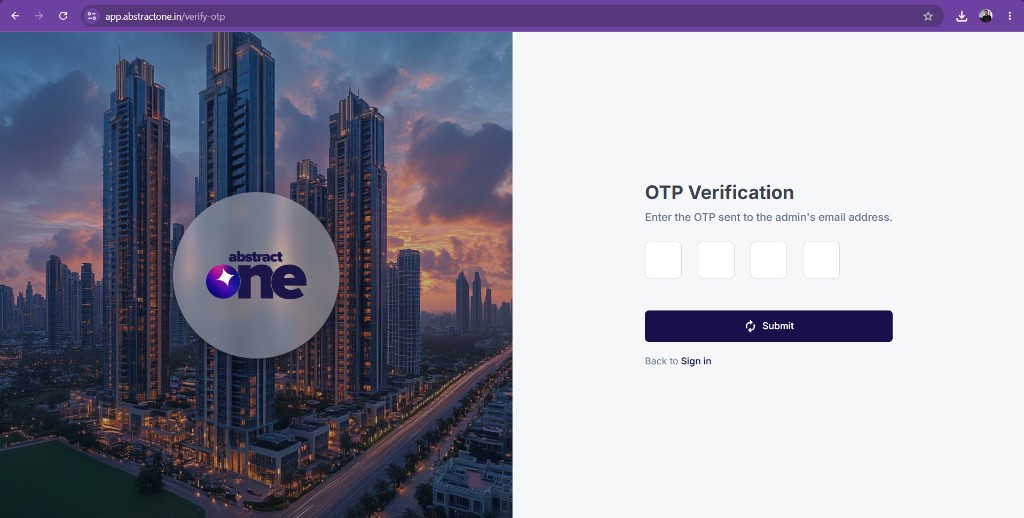
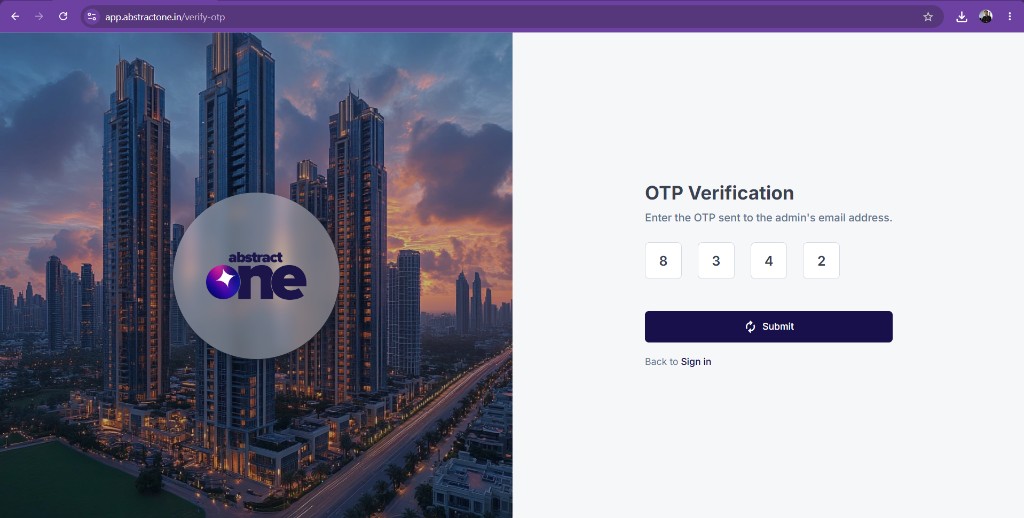
Incorrect OTP
If an invalid OTP is entered, the system displays the following error message:
Incorrect OTP.
The superadmin must enter the correct OTP to proceed.
Successful OTP Verification
After successful OTP verification, the superadmin is redirected to the Reset Password page.
Step 3 — Reset Password
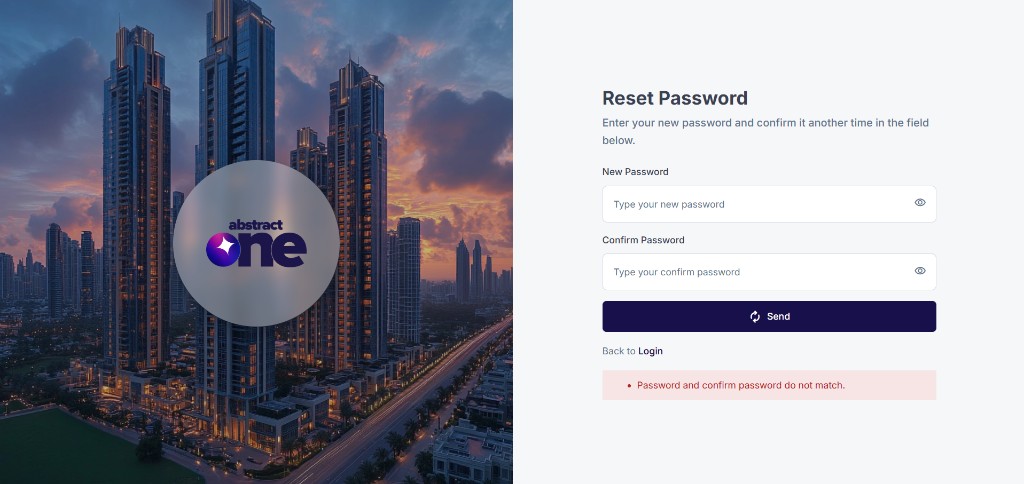
On the Reset Password page, enter the new password in both fields:
- New Password
- Confirm Password
Password Validation Rules
The new password must meet the following conditions:
- Minimum 8 characters required
- Must contain:
- Uppercase letter (A–Z)
- Lowercase letter (a–z)
- Number (0–9)
- Special character (@, #, !, etc.)
Example of a strong password:
ADWone@#2026
Confirm Password Validation
The New Password and Confirm Password fields must match exactly.
If both passwords do not match, the system displays the following error message:
Password and confirm password do not match.
Successful Password Reset
After entering a strong password and matching confirm password, click the Send button.
The system will:
- Successfully reset the account password
- Redirect the superadmin to the Login page
- Display the following success message:
Your password has been reset successfully. Please login.
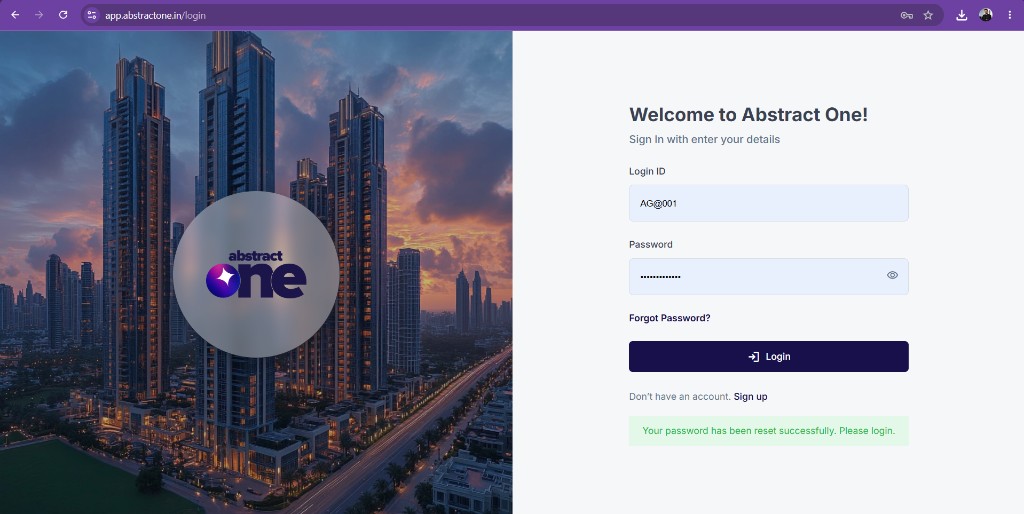
The superadmin can now sign in using the Login ID and the new password.