

Followup List
The Followup List page displays all scheduled follow-up reminders across leads in the pipeline. From here you can view upcoming, missed, and completed follow-ups, filter by criteria, export data, and take action on individual follow-ups.
From Followup List, you can:
- View all follow-up reminders with lead details and status
- Search and filter follow-ups by date, project, source, disposition, assignee, and status
- Export follow-up data in CSV, XLSX, or PDF format
- Click the eye icon to open the Lead Details page for a follow-up lead
- Receive automatic follow-up reminder popups when a scheduled follow-up time is reached
Access Followup List
Go to:
Sidebar → Manage Pipeline → Followup List
The Followup Reminders page opens. Breadcrumb: 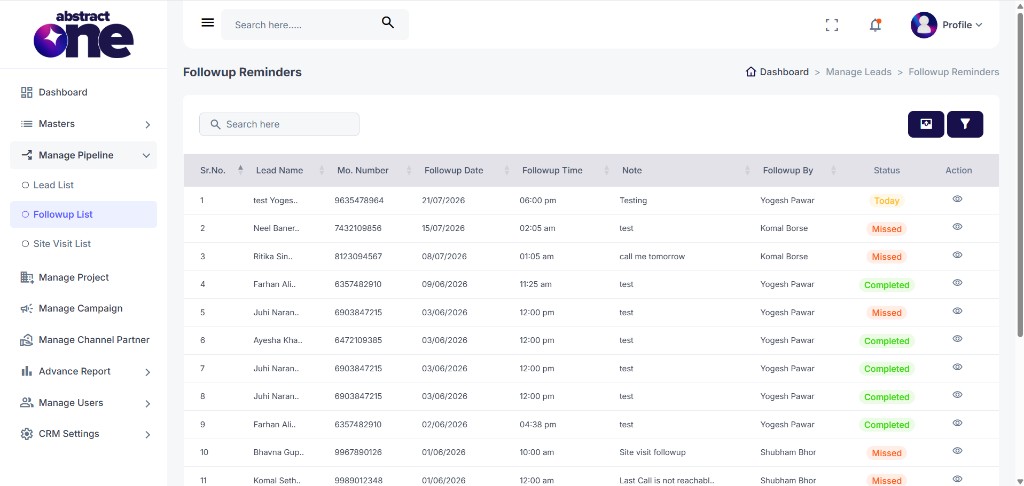
Followup Table Columns
The table displays the following columns:
| Column | Description |
|---|---|
| Sr.No. | Serial number of the follow-up entry |
| Lead Name | Name of the lead associated with the follow-up |
| Mo. Number | Mobile number of the lead |
| Followup Date | Scheduled date for the follow-up |
| Followup Time | Scheduled time for the follow-up |
| Note | Note or instructions added for the follow-up |
| Followup By | User assigned to perform the follow-up |
| Status | Current status of the follow-up (Today, Missed, Completed) |
| Action | Eye icon to view the lead details page |
Status labels are color-coded:
| Status | Color | Description |
|---|---|---|
| Today | Yellow | Follow-up scheduled for today |
| Missed | Orange | Follow-up date has passed without action |
| Completed | Green | Follow-up has been completed |
Search Followups
Use the search bar above the table to quickly find follow-ups by lead name, mobile number, or note.
Filter Followups
Click the Filter icon above the table to open the Filter Followup drawer.
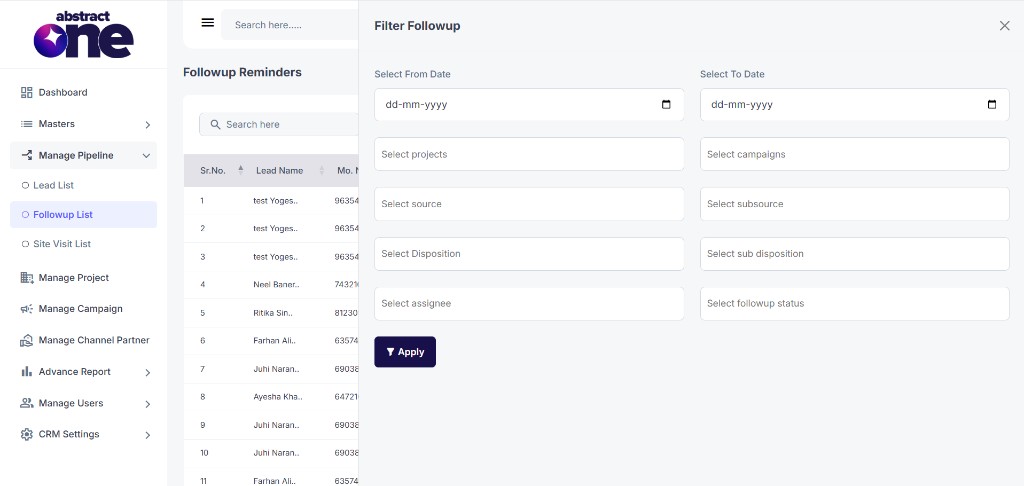
Available filter fields:
| Field | Description |
|---|---|
| Select From Date | Start date for the follow-up date range |
| Select To Date | End date for the follow-up date range |
| Select projects | Filter by one or more projects |
| Select campaigns | Filter by one or more campaigns |
| Select source | Filter by lead source |
| Select subsource | Filter by sub source |
| Select Disposition | Filter by disposition status |
| Select sub disposition | Filter by sub disposition |
| Select assignee | Filter by assigned user |
| Select followup status | Filter by follow-up status (Today, Missed, Completed) |
Click Apply to filter the list, or close the drawer to cancel.
Export Followups
Click the Export icon above the table to open the Export Follow-up drawer.
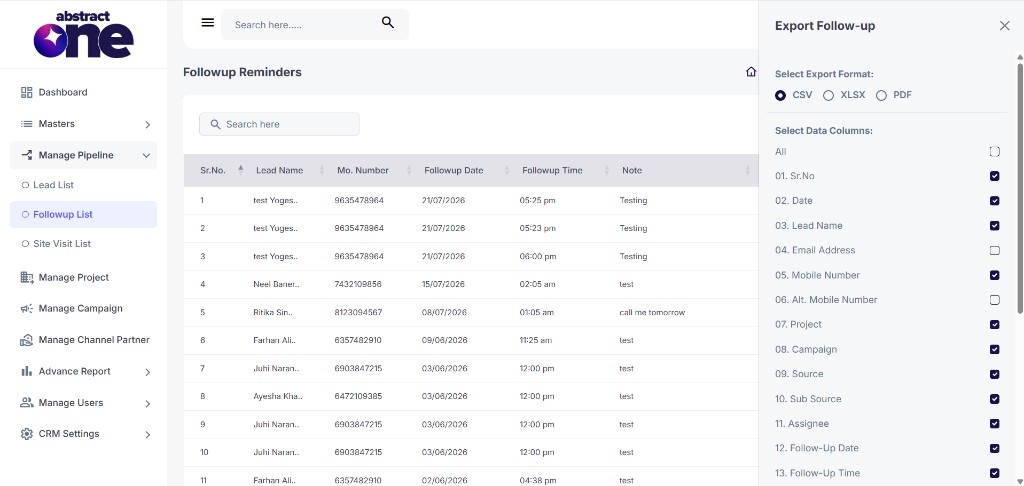
Select Export Format
Choose the file format: CSV, XLSX, or PDF.
Select Data Columns
Check or uncheck columns to include in the export. Use the All checkbox to select every column at once.
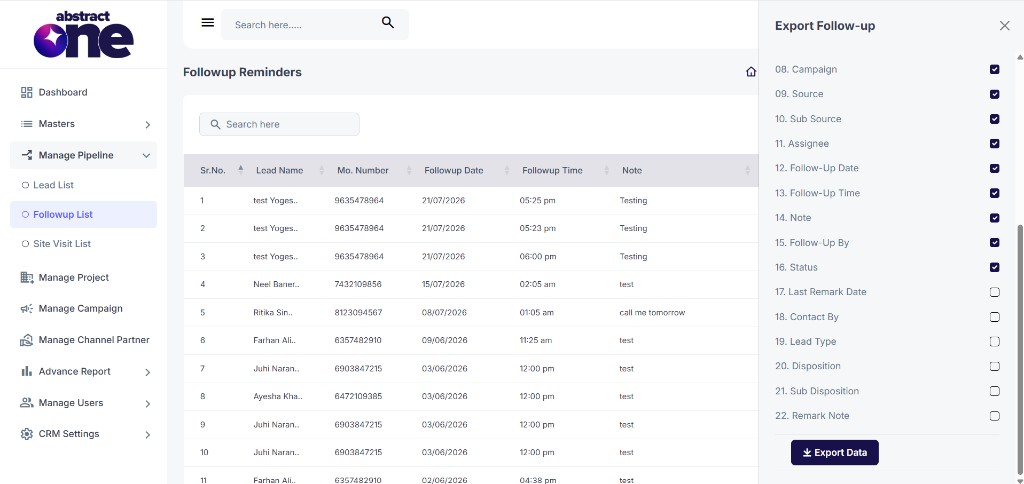
Available export columns:
| # | Column |
|---|---|
| 01 | Sr.No |
| 02 | Date |
| 03 | Lead Name |
| 04 | Email Address |
| 05 | Mobile Number |
| 06 | Alt. Mobile Number |
| 07 | Project |
| 08 | Campaign |
| 09 | Source |
| 10 | Sub Source |
| 11 | Assignee |
| 12 | Follow-Up Date |
| 13 | Follow-Up Time |
| 14 | Note |
| 15 | Follow-Up By |
| 16 | Status |
| 17 | Last Remark Date |
| 18 | Contact By |
| 19 | Lead Type |
| 20 | Disposition |
| 21 | Sub Disposition |
| 22 | Remark Note |
Click Export Data to download the file.
View Followup Details
Click the eye icon in the Action column for any follow-up. You are redirected to the Lead Details page for that lead.
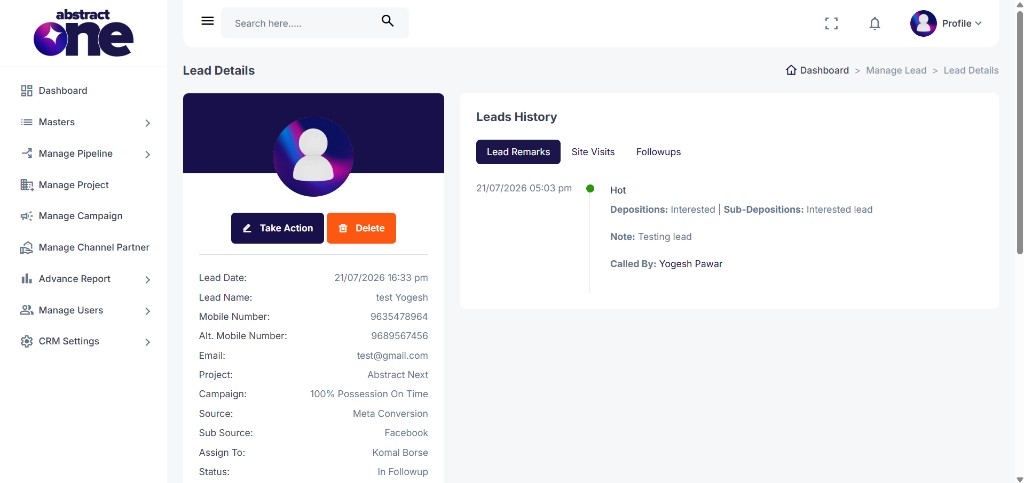
The Lead Details page shows the lead profile, quick actions (Take Action, Delete), and Leads History with tabs for Lead Remarks, Site Visits, and Followups.
Follow-up Reminder Popup
Whenever a scheduled follow-up time is reached, a Follow-up Reminder popup appears automatically as a reminder — this is independent of the Followup List and can appear on any page while you are logged in.
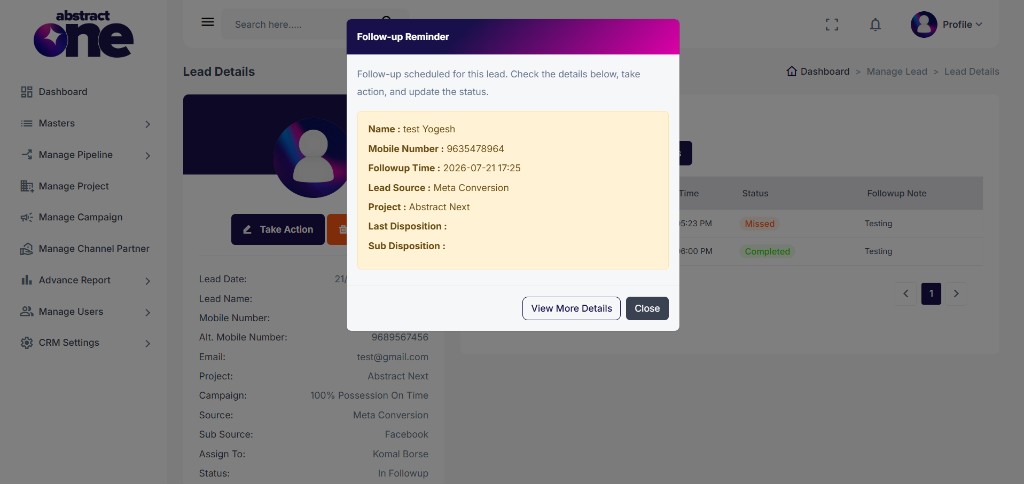
The popup displays:
- Lead name and mobile number
- Followup date and time
- Lead source and project
- Last disposition and sub disposition
Two action buttons are available:
| Button | Description |
|---|---|
| View More Details | Navigate to the Lead Details page for the lead |
| Close | Close the popup and continue working |
The reminder popup is triggered by the scheduled follow-up time, not by clicking the eye icon on the Followup List.
Important Notes
- Follow-ups are created when a user schedules a follow-up through the Lead Action drawer (Edit Leads).
- The Followup List shows follow-ups across all leads assigned to users in the pipeline.
- Use filters to narrow down by status (Today, Missed, Completed) for focused follow-up work.
- Export respects active filters, so apply filters before exporting for targeted data.
- Clicking the eye icon on the Followup List redirects to the Lead Details page for that lead.
- The Follow-up Reminder popup appears automatically when a scheduled follow-up time is reached — it is a system reminder, not triggered by the Followup List view.
- Missed follow-ups indicate leads that need immediate attention.