

Lead Export
The Lead Export feature allows you to download lead data from the Lead List page in your preferred format. You can choose the export file type and select exactly which columns to include in the exported file.
From Lead Export, you can:
- Export leads in CSV, XLSX, or PDF format
- Select specific data columns to include in the export
- Use the All checkbox to quickly select or deselect every column
- Export data based on the currently active tab and filters on the Lead List page
Access Lead Export
Go to:
Sidebar → Manage Pipeline → Lead List
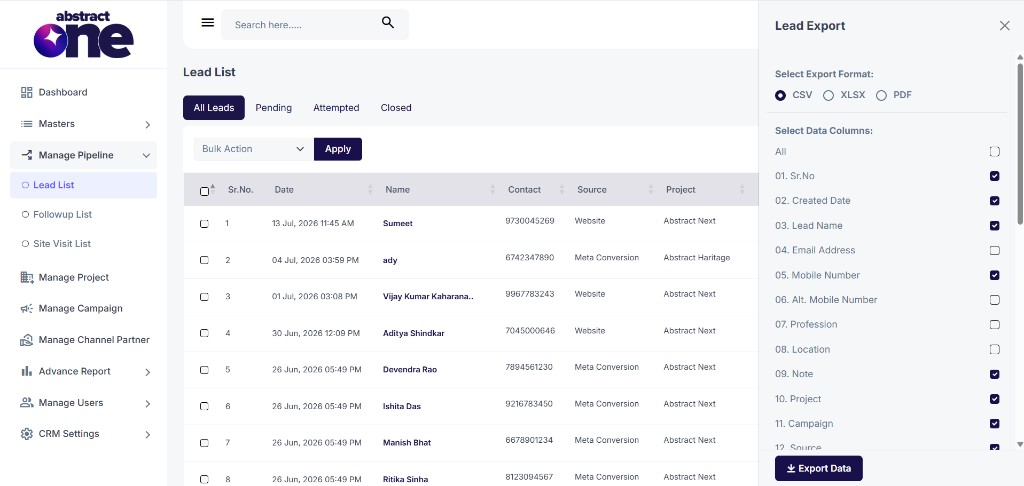
On the Lead List page, click the Export button at the top right. The Lead Export drawer opens on the right side of the screen.
Select Export Format
At the top of the drawer, choose the file format for your export:
| Format | Description |
|---|---|
| CSV | Comma-separated values file, compatible with most spreadsheet tools |
| XLSX | Excel spreadsheet format |
| Portable document format for read-only sharing |
Select Data Columns
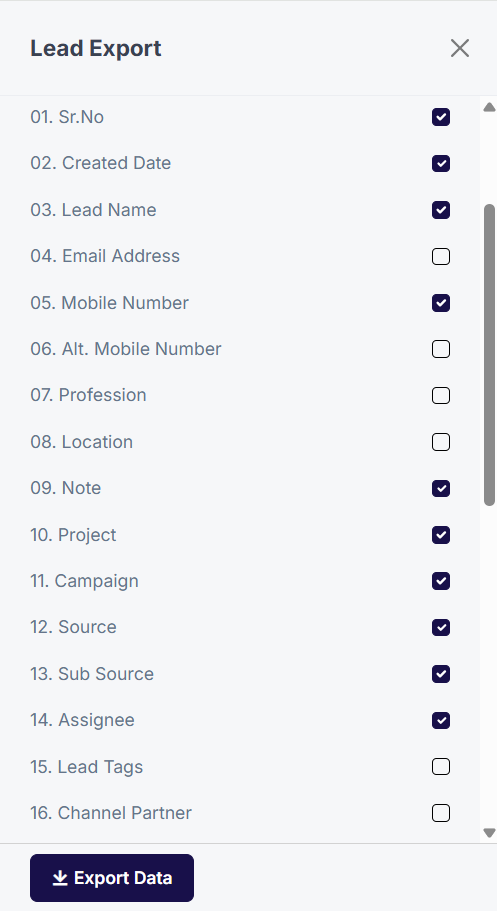
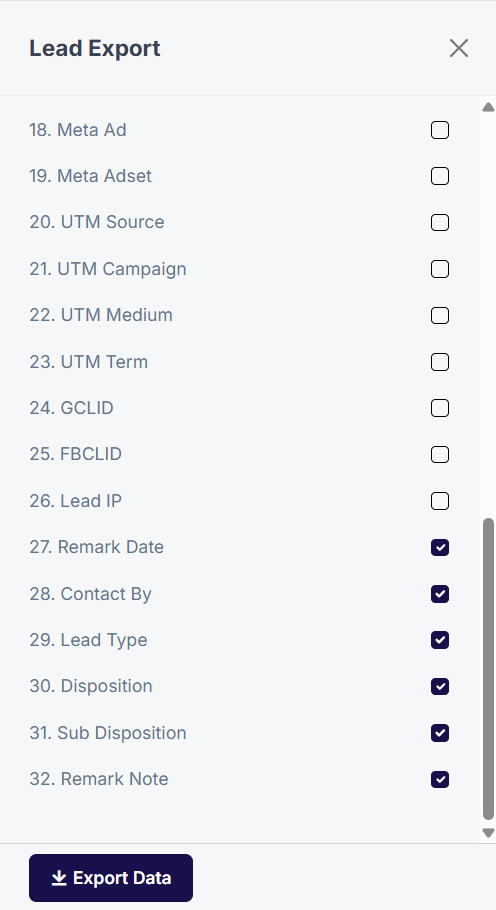
Below the format options, use the Select Data Columns section to choose which fields to include in the export. Check or uncheck individual columns, or use the All checkbox at the top to select every column at once.
Available export columns:
| # | Column | Description |
|---|---|---|
| 01 | Sr.No | Serial number of the lead |
| 02 | Created Date | Date and time when the lead was created |
| 03 | Lead Name | Name of the lead |
| 04 | Email Address | Email address of the lead |
| 05 | Mobile Number | Primary contact number |
| 06 | Alt. Mobile Number | Alternate contact number |
| 07 | Profession | Profession of the lead |
| 08 | Location | Location of the lead |
| 09 | Note | Notes added to the lead |
| 10 | Project | Project associated with the lead |
| 11 | Campaign | Campaign the lead belongs to |
| 12 | Source | Lead source (e.g. Website, Channel Partner, Meta Conversion) |
| 13 | Sub Source | Sub-source of the lead |
| 14 | Assignee | User assigned to the lead |
| 15 | Lead Tags | Tags applied to the lead |
| 16 | Channel Partner | Channel partner associated with the lead |
| # | Column | Description |
|---|---|---|
| 18 | Meta Ad | Meta ad name associated with the lead |
| 19 | Meta Adset | Meta adset name associated with the lead |
| 20 | UTM Source | UTM source tracking parameter |
| 21 | UTM Campaign | UTM campaign tracking parameter |
| 22 | UTM Medium | UTM medium tracking parameter |
| 23 | UTM Term | UTM term tracking parameter |
| 24 | GCLID | Google Click Identifier |
| 25 | FBCLID | Facebook Click Identifier |
| 26 | Lead IP | IP address of the lead at the time of submission |
| 27 | Remark Date | Date of the latest remark on the lead |
| 28 | Contact By | Mode of contact used for the latest remark |
| 29 | Lead Type | Type of the lead |
| 30 | Disposition | Current disposition status of the lead |
| 31 | Sub Disposition | Sub-disposition of the lead |
| 32 | Remark Note | Latest remark note on the lead |
Export Data
After selecting the format and columns, click the Export Data button at the bottom of the drawer. The file is generated and downloaded to your device based on your selections.
Important Notes
- The export includes only the leads visible based on the currently active tab (All Leads, Pending, Attempted, Closed) and any applied filters.
- Apply filters on the Lead List page before exporting if you need a targeted dataset.
- Use the All checkbox to quickly include every column, then uncheck individual columns you do not need.
- CSV and XLSX formats are best for further data analysis; PDF is suitable for read-only sharing.
- At least one column must be selected before exporting.