

Campaign List
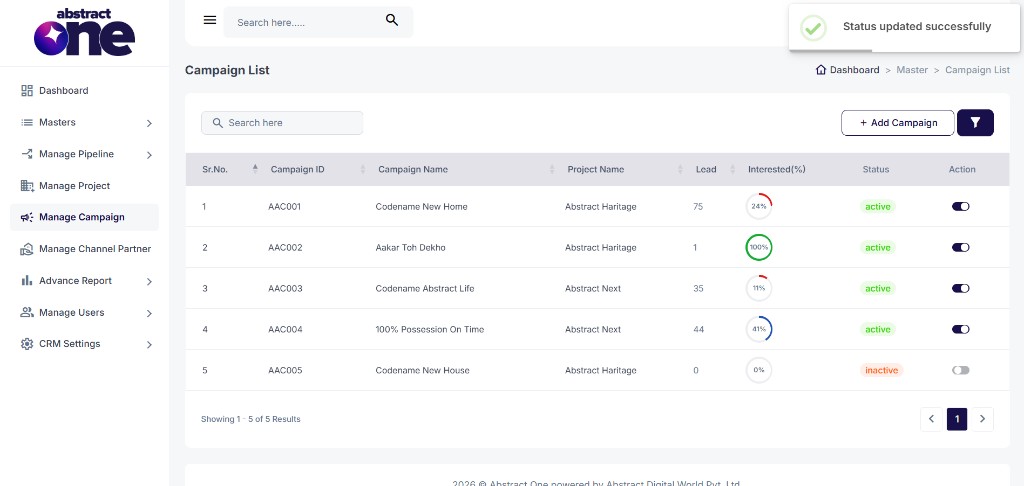
The Campaign List is the main dashboard for all marketing campaigns in Abstract ONE. Every campaign added to the CRM appears here in a table, showing campaign ID, name, linked project, lead count, interest percentage, and status.
From the Campaign List, you can:
- View all campaigns at a glance
- Search and filter campaigns
- Add a new campaign
- Activate or deactivate a campaign
Campaigns are linked to projects. When adding a lead, both Project and Campaign must be selected for proper tracking.
Access Campaign List
Go to:
Sidebar → Manage Campaign
The Campaign List page opens by default.
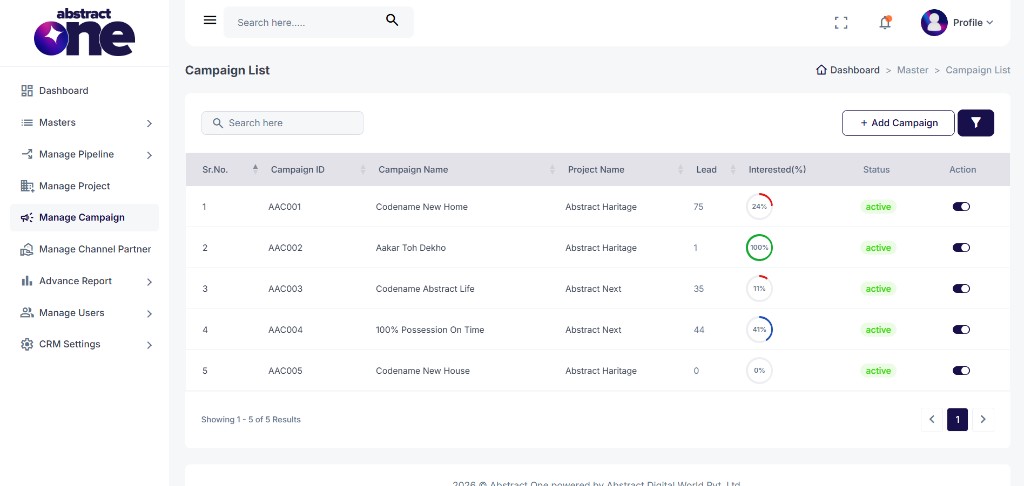
Campaign Table Overview
The table displays the following columns:
| Column | Description |
|---|---|
| Sr.No. | Serial number of the entry |
| Campaign ID | Unique campaign identifier (e.g. AAC001, AAC002) |
| Campaign Name | Name of the campaign (e.g. Codename New Home) |
| Project Name | Project linked to the campaign (e.g. Abstract Heritage) |
| Lead | Total number of leads generated through the campaign |
| Interested (%) | Percentage of interested leads, shown with a circular progress indicator |
| Status | Current status — active or inactive |
| Action | Toggle switch to activate or deactivate the campaign |
Search a Campaign
Use the Search here bar above the table to filter campaigns by name, project, or other details.
Add a New Campaign
Click + Add Campaign on the top right to open the Add Campaign drawer. Enter the campaign Name, select the Project, set Status, and click + Save.
Filter Campaigns
Click the Filter icon next to the Add Campaign button. The Filter Campaigns drawer opens on the right.
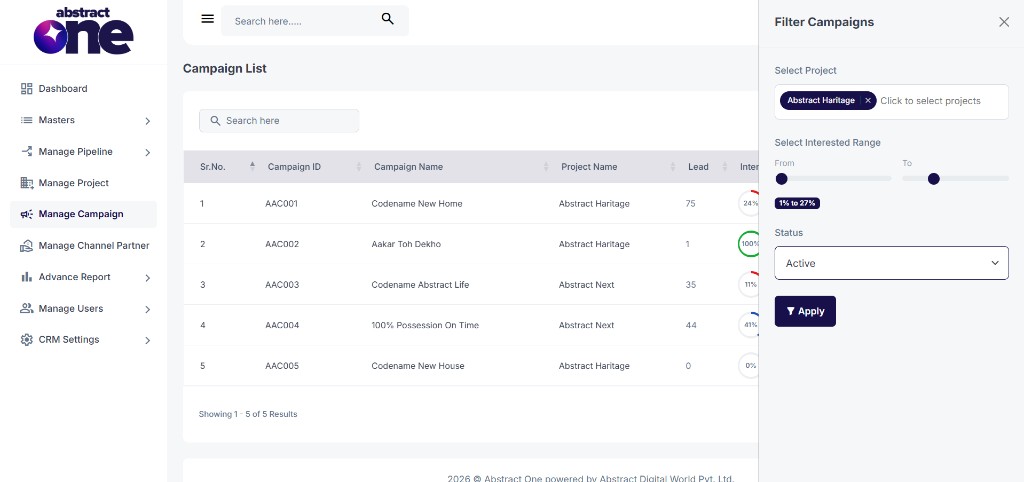
The following filter options are available:
| Filter | Description |
|---|---|
| Select Project | Filter campaigns by one or more projects |
| Select Interested Range | Filter by interested lead percentage using the range slider |
| Status | Filter by Active or Inactive status |
Click Apply to filter the list. The table updates to show only matching campaigns.
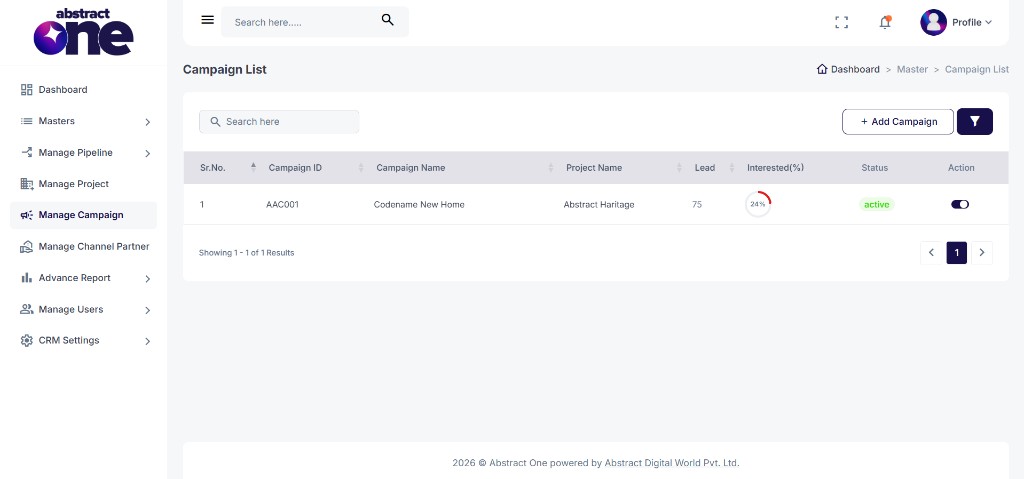
Change Campaign Status
Use the toggle switch in the Action column to activate or deactivate a campaign.
Click the toggle. A confirmation dialog appears:
Confirm — Yes, change status
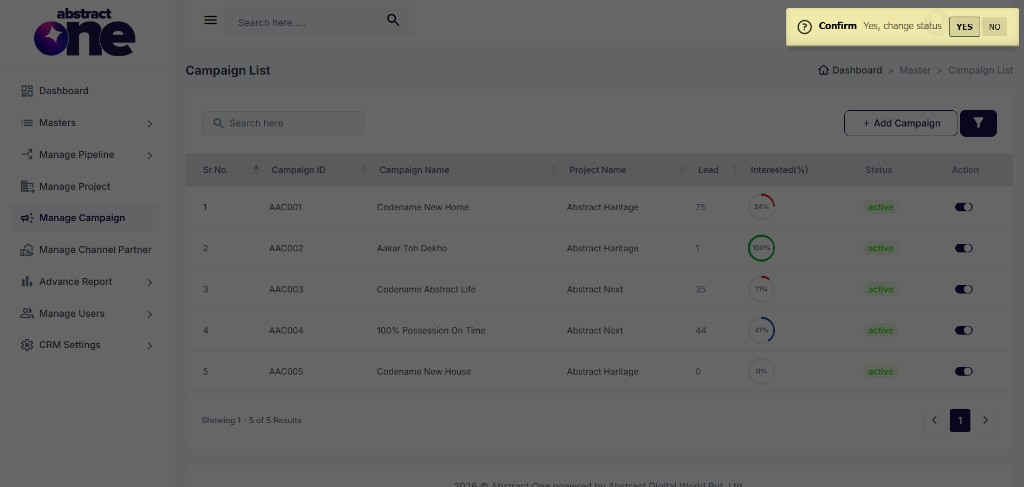
Click YES to confirm. On success, the system displays:
Status updated successfully
Only active campaigns appear when adding a lead in the CRM.
Important Notes
- All campaigns created through Add Campaign appear on this list automatically.
- Each campaign is linked to a single project and tracks leads separately.
- Lead count and Interested (%) update as leads are added and updated in the CRM.
- Deactivating a campaign hides it from the lead form but does not delete existing lead data.
- Project and Campaign are both mandatory when adding a lead.