

Add User in CRM
The Manage Users module allows superadmins to create and manage team members who access the CRM. Each user is assigned a role that controls what data and features they can access inside the client’s CRM account.
Using Add User, you can onboard new team members by entering their details, assigning a role, setting a password, and activating their account.
From Add User, you can:
- Create a new CRM user
- Assign a role and status
- Set the user’s login password
Access Add User
Go to:
Sidebar → Manage Users → User List
On the Users List page, click + Add New User on the top right. The Add User drawer opens.
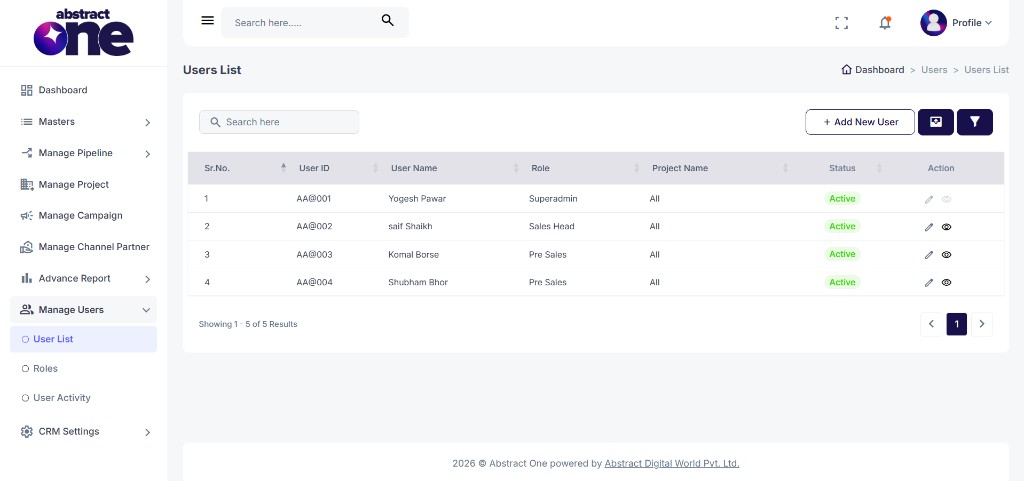
Step 1 — Open Add User
Click + Add New User. The Add User drawer opens on the right side.
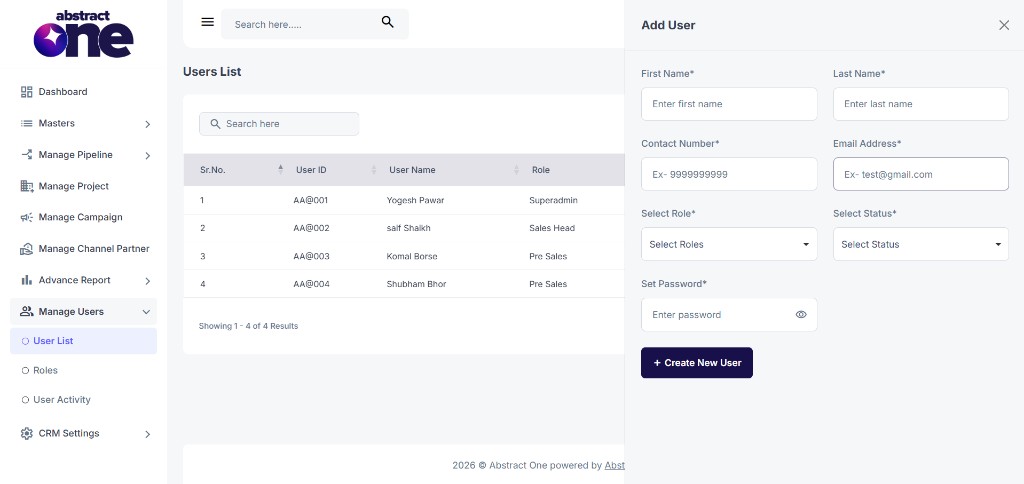
Step 2 — Fill and Save
Enter all required details and click + Create New User. Fields marked with * are mandatory.
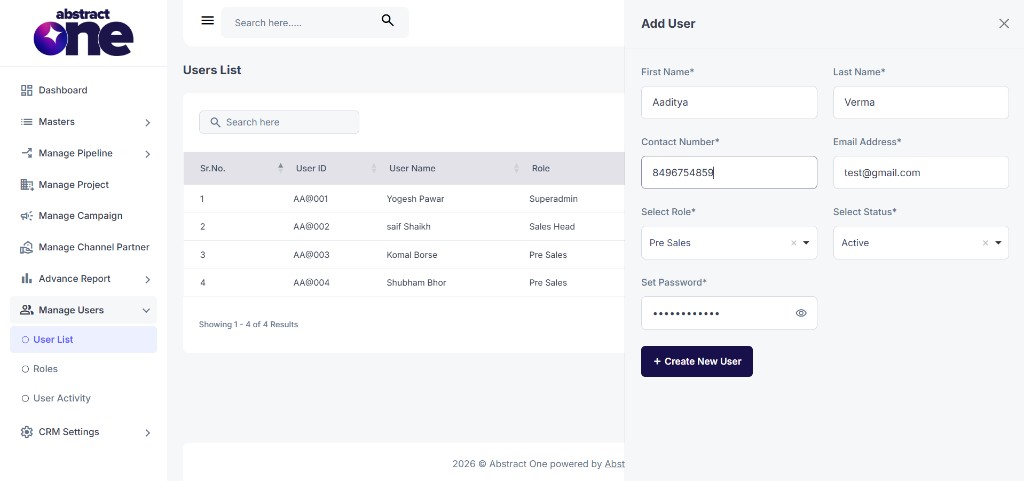
| Field | Required | Description |
|---|---|---|
| First Name | Yes | User’s first name |
| Last Name | Yes | User’s last name |
| Contact Number | Yes | 10-digit mobile number (e.g. 8496754859) |
| Email Address | Yes | Valid email address for login credentials |
| Select Role | Yes | User role (e.g. Superadmin, Sales Head, Pre Sales) |
| Select Status | Yes | Set as Active or Inactive |
| Set Password | Yes | Login password. Use the eye icon to show or hide the password. |
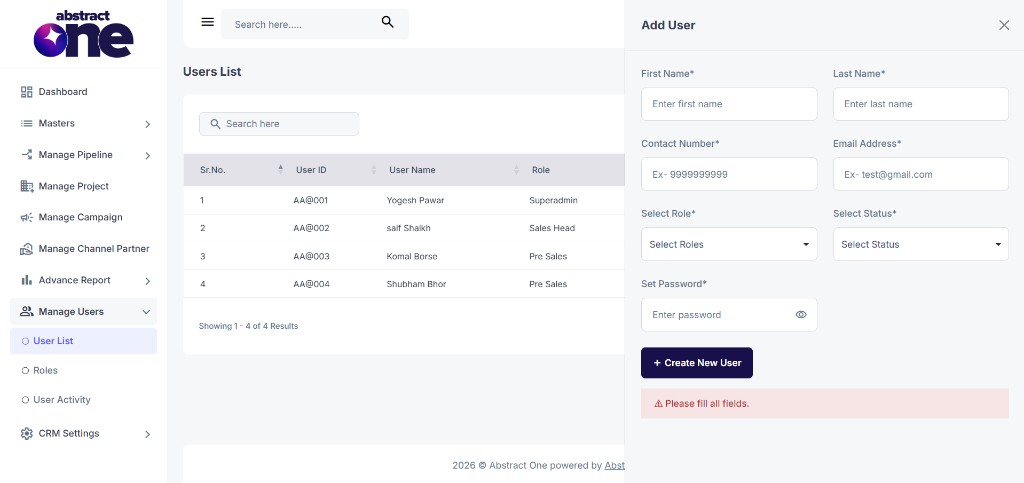
If any required field is left empty, the system displays:
Please fill all fields.
If the contact number already exists in the system, the system displays:
Contact number already exists..
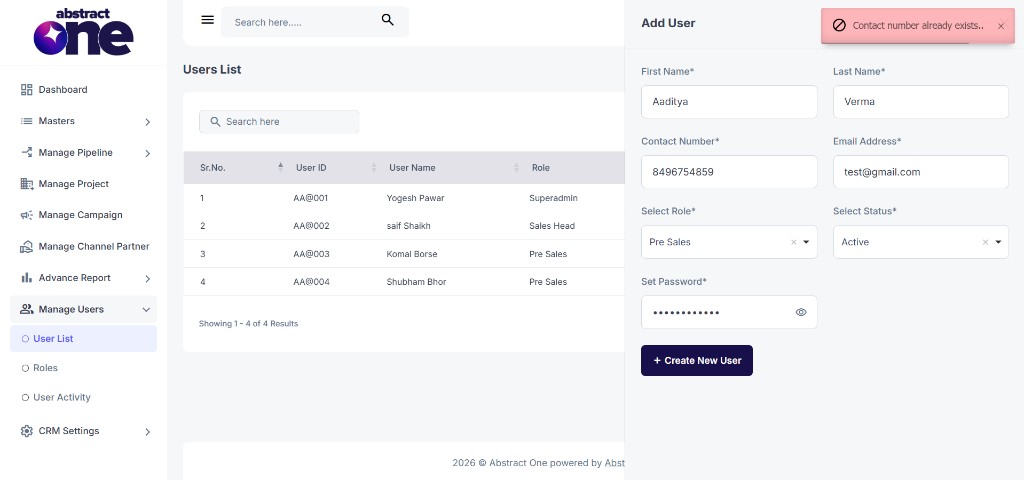
On success, the system displays:
User created successfully.
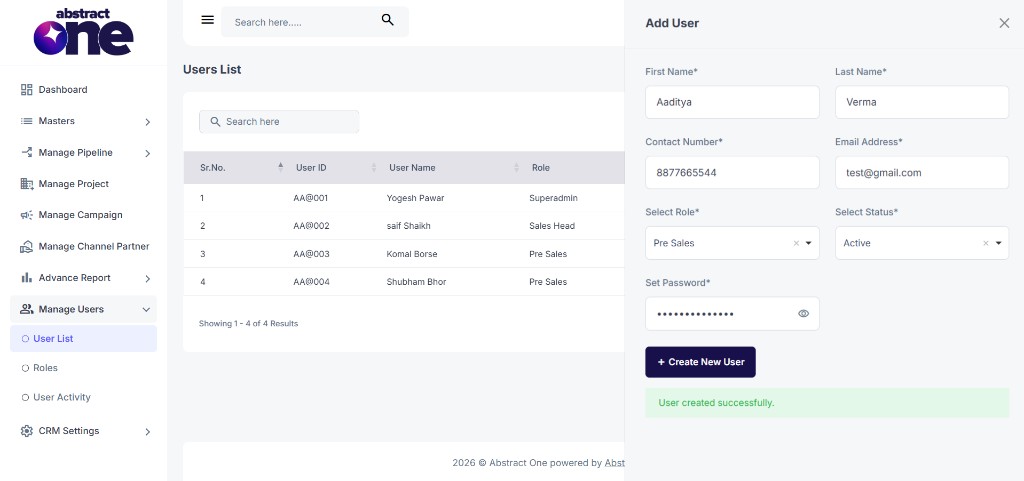
The new user appears on the Users List with a unique User ID (e.g. AA@001, AA@005).
After User Is Created
Once a user is created successfully, the following happens automatically:
- A unique User ID is generated for login
- Login credentials are sent to the user’s email address
- The new user appears on the Users List with their assigned role and status
User Login and Access
If the user status is set to Active, they can log in to the client’s CRM account using the credentials shared on email.
After login, the user can access data and features based on their assigned role permissions. For example:
- Superadmin — full access to all CRM modules
- Sales Head — access based on Sales Head role permissions
- Pre Sales — access based on Pre Sales role permissions
Users with Inactive status cannot log in to the CRM.
Important Notes
- All fields in the Add User form are mandatory.
- Contact numbers must be unique across all users in the CRM.
- Login credentials are automatically emailed to the user after successful creation.
- Only Active users can log in to the CRM.
- Each user’s data access is controlled by their assigned role and role permissions.
- User ID is auto-generated and cannot be set manually during creation.