

Edit Leads
The Edit Leads feature allows you to update an existing lead’s details, add remarks, schedule follow-ups, and view additional tracking information. Access this through the Take Action option from the Lead List action menu, which opens the Lead Action drawer.
From Edit Leads, you can:
- Update lead contact and project details
- Add a remark with disposition and lead type
- Schedule a follow-up with date, time, and note
- Edit additional details such as profession, location, UTM fields, and Meta campaign data
Access Edit Leads
Go to:
Sidebar → Manage Pipeline → Lead List
On the Lead List page, click the action menu (☰) in the Action column for the lead you want to edit, then select Take Action.
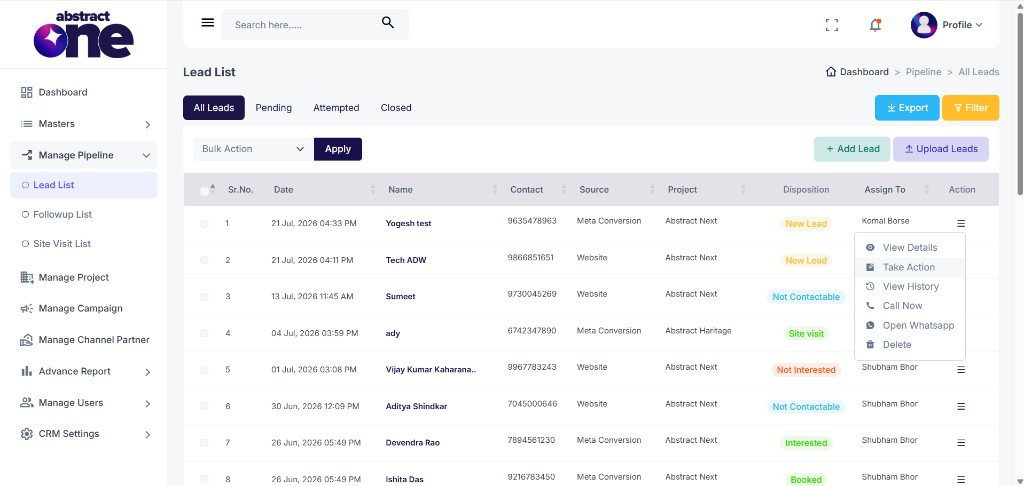
The Lead Action drawer opens on the right side of the screen.
Edit Lead Details
The top section of the Lead Action drawer displays the lead’s current information. You can update the following fields:
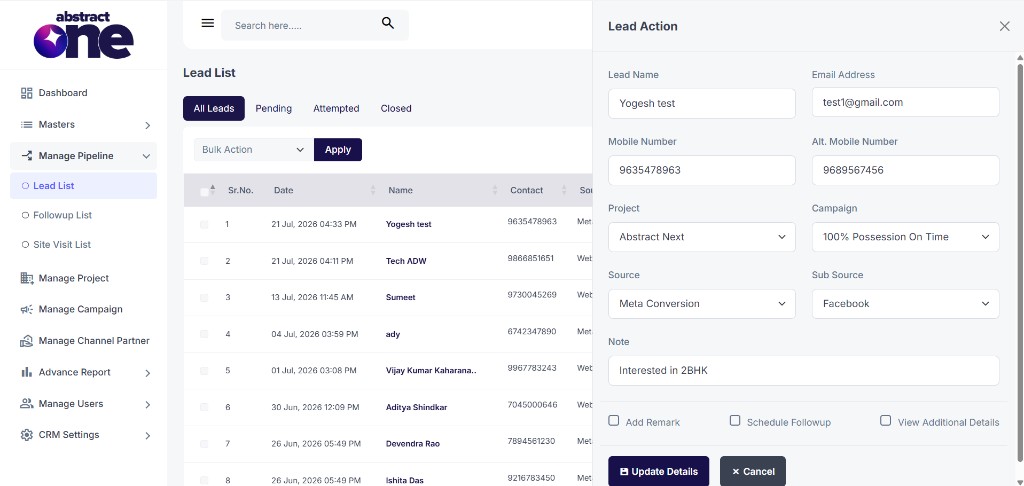
| Field | Description |
|---|---|
| Lead Name | Name of the lead |
| Email Address | Email address of the lead |
| Mobile Number | Primary contact number |
| Alt. Mobile Number | Alternate contact number |
| Project | Project associated with the lead |
| Campaign | Campaign associated with the lead |
| Source | Lead source (e.g. Meta Conversion, Website) |
| Sub Source | Sub source of the lead (e.g. Facebook) |
| Note | General notes about the lead |
Add Remark
Check the Add Remark checkbox to add a new remark to the lead. This reveals additional fields for recording the interaction.
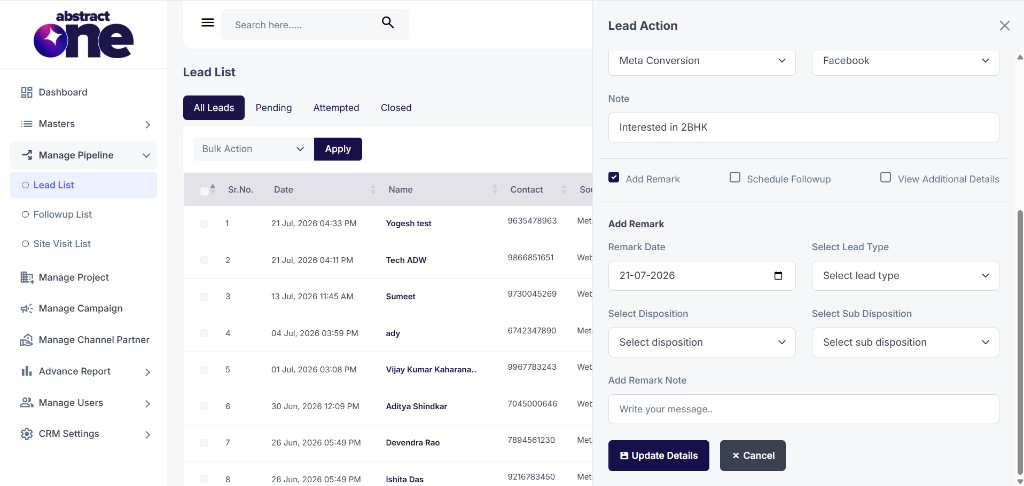
| Field | Description |
|---|---|
| Remark Date | Date of the remark (defaults to today) |
| Select Lead Type | Lead type classification (e.g. Hot, Warm, Cold) |
| Select Disposition | Current disposition status (e.g. Interested, Not Interested, Site visit) |
| Select Sub Disposition | Sub disposition for further categorization (e.g. Interested lead) |
| Add Remark Note | Text note describing the interaction or update |
Schedule Followup
Check the Schedule Followup checkbox to set a follow-up reminder for the lead.
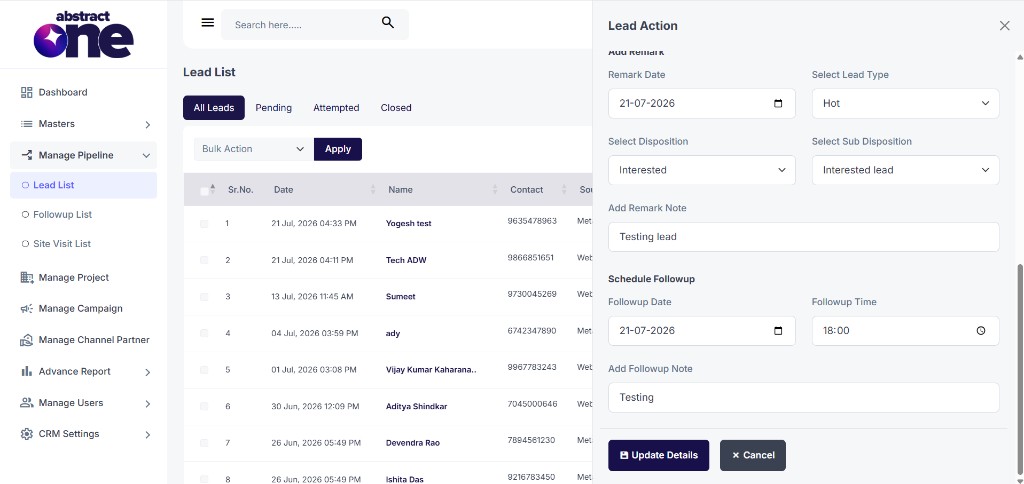
| Field | Description |
|---|---|
| Followup Date | Date for the scheduled follow-up |
| Followup Time | Time for the scheduled follow-up |
| Add Followup Note | Note or instructions for the follow-up |
Scheduled follow-ups appear in the Followup List under Manage Pipeline.
Edit Additional Details
Check the View Additional Details checkbox to reveal editable tracking and metadata fields for the lead. You can update any of these fields and save them along with the rest of the lead details.
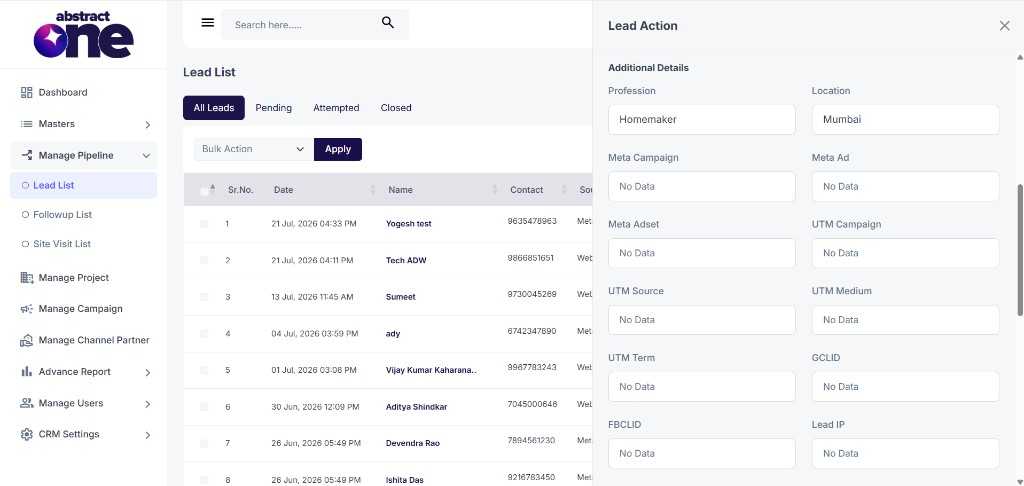
| Field | Description |
|---|---|
| Profession | Profession of the lead |
| Location | Location of the lead |
| Meta Campaign | Meta campaign associated with the lead |
| Meta Ad | Meta ad associated with the lead |
| Meta Adset | Meta adset associated with the lead |
| UTM Campaign | UTM campaign tracking parameter |
| UTM Source | UTM source tracking parameter |
| UTM Medium | UTM medium tracking parameter |
| UTM Term | UTM term tracking parameter |
| GCLID | Google Click Identifier |
| FBCLID | Facebook Click Identifier |
| Lead IP | IP address of the lead |
Update Lead
After making your changes, click the Update Details button at the bottom of the drawer. On success, a confirmation message appears:
“Lead updated successfully.”
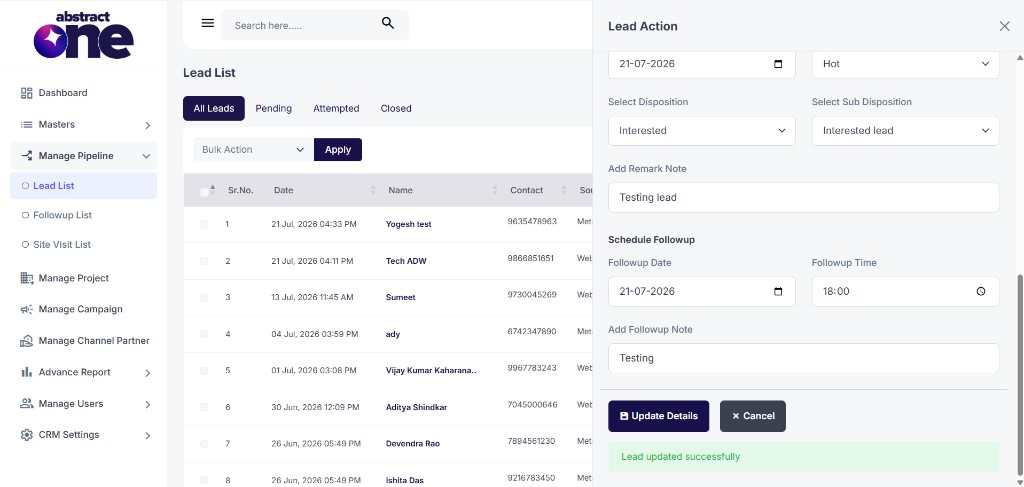
Click Cancel or the close (X) button to discard changes and close the drawer.
Important Notes
- The Add Remark, Schedule Followup, and View Additional Details sections are toggled using checkboxes — check the ones you need before updating.
- Updating disposition through Add Remark changes the lead’s status in the Lead List table.
- Scheduled follow-ups are visible in the Followup List under Manage Pipeline.
- Additional Details fields are editable — update profession, location, UTM parameters, Meta campaign data, GCLID, FBCLID, and Lead IP as needed.
- Campaign options depend on the selected project, and Sub Source options depend on the selected Source.