

View History
The View History feature allows you to review the complete activity history of a lead, including remarks, site visits, and follow-ups. Access this from the Lead List action menu to see a chronological record of all interactions with a lead.
From View History, you can:
- Review all remarks added to a lead
- View site visit bookings and their status
- Check scheduled and completed follow-ups
Access View History
Go to:
Sidebar → Manage Pipeline → Lead List
On the Lead List page, click the action menu (☰) in the Action column for the lead you want to review, then select View History.
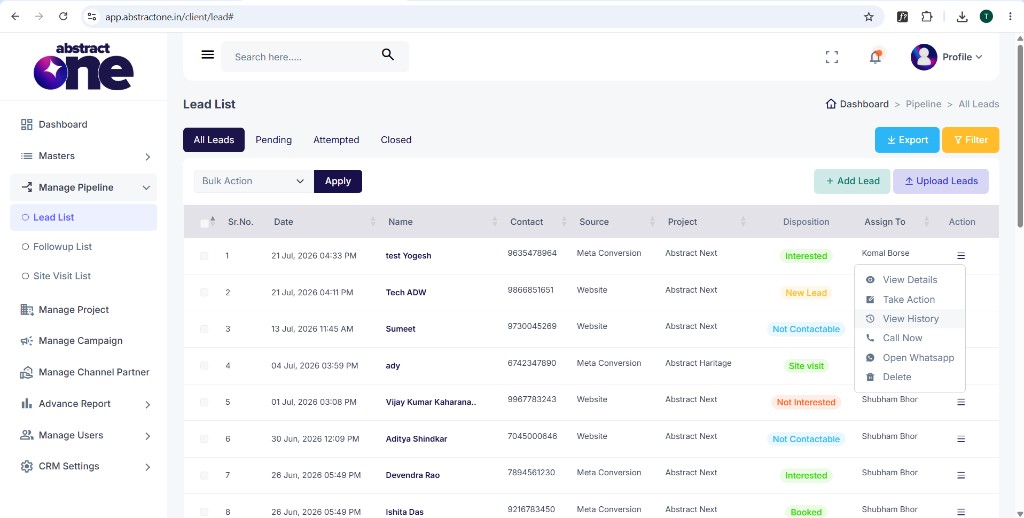
The Lead History drawer opens on the right side of the screen.
Lead History Tabs
The Lead History drawer contains three tabs to browse different types of activity:
| Tab | Description |
|---|---|
| Remarks | All remarks and disposition updates added to the lead |
| Site Visits | Site visit bookings and their status for the lead |
| Followups | Scheduled and completed follow-ups for the lead |
Remarks Tab
The Remarks tab displays a table of all remarks recorded for the lead.
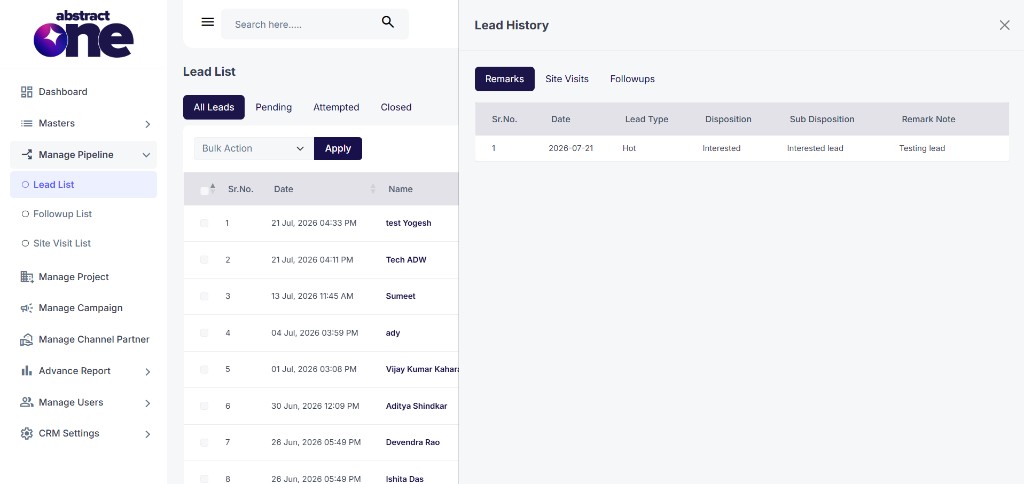
| Column | Description |
|---|---|
| Sr.No. | Serial number of the remark entry |
| Date | Date when the remark was added |
| Lead Type | Lead type at the time of the remark (e.g. Hot, Warm, Cold) |
| Disposition | Disposition status recorded (e.g. Interested, Not Interested) |
| Sub Disposition | Sub disposition recorded (e.g. Interested lead) |
| Remark Note | Text note added with the remark |
Site Visits Tab
The Site Visits tab displays a table of all site visit bookings for the lead.
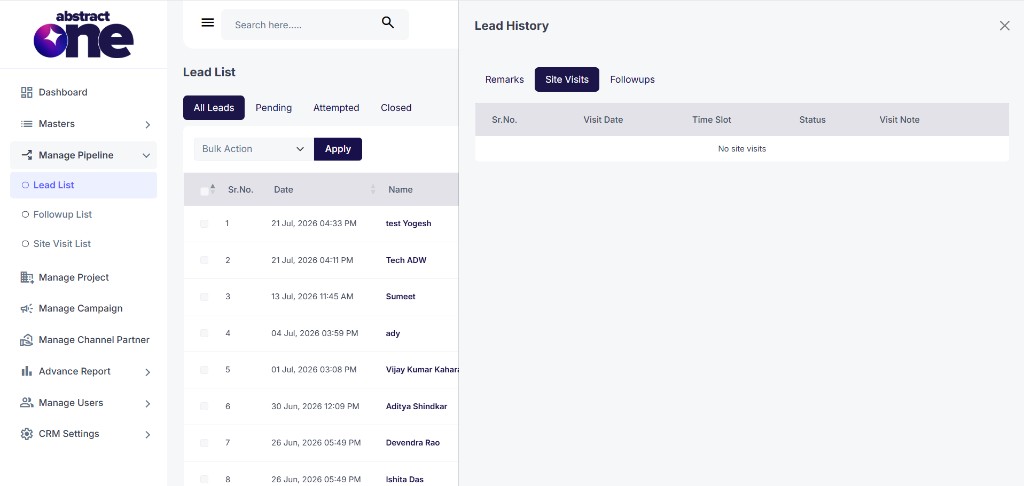
| Column | Description |
|---|---|
| Sr.No. | Serial number of the site visit entry |
| Visit Date | Date of the scheduled site visit |
| Time Slot | Time slot booked for the visit |
| Status | Current status of the site visit |
| Visit Note | Notes added for the site visit |
If no site visits have been booked for the lead, the table displays “No site visits.”
Followups Tab
The Followups tab displays a table of all follow-ups scheduled and completed for the lead.
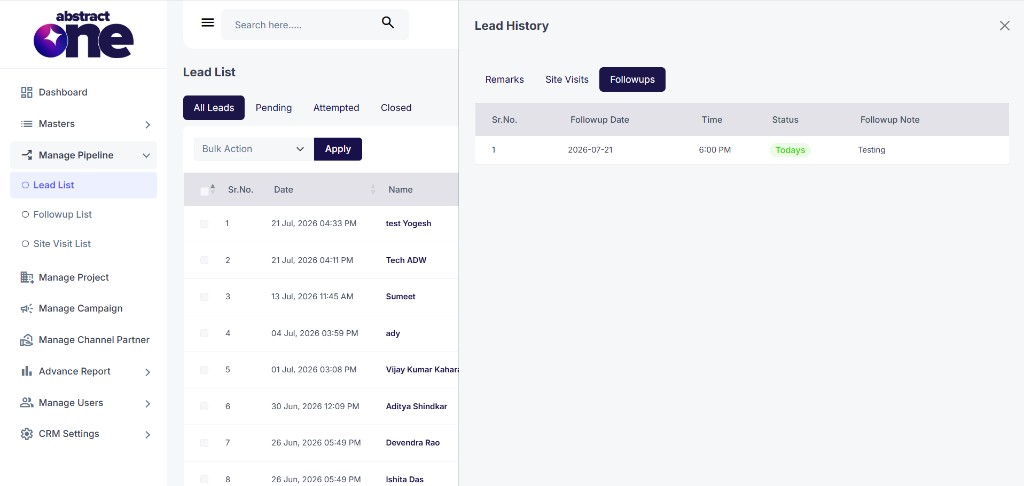
| Column | Description |
|---|---|
| Sr.No. | Serial number of the follow-up entry |
| Followup Date | Date of the scheduled follow-up |
| Time | Time of the scheduled follow-up |
| Status | Current status of the follow-up (e.g. Todays, Upcoming, Completed) |
| Followup Note | Note or instructions added for the follow-up |
Important Notes
- Lead History is read-only — use Take Action from the Lead List to add new remarks or schedule follow-ups.
- Each tab shows entries in chronological order, with the most recent activity listed first.
- Remarks are created when a user adds a remark through the Lead Action drawer.
- Follow-ups appear here after being scheduled via the Edit Leads → Schedule Followup section.
- Close the drawer using the (X) button at the top right to return to the Lead List.