

Site Visit List
The Site Visit List page displays all scheduled site visits across leads in the pipeline. From here you can view upcoming, completed, and cancelled site visits, filter by criteria, export data, and open the lead details page for any visit.
From Site Visit List, you can:
- View all site visits with lead details, schedule, and status
- Search and filter site visits by date, project, source, assignee, and status
- Export site visit data in CSV, XLSX, or PDF format
- Click the eye icon to open the Lead Details page for a site visit lead
Access Site Visit List
Go to:
Sidebar → Manage Pipeline → Site Visit List
The Site Visits page opens.
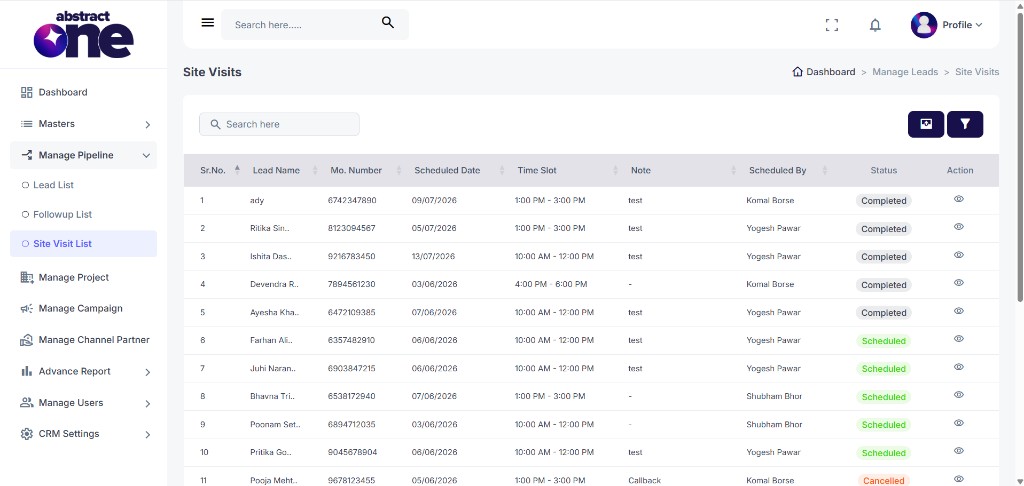
Site Visit Table Columns
The table displays the following columns:
| Column | Description |
|---|---|
| Sr.No. | Serial number of the site visit entry |
| Lead Name | Name of the lead associated with the site visit |
| Mo. Number | Mobile number of the lead |
| Scheduled Date | Date scheduled for the site visit |
| Time Slot | Time slot booked for the visit (e.g. 10:00 AM - 12:00 PM) |
| Note | Note or instructions added for the site visit |
| Scheduled By | User who scheduled the site visit |
| Status | Current status of the site visit (Scheduled, Completed, Cancelled) |
| Action | Eye icon to view the lead details page |
Status labels are color-coded:
| Status | Color | Description |
|---|---|---|
| Scheduled | Green | Site visit is scheduled and upcoming |
| Completed | Grey | Site visit has been completed |
| Cancelled | Red | Site visit was cancelled |
Search Site Visits
Use the search bar above the table to quickly find site visits by lead name, mobile number, or note.
Filter Site Visits
Click the Filter icon above the table to open the Filter Site Visits drawer.
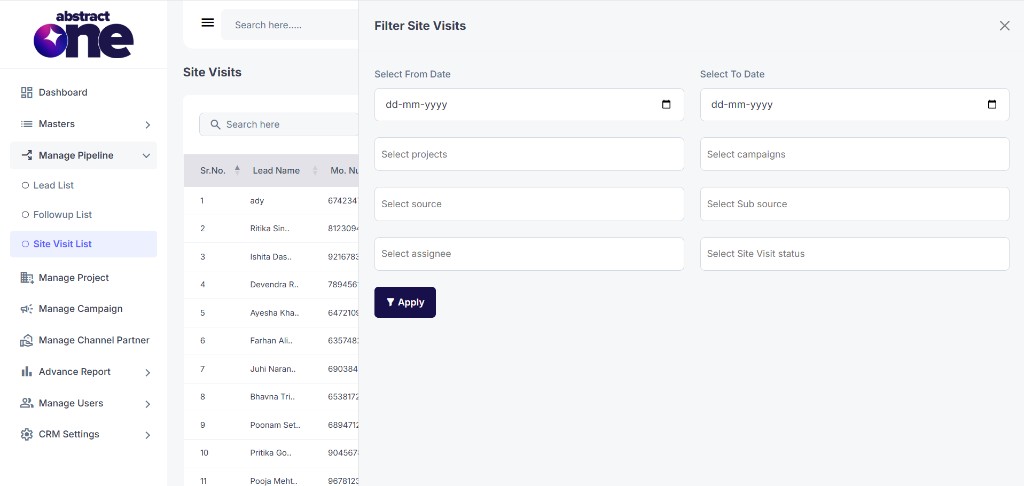
Available filter fields:
| Field | Description |
|---|---|
| Select From Date | Start date for the site visit date range |
| Select To Date | End date for the site visit date range |
| Select projects | Filter by one or more projects |
| Select campaigns | Filter by one or more campaigns |
| Select source | Filter by lead source |
| Select Sub source | Filter by sub source |
| Select assignee | Filter by assigned user |
| Select Site Visit status | Filter by site visit status (Scheduled, Completed, Cancelled) |
Click Apply to filter the list, or close the drawer to cancel.
Export Site Visits
Click the Export icon above the table to open the Lead Export drawer.
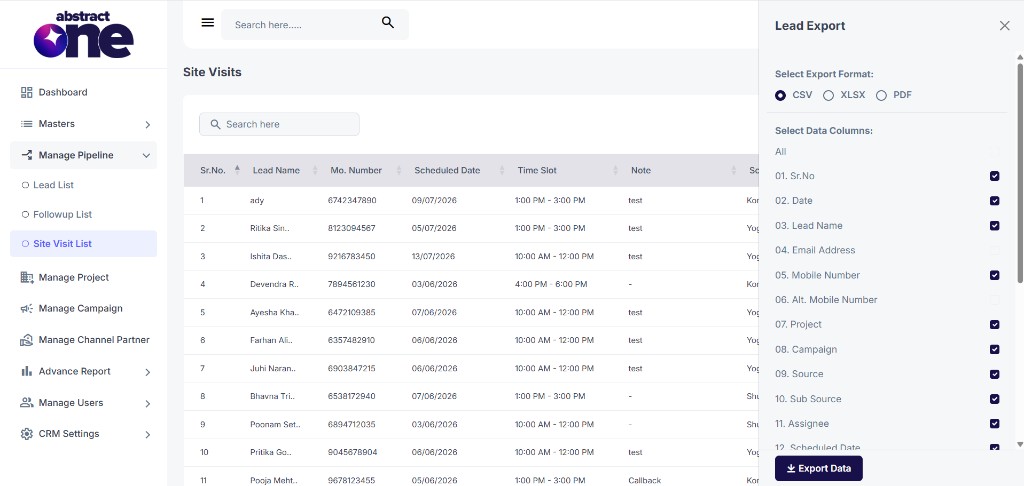
Select Export Format
Choose the file format: CSV, XLSX, or PDF.
Select Data Columns
Check or uncheck columns to include in the export. Use the All checkbox to select every column at once.
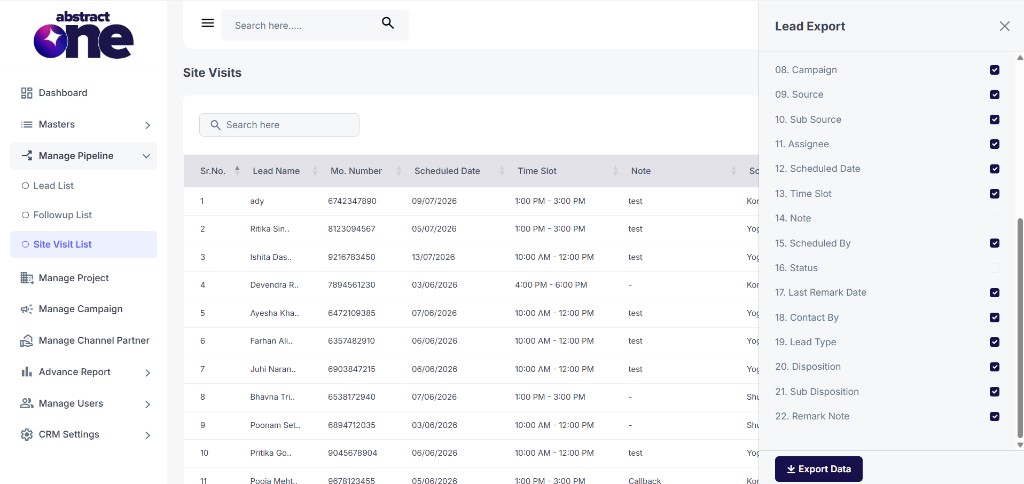
Available export columns:
| # | Column |
|---|---|
| 01 | Sr.No |
| 02 | Date |
| 03 | Lead Name |
| 04 | Email Address |
| 05 | Mobile Number |
| 06 | Alt. Mobile Number |
| 07 | Project |
| 08 | Campaign |
| 09 | Source |
| 10 | Sub Source |
| 11 | Assignee |
| 12 | Scheduled Date |
| 13 | Time Slot |
| 14 | Note |
| 15 | Scheduled By |
| 16 | Status |
| 17 | Last Remark Date |
| 18 | Contact By |
| 19 | Lead Type |
| 20 | Disposition |
| 21 | Sub Disposition |
| 22 | Remark Note |
Click Export Data to download the file.
View Lead Details
Click the eye icon in the Action column for any site visit. You are redirected to the Lead Details page for that lead.
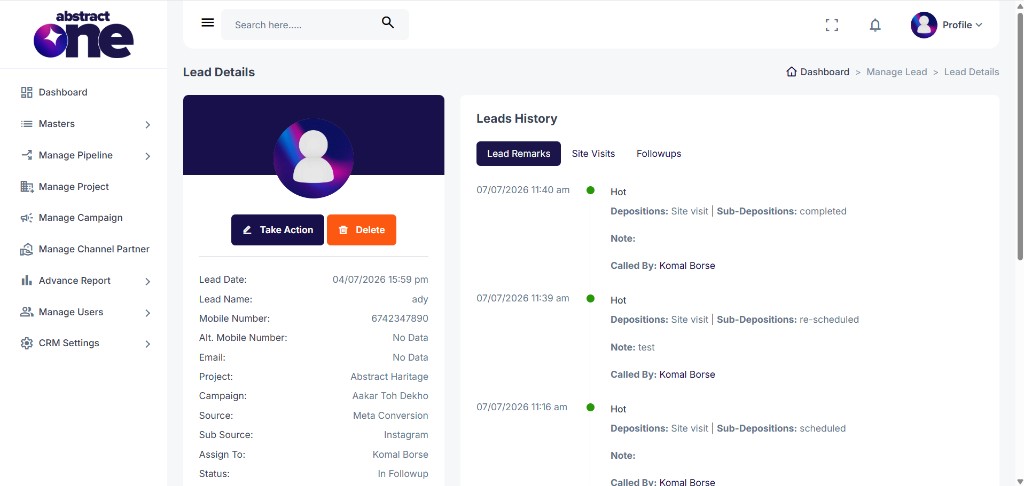
The Lead Details page shows the lead profile, quick actions (Take Action, Delete), and Leads History with tabs for Lead Remarks, Site Visits, and Followups. Use the Site Visits tab in Leads History to see all site visit activity for the lead.
Important Notes
- Site visits are created when a user schedules a site visit through the Lead Action drawer (Edit Leads) with a Site visit disposition.
- The Site Visit List shows site visits across all leads in the pipeline.
- Use filters to narrow down by status (Scheduled, Completed, Cancelled) for focused tracking.
- Export respects active filters, so apply filters before exporting for targeted data.
- Clicking the eye icon redirects to the Lead Details page for that lead.