

Lead List
The Lead List is the primary view for managing all leads in Abstract ONE. It displays every lead captured through various sources such as websites, meta ads, channel partners, and direct entry. From this page you can view, filter, export, add, upload, take action, and bulk-manage leads.
From the Lead List, you can:
- View all leads with key details at a glance
- Filter leads by status tabs (All Leads, Pending, Attempted, Closed)
- Search leads across the table
- Export leads to Excel
- Add a single lead or upload leads in bulk
- Perform bulk actions (Assign To, Delete Permanently)
- Take individual actions on each lead
Access Lead List
Go to:
Sidebar → Manage Pipeline → Lead List
The Lead List page opens by default showing All Leads.
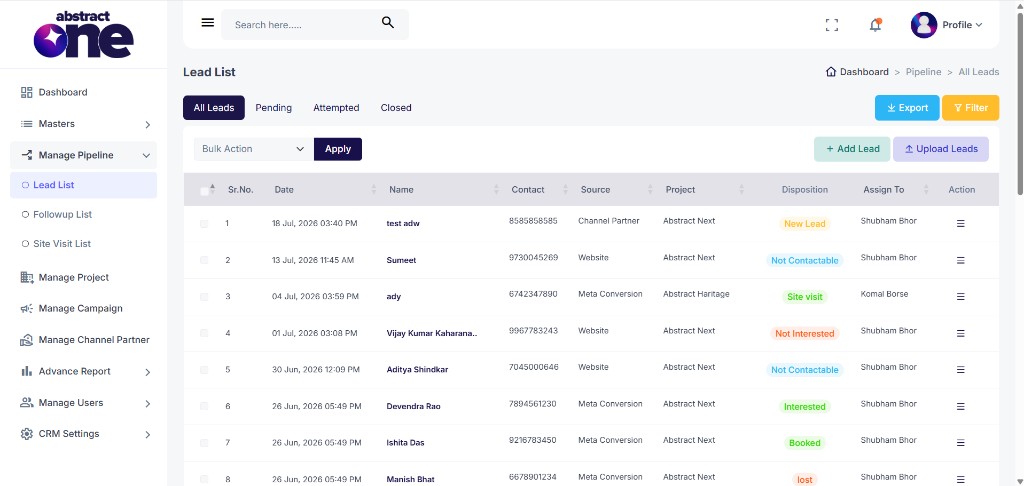
Lead Status Tabs
Use the tabs at the top to filter leads by their current stage:
| Tab | Description |
|---|---|
| All Leads | Shows every lead regardless of status |
| Pending | Leads that have not been attempted yet |
| Attempted | Leads that have been contacted at least once |
| Closed | Leads that are closed (Booked or Lost) |
Lead Table Columns
The table displays the following columns:
| Column | Description |
|---|---|
| Sr.No. | Serial number of the lead entry |
| Date | Date and time when the lead was created |
| Name | Name of the lead |
| Contact | Mobile number of the lead |
| Source | Lead source (e.g. Channel Partner, Website, Meta Conversion) |
| Project | Project assigned to the lead |
| Disposition | Latest disposition status (e.g. New Lead, Not Contactable, Site visit, Interested, Booked, Lost) |
| Assign To | User assigned to handle the lead |
| Action | Three-dot menu with quick actions for the lead |
Export Leads
Click Export (top right) to download the current lead data to an Excel file. The export respects any active tab or filter selection.
Filter Leads
Click Filter (top right) to open the filter options and narrow down leads by date, source, project, campaign, disposition, or assigned user.
Add a Lead
Click + Add Lead to manually create a new lead in the CRM.
Upload Leads
Click Upload Leads to bulk-import leads from an Excel or CSV file.
Bulk Actions
Select one or more leads using the checkboxes, then use the Bulk Action dropdown at the top left.
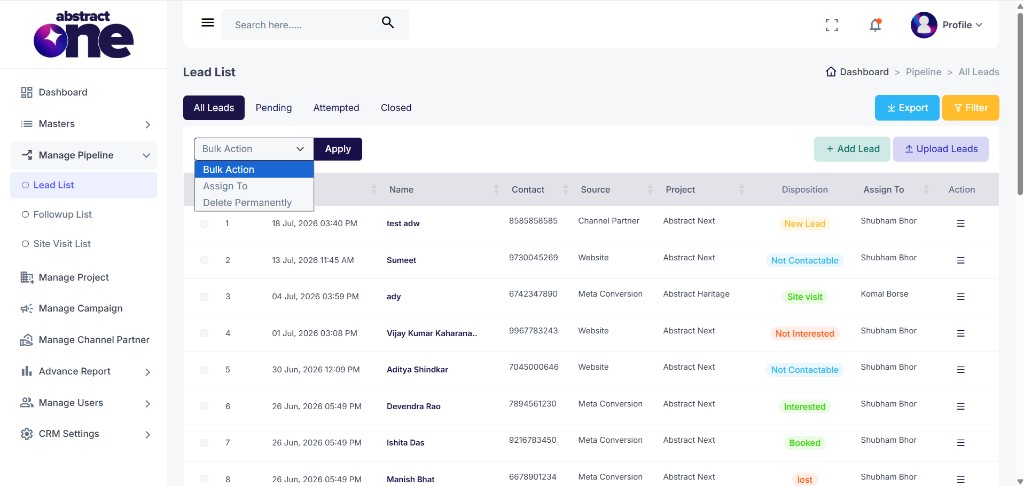
Available bulk actions:
| Action | Description |
|---|---|
| Assign To | Reassign selected leads to a different user |
| Delete Permanently | Permanently remove selected leads from the system |
Select the action from the dropdown and click Apply to execute.
Individual Lead Actions
Click the three-dot menu (☰) in the Action column for any lead to see the available quick actions.
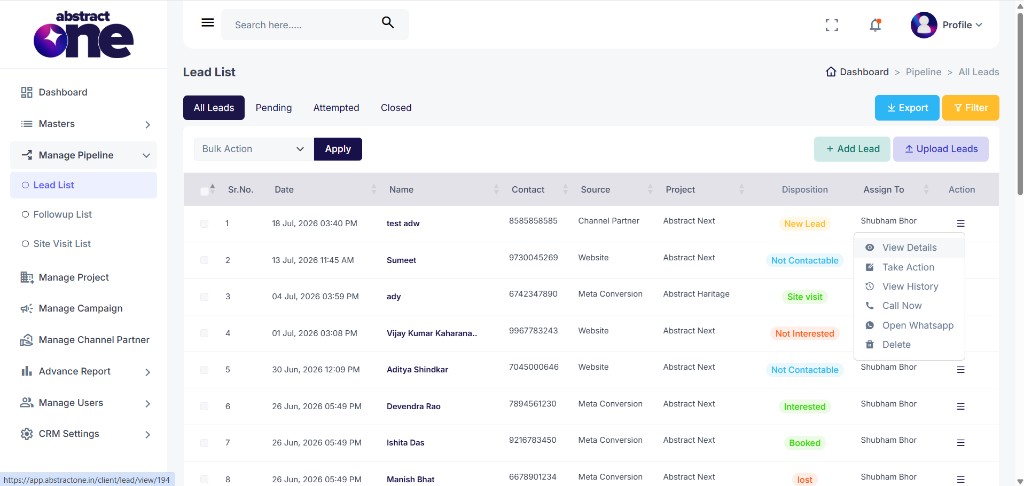
Available actions:
| Action | Description |
|---|---|
| View Details | Open the full lead details page |
| Take Action | Add a remark or update disposition for the lead |
| View History | See the complete activity and remark history for the lead |
| Call Now | Initiate a call to the lead directly |
| Open Whatsapp | Open WhatsApp chat with the lead’s contact number |
| Delete | Delete the lead from the system |
Important Notes
- The Lead List is the central hub for all CRM leads, accessible under Manage Pipeline.
- Use status tabs (Pending, Attempted, Closed) for quick stage-based filtering.
- Export respects the active tab and filters, so apply filters before exporting for targeted data.
- Bulk actions require selecting at least one lead using the checkbox.
- Disposition colors indicate lead status at a glance (e.g. green for New Lead, red for Not Interested, orange for Not Contactable).