

View Lead Details
The View Lead Details page provides a complete overview of a single lead, including contact information, project assignment, status, and a full history of remarks, site visits, and follow-ups. Access this page from the Lead List to review all data captured for a lead.
From View Lead Details, you can:
- View all lead contact and project information
- See the current status and total contact attempts
- Review lead history across remarks, site visits, and follow-ups
- Take action or delete the lead directly from the details page
Access View Lead Details
Go to:
Sidebar → Manage Pipeline → Lead List
On the Lead List page, click the action menu (☰) in the Action column for the lead you want to view, then select View Details.
The Lead Details page opens.
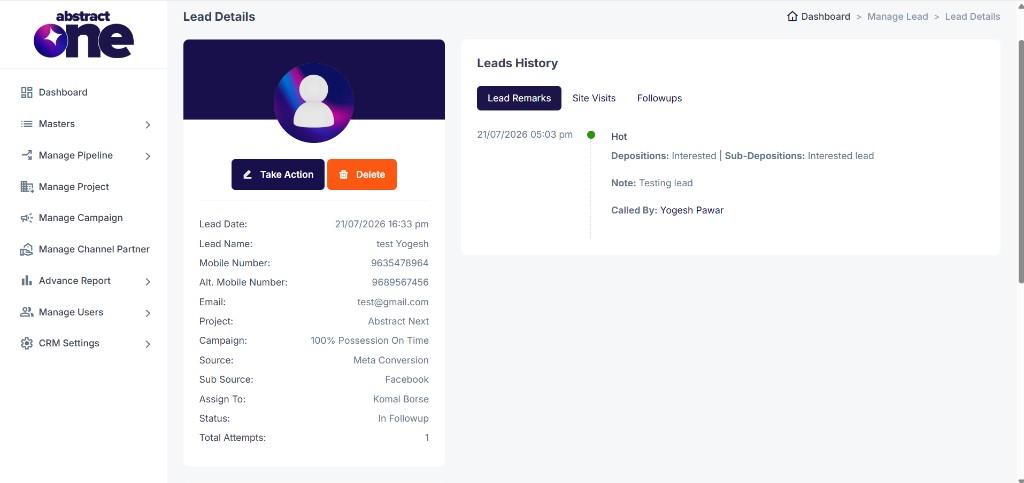
Lead Profile Card
The left card displays the lead’s profile and key information:
| Field | Description |
|---|---|
| Lead Date | Date and time when the lead was created |
| Lead Name | Name of the lead |
| Mobile Number | Primary contact number |
| Alt. Mobile Number | Alternate contact number |
| Email address of the lead | |
| Project | Project associated with the lead |
| Campaign | Campaign associated with the lead |
| Source | Lead source (e.g. Meta Conversion, Website) |
| Sub Source | Sub source of the lead (e.g. Facebook) |
| Assign To | User currently assigned to the lead |
| Status | Current lead status (e.g. In Followup, New Lead) |
| Total Attempts | Number of contact attempts made on the lead |
Quick Actions
Two action buttons are available below the profile header:
| Button | Description |
|---|---|
| Take Action | Opens the Lead Action drawer to update details, add remarks, or schedule follow-ups |
| Delete | Permanently removes the lead from the system |
Note, Lead Tag & Additional Information
Below the profile card, additional lead data is displayed in separate sections:
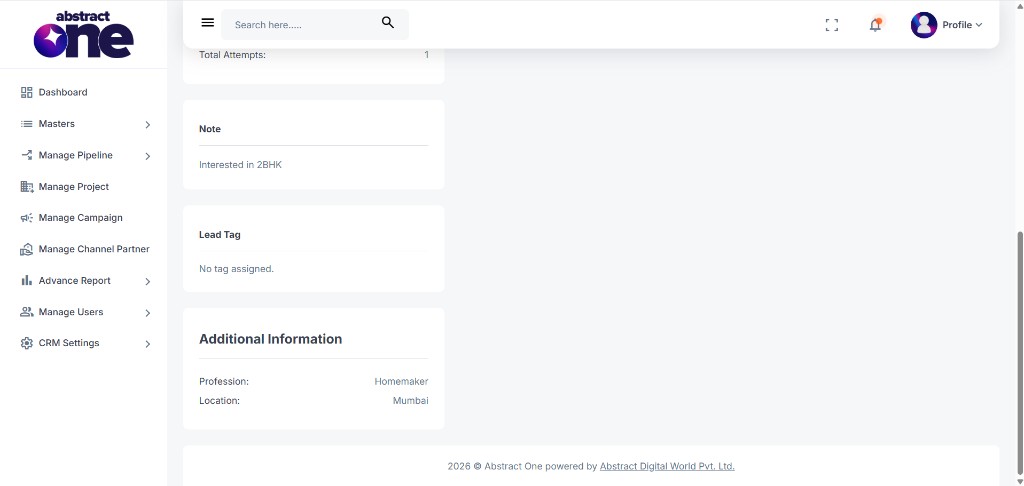
| Section | Description |
|---|---|
| Note | General notes added to the lead (e.g. Interested in 2BHK) |
| Lead Tag | Tags assigned to the lead. Shows “No tag assigned” if none are set. |
| Additional Information | Extra details such as Profession and Location |
Leads History
The right card shows the complete activity history for the lead, organized into three tabs:
| Tab | Description |
|---|---|
| Lead Remarks | All remarks added to the lead, including disposition, sub disposition, lead type, note, and the user who made the call |
| Site Visits | Site visit bookings and status for the lead |
| Followups | Scheduled and completed follow-ups for the lead |
Each history entry in the Lead Remarks tab displays:
- Date and time of the remark
- Lead type indicator (e.g. Hot, Warm, Cold)
- Disposition and Sub Disposition
- Remark note
- Called By — the user who made the contact
Important Notes
- The Lead Details page is read-only except for the Take Action and Delete buttons.
- Use Take Action to update lead details, add remarks, or schedule follow-ups without leaving the page.
- History tabs provide a chronological view of all interactions with the lead.
- Total Attempts reflects the number of times the lead has been contacted.
- Lead Tags show assigned tags or “No tag assigned” if none are set.