

Customize Project Location
Project Location in Abstract ONE allows superadmins to manage locations for real estate projects — such as Navi Mumbai, Kalyan, or New Panvel. These values are selected while creating or editing a project.
From the Location List, superadmins can:
- Add new locations
- Edit existing locations
- Delete locations
Only locations marked as Active appear in the project form.
Access Location List
Go to:
Sidebar → Masters → Location
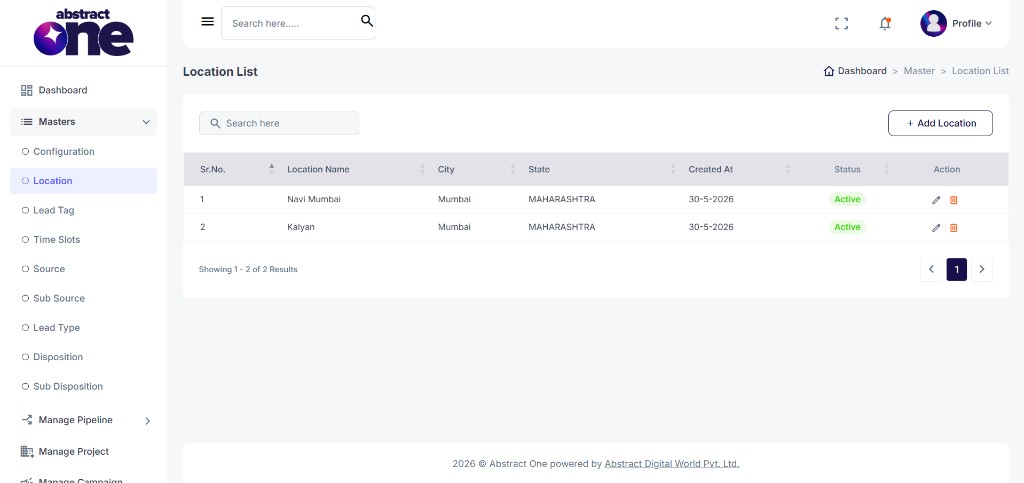
Case 1: Add a New Location
To add a new location:
Step 1 — Open Add Location
Click + Add Location on the top right. The Add Location drawer opens.
Step 2 — Fill and Save
Enter Name, State, and City, select Status, then click + Save.
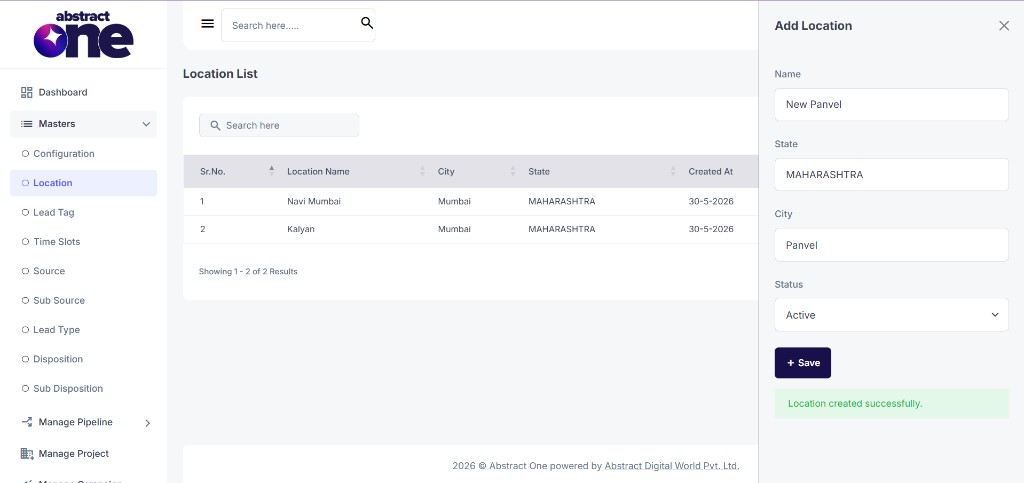
On success, the system displays:
Location created successfully.
Case 2: Edit a Location
To update an existing location:
Step 1 — Open Edit
Click the Edit (pencil) icon in the Action column. The Edit Location drawer opens with pre-filled values.
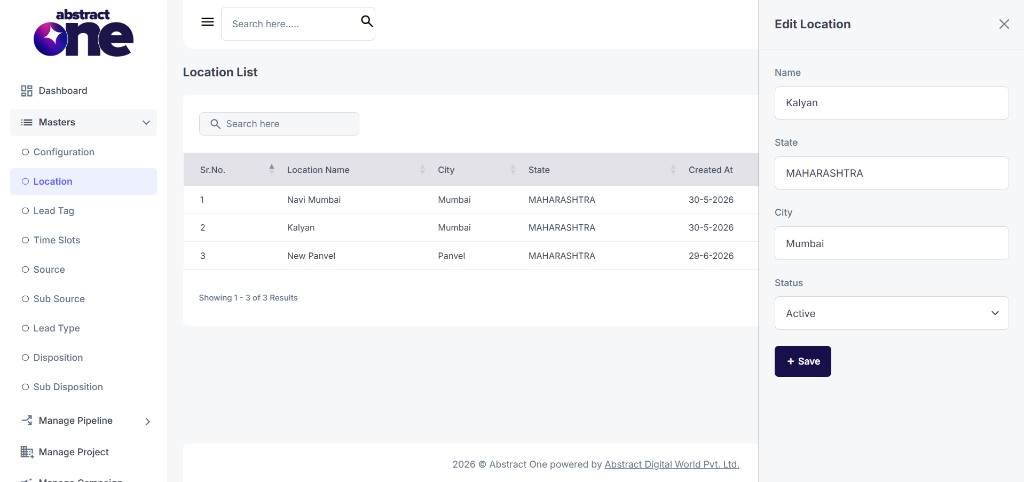
Step 2 — Update and Save
Update the location details and click + Save.
Case 3: Delete a Location
To remove a location from the system:
Step 1 — Click Delete
Click the Delete (trash) icon in the Action column.
Step 2 — Confirm Deletion
Click YES on the confirmation dialog.
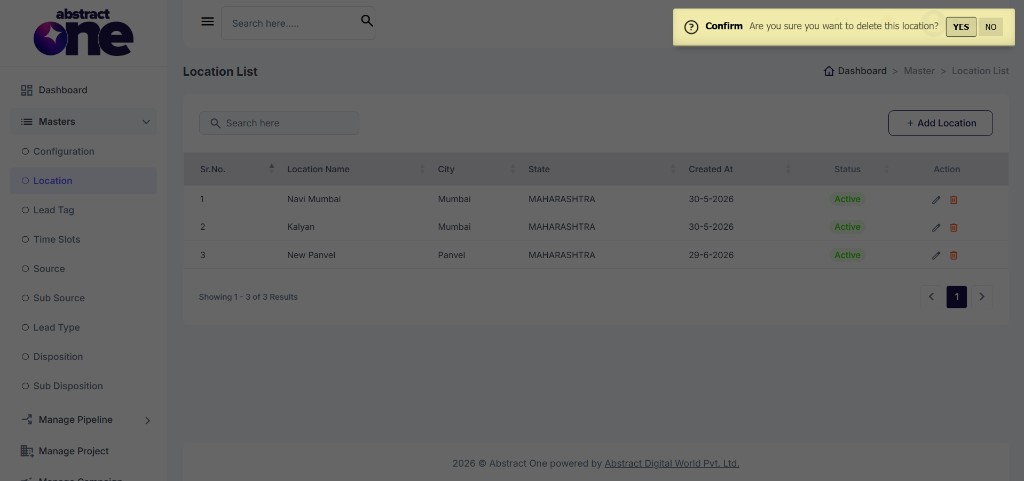
The location is removed from the list and from any project where it was assigned.
Where Location Values Appear
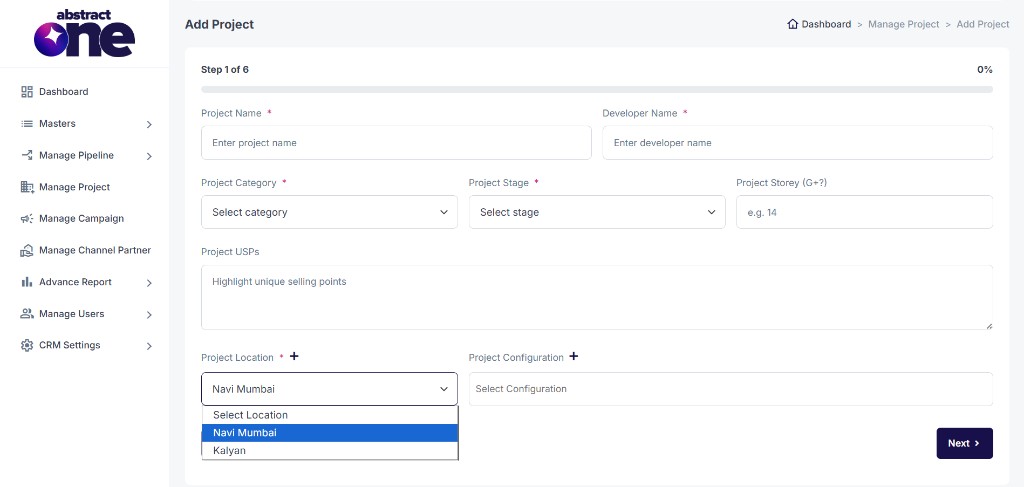
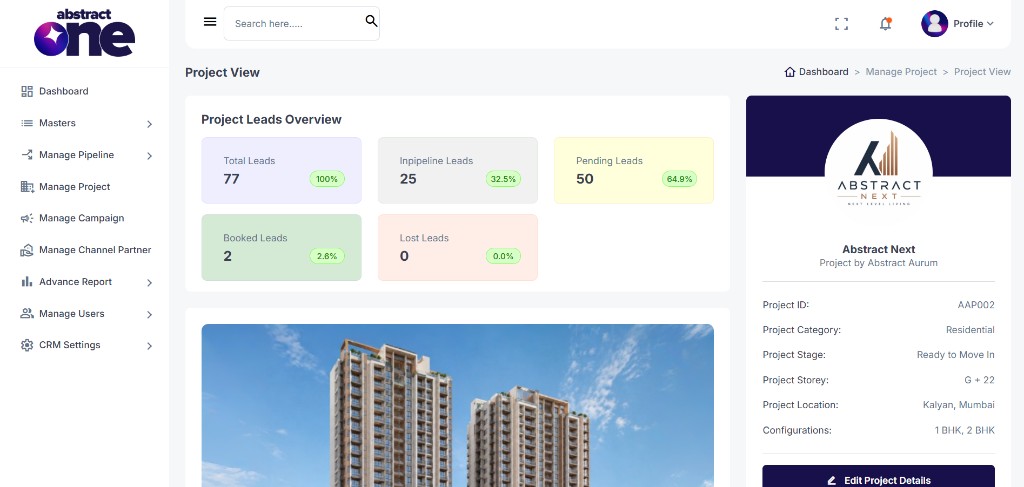
Locations from this list appear in the Project Location field while adding or editing a project, and on the Project View page under Project Location.
Important Notes
- Only Active locations appear in project forms.
- Deleting a location removes it from all assigned projects.
- Create required locations under Masters → Location before adding new projects.