

My Profile
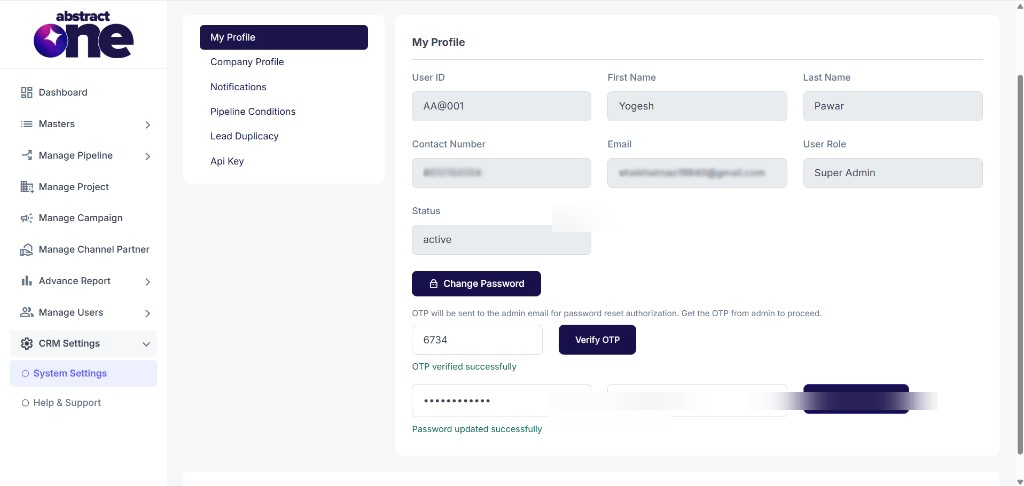
The My Profile page in Abstract ONE allows users to view their account details and securely change their password using OTP verification. This page is available under System Settings in CRM Settings.
From My Profile, you can:
- View your User ID, name, contact details, role, and status
- Initiate password change using OTP authorization
- Verify OTP and set a new password
Access My Profile
Go to:
Sidebar → CRM Settings → System Settings → My Profile
The My Profile page opens by default under System Settings.
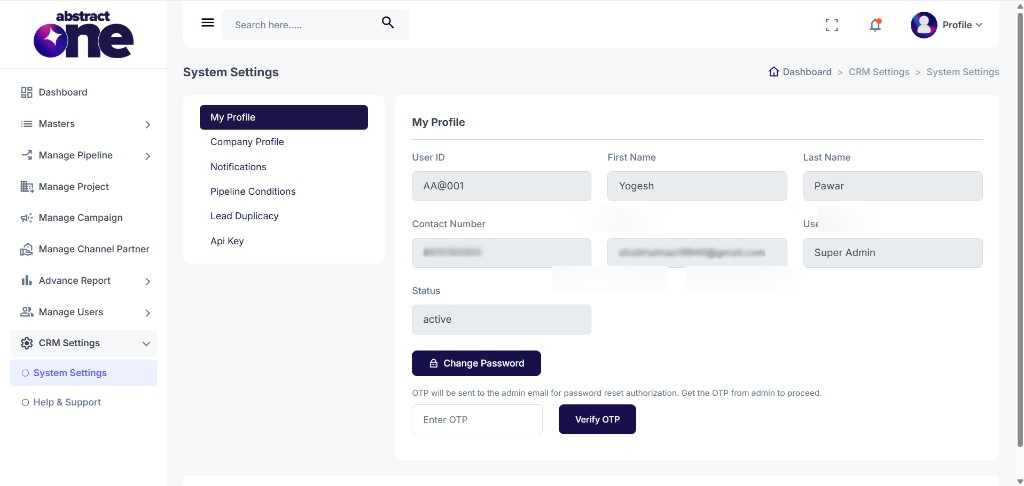
System Settings Menu
Under System Settings, the following options are available:
- My Profile
- Company Profile
- Notifications
- Pipeline Conditions
- Lead Duplicacy
- Api Key
My Profile Details
The profile section displays your account information in read-only fields:
| Field | Description |
|---|---|
| User ID | Unique login ID assigned to the user |
| First Name | User’s first name |
| Last Name | User’s last name |
| Contact Number | Registered mobile number |
| Registered email address | |
| User Role | Assigned CRM role (e.g. Super Admin, Pre Sales) |
| Status | Current account status (e.g. active) |
Change Password
To update your password, click Change Password at the bottom of the My Profile page.
An OTP is sent to the admin email for password reset authorization. Contact your admin to receive the OTP before proceeding.
Step 1 — Enter and Verify OTP
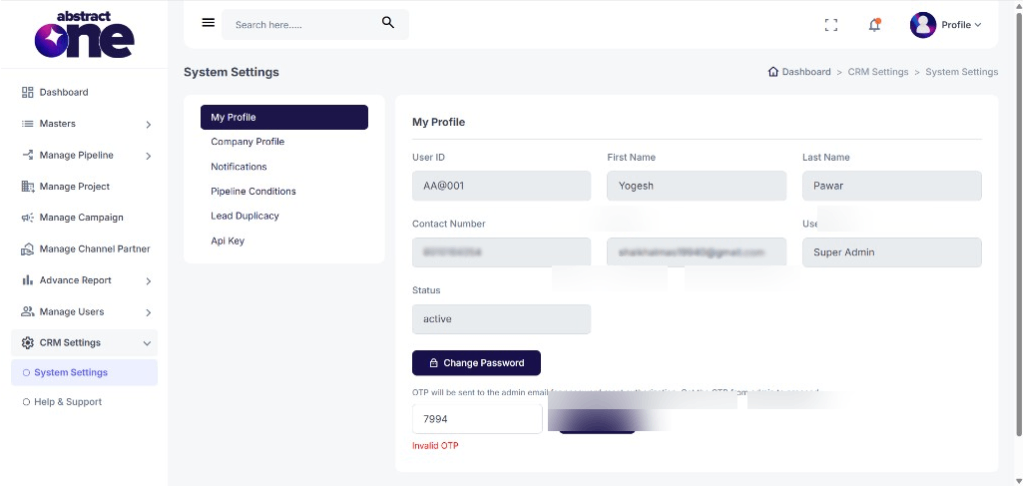
Enter the OTP received from the admin and click Verify OTP.
If the OTP is incorrect, the system displays:
Invalid OTP
On successful verification, the system displays:
OTP verified successfully
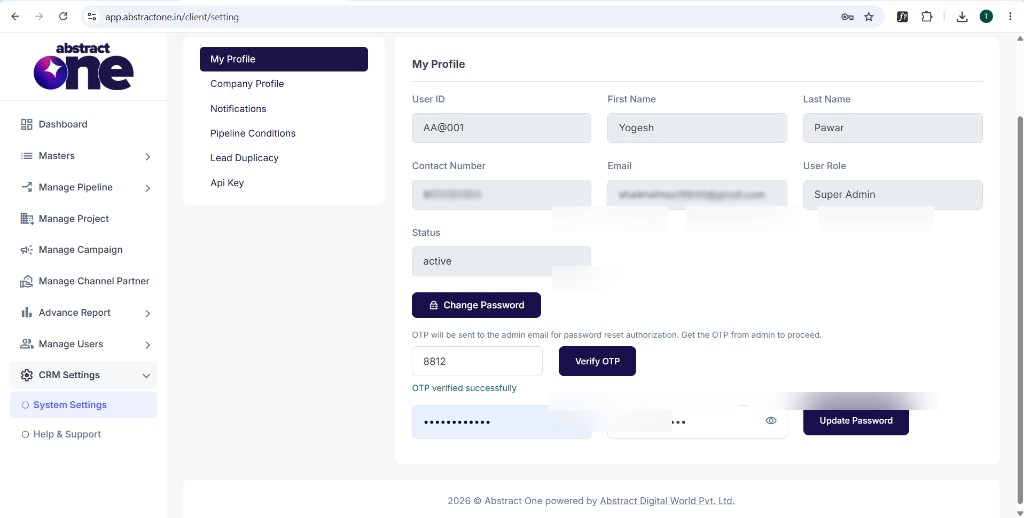
Step 2 — Set New Password
After OTP verification, enter your new password in both fields:
- New Password
- Confirm Password
Use the eye icon to show or hide the password while typing.
If the passwords do not match, the system displays:
Passwords do not match
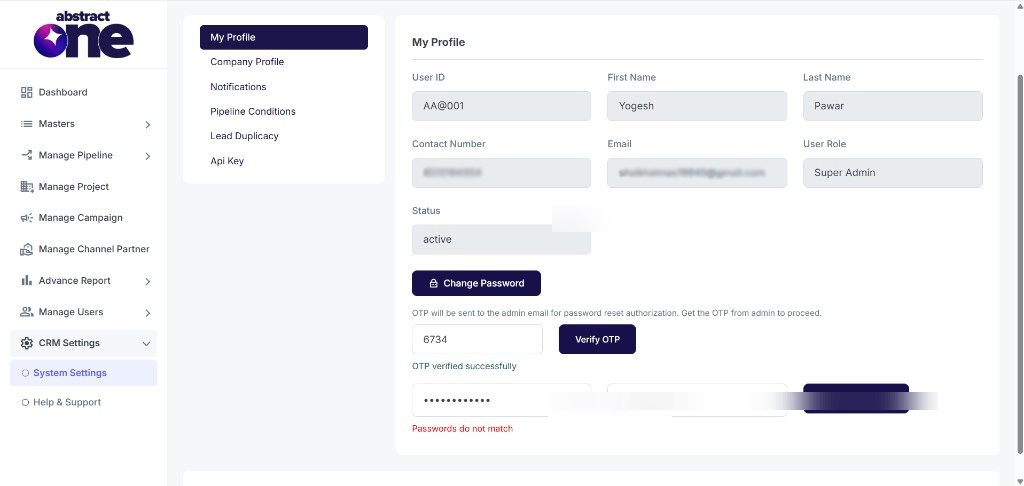
When both passwords match, click Update Password. On success, the system displays:
Password updated successfully
Important Notes
- My Profile details are view-only and cannot be edited from this page.
- Password change requires OTP authorization sent to the admin email.
- Contact your admin to receive the OTP before resetting your password.
- New Password and Confirm Password must match exactly.
- After a successful password update, use the new password for your next login.