

Pipeline Conditions
The Pipeline Conditions page in Abstract ONE allows you to create lead assignment rules based on project and campaign criteria. When a new lead matches a condition, the system automatically assigns it to the selected user(s).
From Pipeline Conditions, you can:
- View all lead assignment conditions
- Add a new condition
- Edit an existing condition
- Enable or disable a condition using the status toggle
- Delete a condition
Access Pipeline Conditions
Go to:
Sidebar → CRM Settings → System Settings → Pipeline Conditions
The Pipeline Conditions page opens under Lead Assignment.
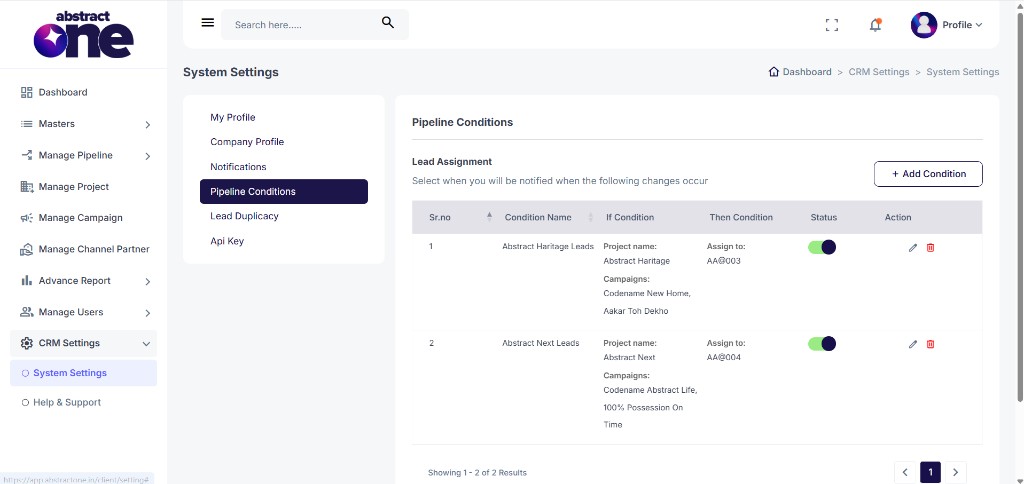
System Settings Menu
Under System Settings, the following options are available:
- My Profile
- Company Profile
- Notifications
- Pipeline Conditions
- Lead Duplicacy
- Api Key
Pipeline Conditions List Overview
The Lead Assignment table displays the following columns:
| Column | Description |
|---|---|
| Sr.no | Serial number of the condition |
| Condition Name | Name of the lead assignment rule |
| If Condition | Matching criteria based on Project and Campaigns |
| Then Condition | Assignment action (users the lead is assigned to) |
| Status | Toggle to activate or deactivate the condition |
| Action | Edit (pencil) and Delete (trash) options |
Add a Pipeline Condition
Click + Add Condition on the top right. The Create Condition drawer opens on the right side.
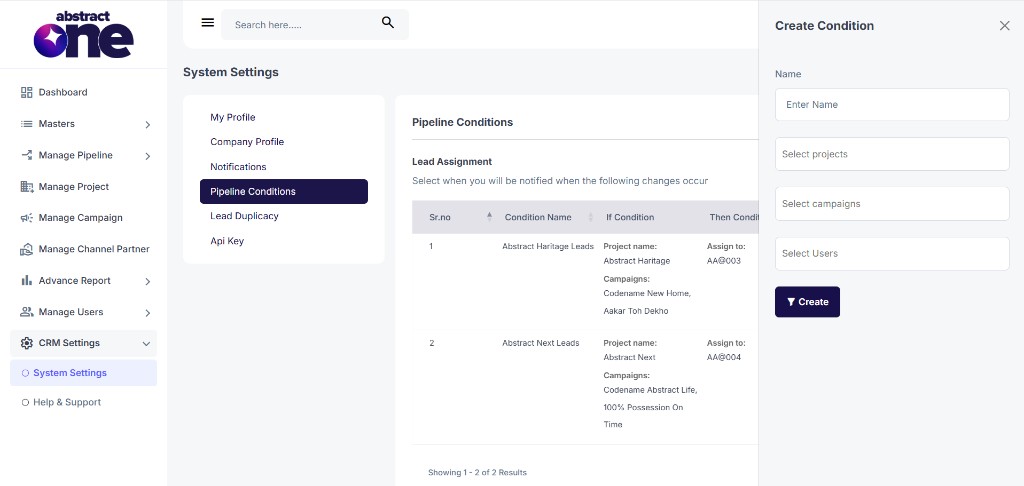
Step 1 — Fill Condition Details
Enter the required details in the Create Condition drawer:
| Field | Description |
|---|---|
| Name | Enter a clear name for the condition (e.g. Abstract Heritage Leads) |
| Select projects | Choose one or more projects that should trigger this rule |
| Select campaigns | Choose one or more campaigns under the selected projects |
| Select Users | Choose one or more users who should receive matching leads |
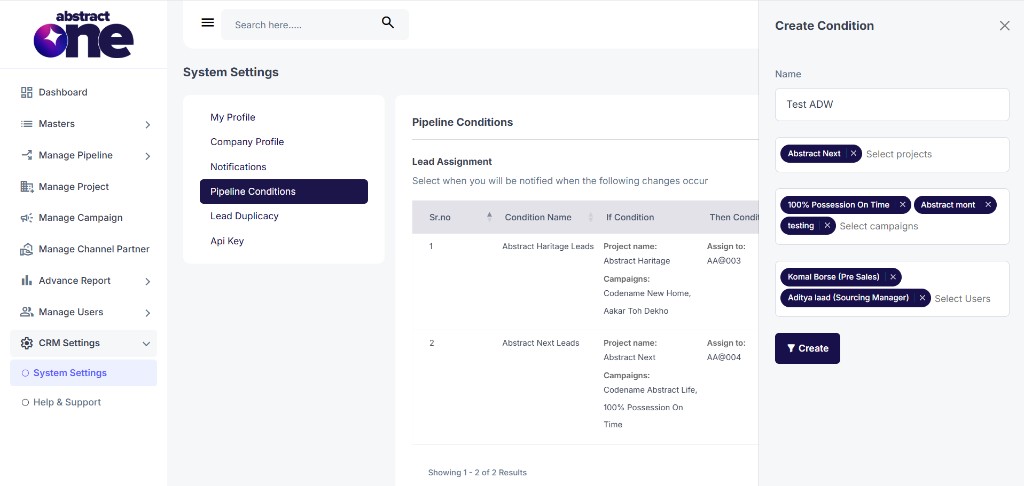
Step 2 — Create Condition
Click Create to save the rule.
On success, the system displays:
Round Robin Rule created successfully
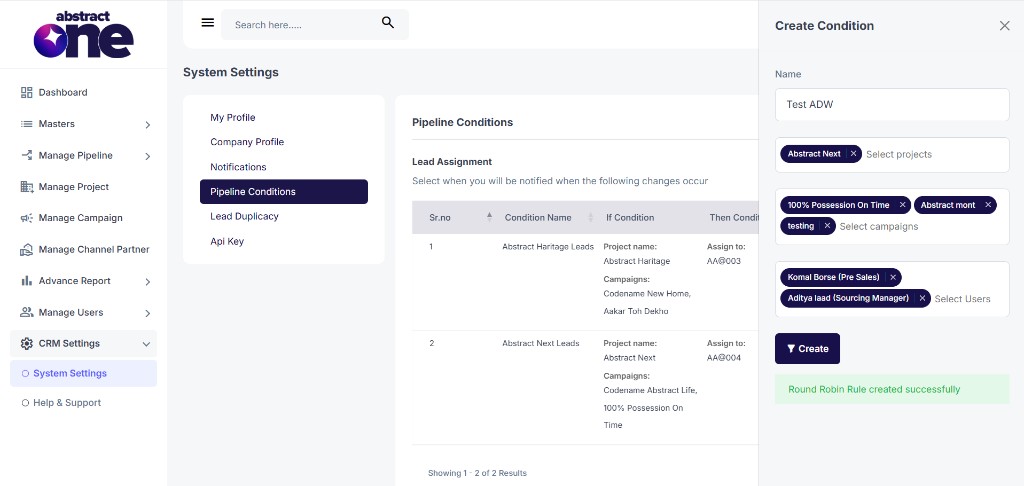
The new condition appears in the Pipeline Conditions list with the selected If and Then criteria.
Edit a Pipeline Condition
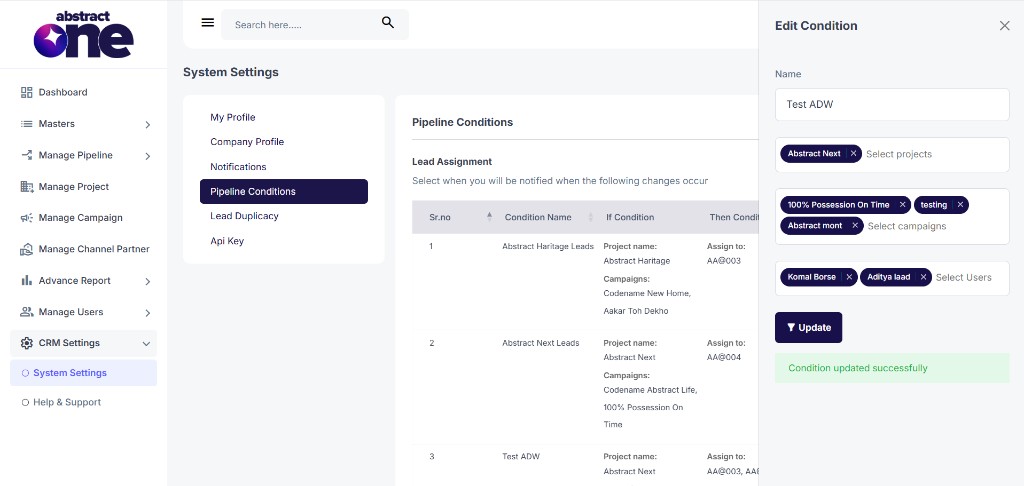
Click the Edit (pencil) icon in the Action column. The Edit Condition drawer opens with pre-filled values.
Update the Name, Projects, Campaigns, or Users as needed, then click Update.
On success, the system displays:
Condition updated successfully
Enable or Disable a Condition
Use the Status toggle in the list to activate or deactivate a condition.
- ON (green) — the condition is active and will assign matching leads
- OFF — the condition is inactive and will not assign leads
Delete a Pipeline Condition
Click the Delete (trash) icon in the Action column to remove a condition from the list.
Important Notes
- Pipeline Conditions are used for automatic lead assignment based on Project and Campaign matching.
- You can assign a lead to one or more users under the Then Condition.
- Only active conditions are applied when new leads are received.
- Use clear condition names so your team can identify assignment rules quickly.
- After creating or updating a condition, verify the If and Then values in the list before relying on the rule.