

Filter Leads
The Filter Leads feature allows you to narrow down the Lead List by applying multiple criteria at once. You can filter by date range, project, campaign, source, disposition, lead type, tags, assignee, and custom values such as UTM parameters or Meta ad details.
From Filter Leads, you can:
- Filter leads by date range
- Filter by project, campaign, source, and sub source
- Filter by disposition and sub disposition
- Filter by lead type, lead tag, and assignee
- Search leads based on Recent or Over All activity
- Filter by custom values such as location, UTM fields, Meta campaign, GCLID, and more
Access Filter Leads
Go to:
Sidebar → Manage Pipeline → Lead List
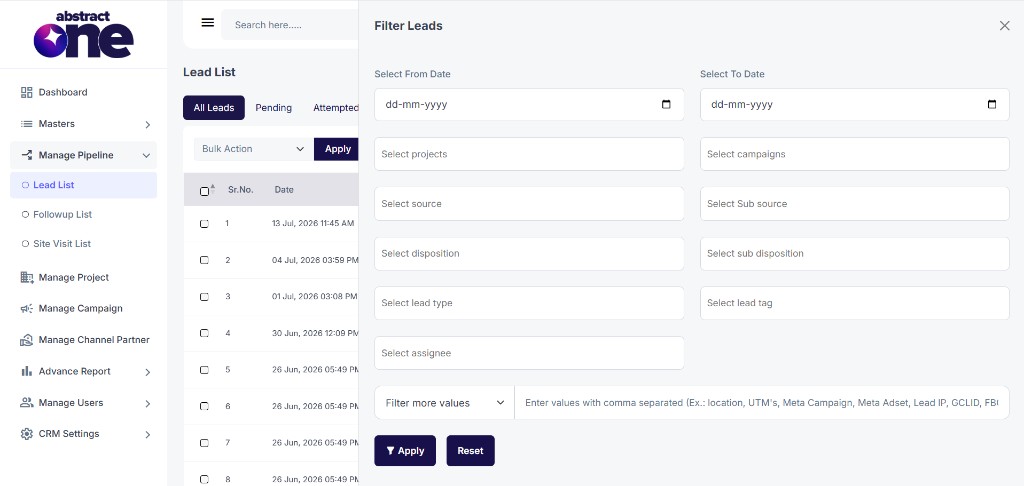
On the Lead List page, click the Filter button at the top right. The Filter Leads drawer opens on the right side of the screen.
Filter Fields
The drawer provides the following filter options:
| Field | Description |
|---|---|
| Select From Date | Start date for the lead date range filter |
| Select To Date | End date for the lead date range filter |
| Select projects | Filter leads by one or more projects |
| Select campaigns | Filter leads by one or more campaigns |
| Select source | Filter leads by source (e.g. Website, Meta Conversion, Channel Partner) |
| Select Sub source | Filter leads by sub source (e.g. Facebook, Google) |
| Select disposition | Filter leads by disposition status (e.g. New Lead, Interested, Booked) |
| Select sub disposition | Filter leads by sub disposition (e.g. Interested lead) |
| Select lead type | Filter leads by lead type (e.g. Cold, Warm, Hot) |
| Select lead tag | Filter leads by assigned tags (e.g. High Lead) |
| Select assignee | Filter leads assigned to a specific user |
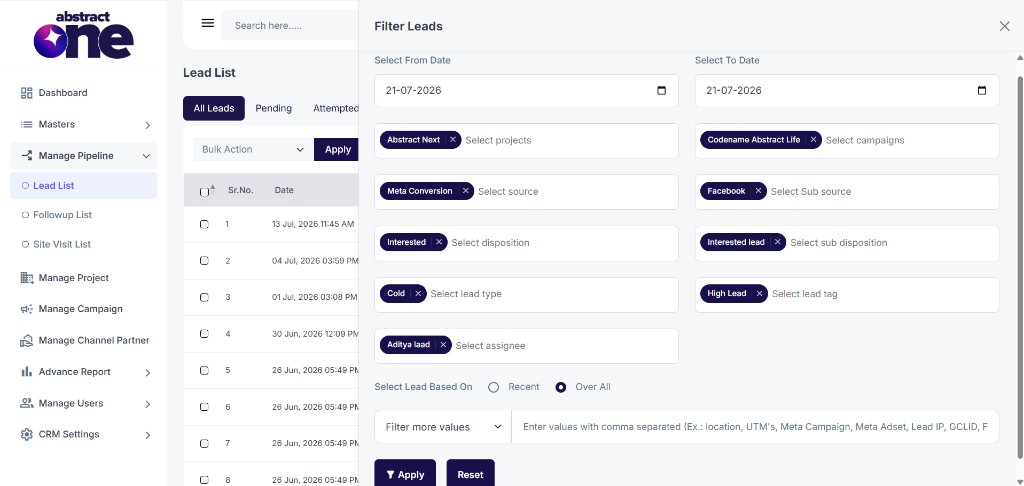
Most fields support multi-select. Selected values appear as tags inside the field and can be removed individually.
Select Lead Based On
Use the radio buttons at the bottom to choose how leads are filtered by date:
| Option | Description |
|---|---|
| Recent | Filters leads based on their most recent activity within the selected date range |
| Over All | Filters leads based on their overall creation or activity within the selected date range |
Filter More Values
Use the Filter more values dropdown to filter leads by additional metadata fields. Select a field from the dropdown, then enter comma-separated values in the text field below.
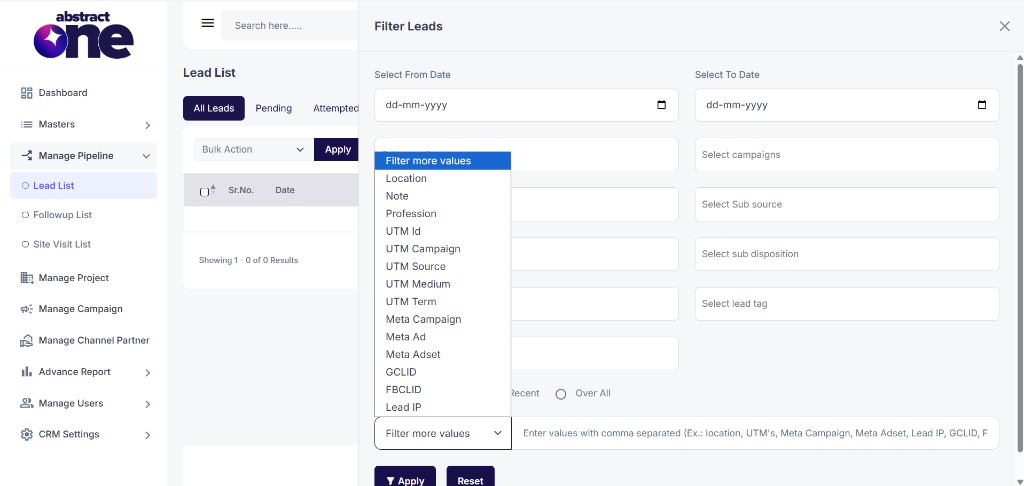
Available custom filter fields:
| Field | Description |
|---|---|
| Location | Filter by lead location |
| Note | Filter by note content |
| Profession | Filter by lead profession |
| UTM Id | Filter by UTM identifier |
| UTM Campaign | Filter by UTM campaign name |
| UTM Source | Filter by UTM source |
| UTM Medium | Filter by UTM medium |
| UTM Term | Filter by UTM term |
| Meta Campaign | Filter by Meta campaign name |
| Meta Ad | Filter by Meta ad name |
| Meta Adset | Filter by Meta adset name |
| GCLID | Filter by Google Click Identifier |
| FBCLID | Filter by Facebook Click Identifier |
| Lead IP | Filter by lead IP address |
Enter values as comma-separated text. For example: location, UTM’s, Meta Campaign, Meta Adset, Lead IP, GCLID, FBCLID.
Apply and Reset
After setting your filter criteria:
- Click Apply to filter the Lead List based on your selections. The table updates to show only matching leads.
- Click Reset to clear all filter fields and return to the unfiltered Lead List.
Important Notes
- Filters work in combination — all selected criteria are applied together to narrow down results.
- Active filters affect the Lead List table, export, and bulk actions on the current view.
- Use Reset to quickly clear all filters and view all leads again.
- The Recent and Over All options change how the date range filter is applied.
- Custom value filters support comma-separated entries for matching multiple values at once.