

Add Lead
The Add Lead feature allows you to manually create a new lead in Abstract ONE. Use this when a lead comes in through a phone call, walk-in, referral, or any channel that is not automatically captured by the system.
From Add Lead, you can:
- Enter lead contact and personal details
- Assign a project, campaign, source, and sub source
- Add lead tags for categorization
- Optionally include UTM and tracking fields
- Submit the lead directly into the pipeline
Access Add Lead
Go to:
Sidebar → Manage Pipeline → Lead List
On the Lead List page, click the + Add Lead button at the top right.
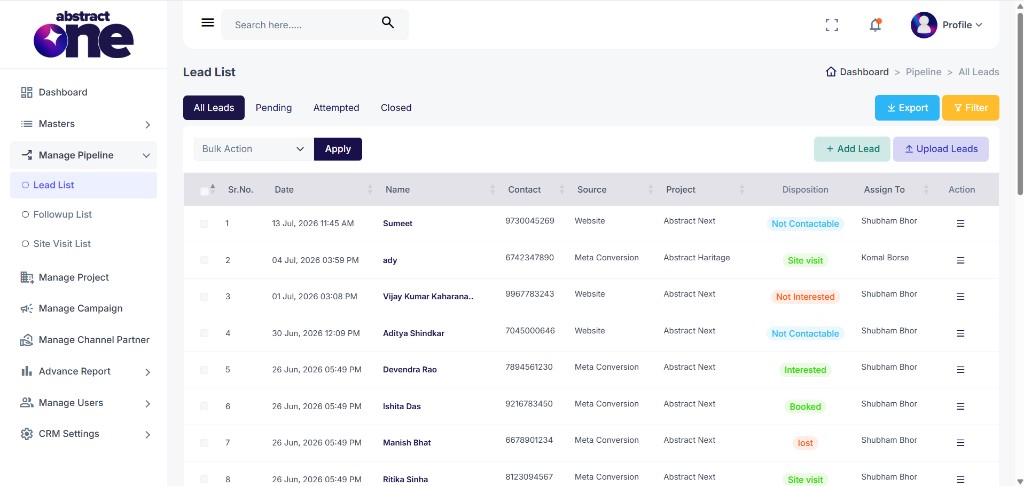
The Add Leads form opens.
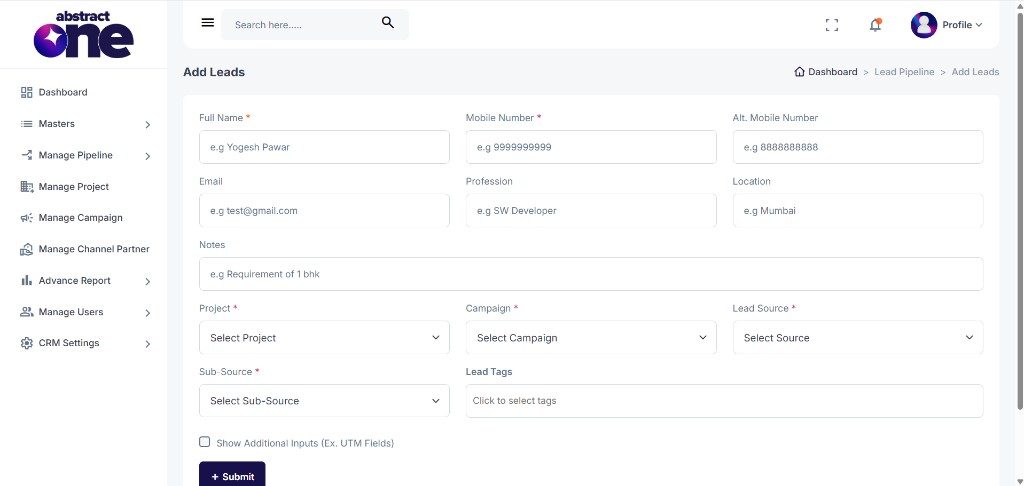
Fill Lead Details
Complete the form fields as described below. Fields marked with a red asterisk (*) are mandatory.
| Field | Required | Description |
|---|---|---|
| Full Name | Yes | Name of the lead (e.g. Yogesh Pawar) |
| Mobile Number | Yes | Primary contact number (e.g. 9999999999) |
| Alt. Mobile Number | No | Alternate contact number |
| No | Email address of the lead | |
| Profession | No | Profession of the lead (e.g. SW Developer) |
| Location | No | Location of the lead (e.g. Mumbai) |
| Notes | No | Additional notes or requirements (e.g. Requirement of 1 bhk) |
| Project | Yes | Select the project the lead is interested in |
| Campaign | Yes | Select the campaign associated with the lead |
| Lead Source | Yes | Select the source of the lead (e.g. Website, Meta Conversion) |
| Sub-Source | Yes | Select the sub source (e.g. Google-search, Facebook) |
| Lead Tags | No | Select one or more tags to categorize the lead |
Required Field Validation
If you click Submit without filling mandatory fields, validation messages appear below the respective fields.
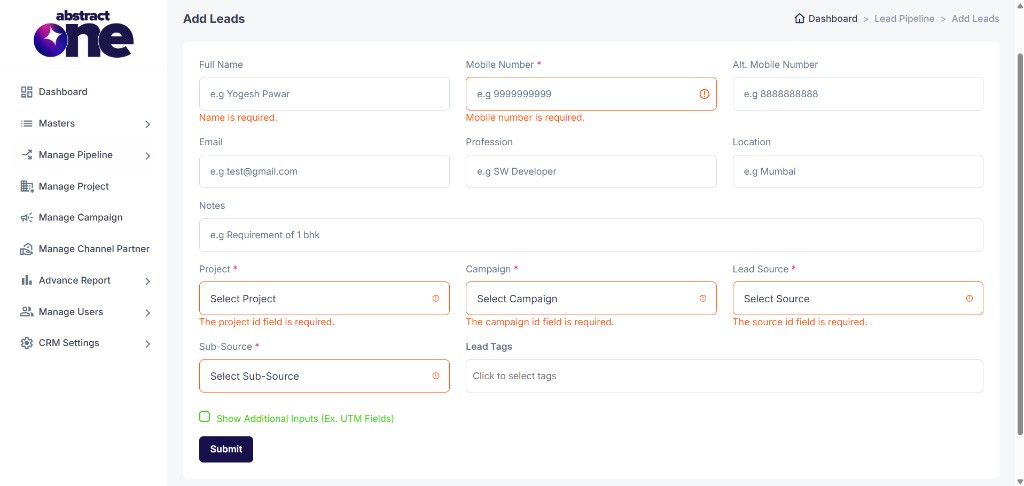
Common validation messages:
- Name is required.
- Mobile number is required.
- The project id field is required.
- The campaign id field is required.
- The source id field is required.
Additional Inputs (UTM Fields)
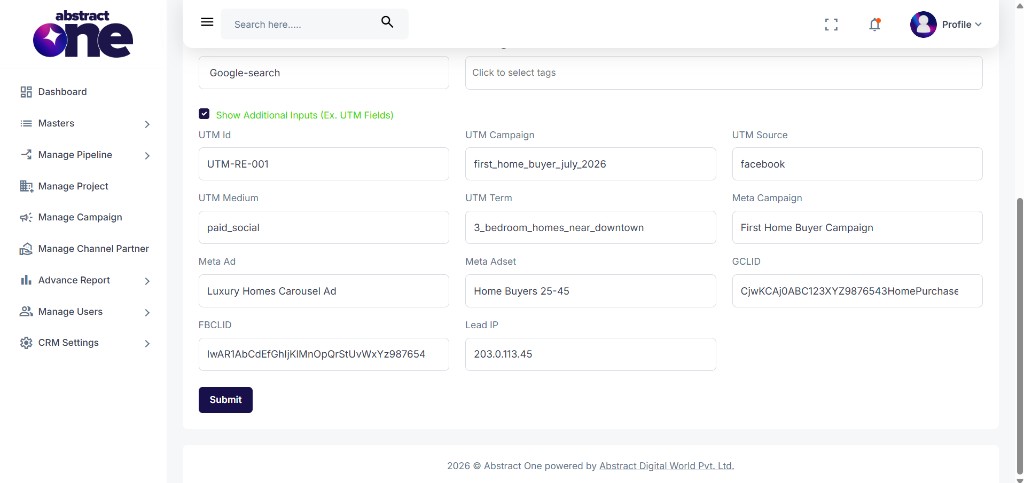
Check the Show Additional Inputs (Ex. UTM Fields) checkbox to reveal optional tracking and marketing fields.
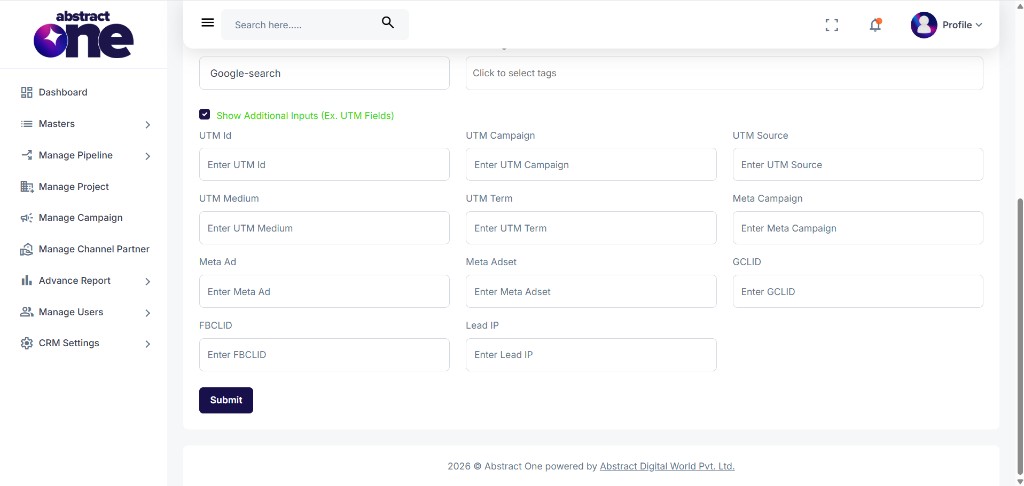
Available additional fields:
| Field | Description |
|---|---|
| UTM Id | Unique UTM identifier for the lead |
| UTM Campaign | UTM campaign name |
| UTM Source | UTM source (e.g. facebook) |
| UTM Medium | UTM medium (e.g. paid_social) |
| UTM Term | UTM term or keyword |
| Meta Campaign | Meta campaign name |
| Meta Ad | Meta ad name |
| Meta Adset | Meta adset name |
| GCLID | Google Click Identifier |
| FBCLID | Facebook Click Identifier |
| Lead IP | IP address of the lead |
Submit the Lead
After filling in all required fields, click the Submit button at the bottom of the form.
On success, a confirmation message appears:
“Created: The lead has been added to the pipeline!”
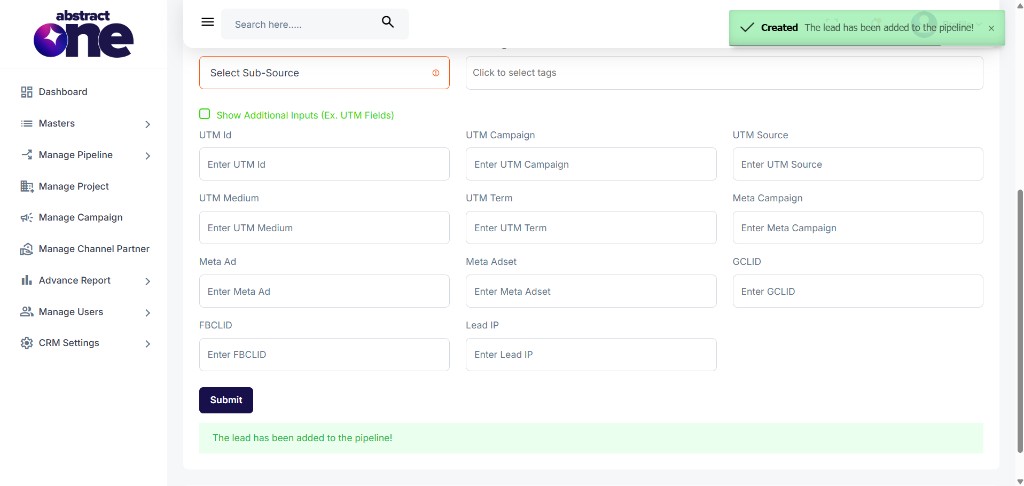
The new lead is added to the Lead List and appears in the pipeline for follow-up.
Important Notes
- Full Name, Mobile Number, Project, Campaign, Lead Source, and Sub-Source are mandatory fields.
- Campaign options depend on the selected project.
- Sub-Source options depend on the selected Lead Source.
- UTM and tracking fields are optional and can be enabled using the Show Additional Inputs checkbox.
- Once submitted, the lead appears in the Lead List under the appropriate status tab.