

Edit Channel Partner
The Edit Channel Partner flow allows you to update an existing channel partner’s details in Abstract ONE. When you open the edit drawer, all previously saved data is auto-fetched and pre-filled in the form fields.
You can update CP name, contact number, email address, location, team size, RERA status, sourcing manager, and status.
Access Edit Channel Partner
Go to:
Sidebar → Manage Channel Partner
On the Channel Partner List page, click the Edit (pencil) icon in the Action column for the channel partner you want to update.
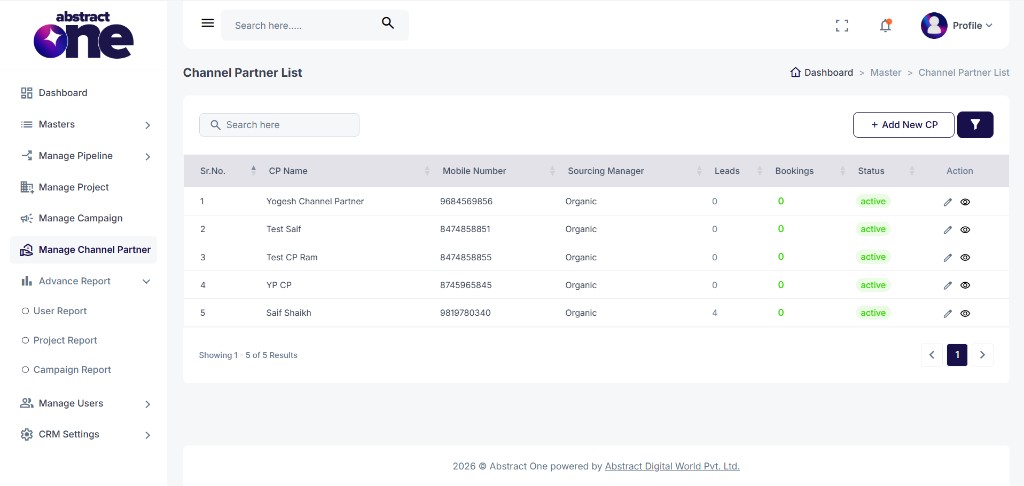
Step 1 — Open Edit Channel Partner
Click the Edit (pencil) icon. The Edit Channel Partner drawer opens on the right side with all existing details pre-filled.
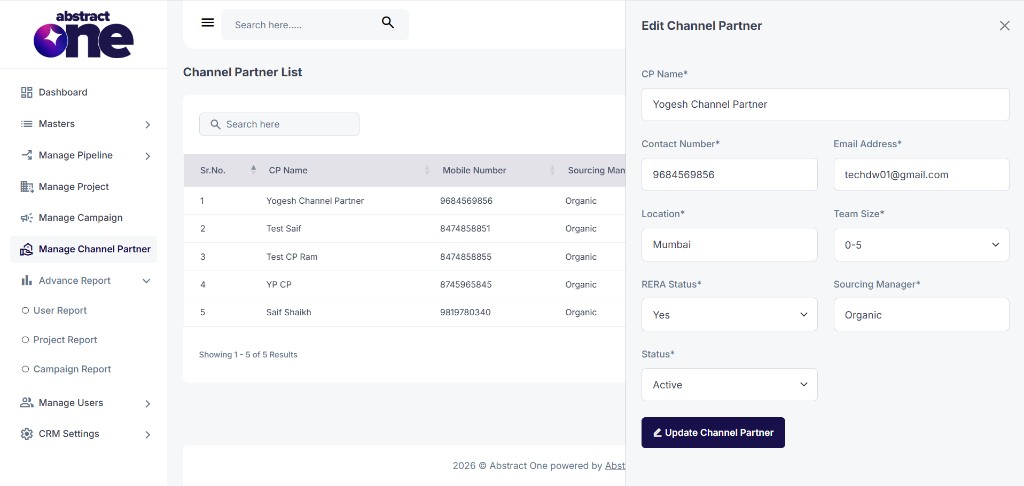
Step 2 — Update Details
Update any field as needed. Fields marked with * are required.
| Field | Required | Description |
|---|---|---|
| CP Name | Yes | Name of the channel partner |
| Contact Number | Yes | 10-digit mobile number of the channel partner |
| Email Address | Yes | Email address of the channel partner |
| Location | Yes | City or area where the channel partner operates |
| Team Size | Yes | Number of team members (e.g. 0-5, 6-10) |
| RERA Status | Yes | Whether the channel partner is RERA registered (Yes / No) |
| Sourcing Manager | Yes | Assigned sourcing manager for the channel partner |
| Status | Yes | Set as Active or Inactive |
If any required field is missing or invalid, the form will show an error on that input and will not save.
Step 3 — Update Channel Partner
After making the required changes, click Update Channel Partner at the bottom of the drawer.
On success, the system displays:
Channel Partner updated successfully.
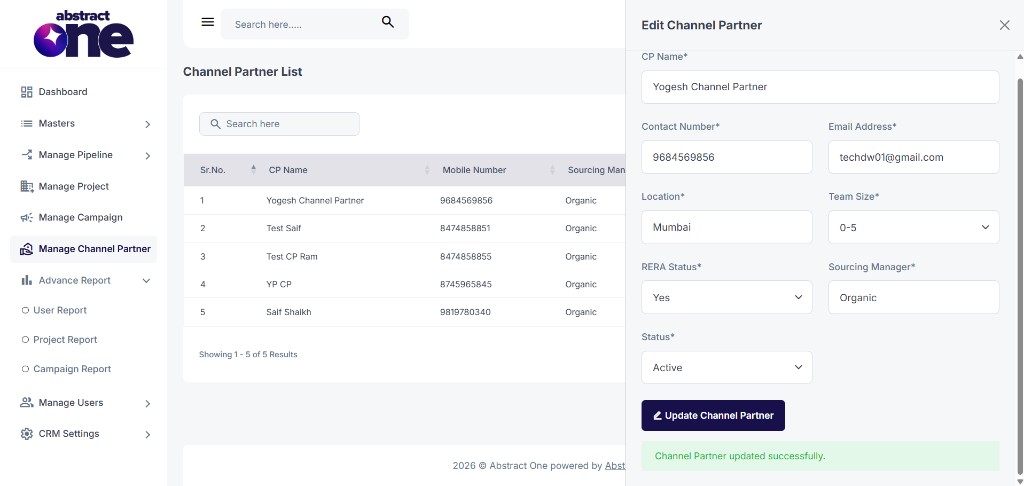
The updated details are reflected immediately on the Channel Partner List.
Important Notes
- All previously saved channel partner data is auto-fetched and pre-filled when the edit drawer opens.
- Updated details are reflected on the Channel Partner List after a successful update.
- Only channel partners marked as Active remain available for lead assignment and related CRM workflows.
- Use the View (eye) icon on the list to review channel partner details without editing.
- Close the drawer using the X icon at the top right if you do not want to save changes.