

Customize Lead Types
Lead Type in Abstract ONE is used to describe lead behaviour during a call. When adding a remark on a lead after a call, one lead type must be selected from this list based on how the lead responded.
Only lead types marked as Active appear in the remark form. Superadmins can manage lead types from the Lead Type List.
From the Lead Type List, superadmins can:
- Add new lead types
- Edit existing lead types
- Delete lead types
Default Lead Types
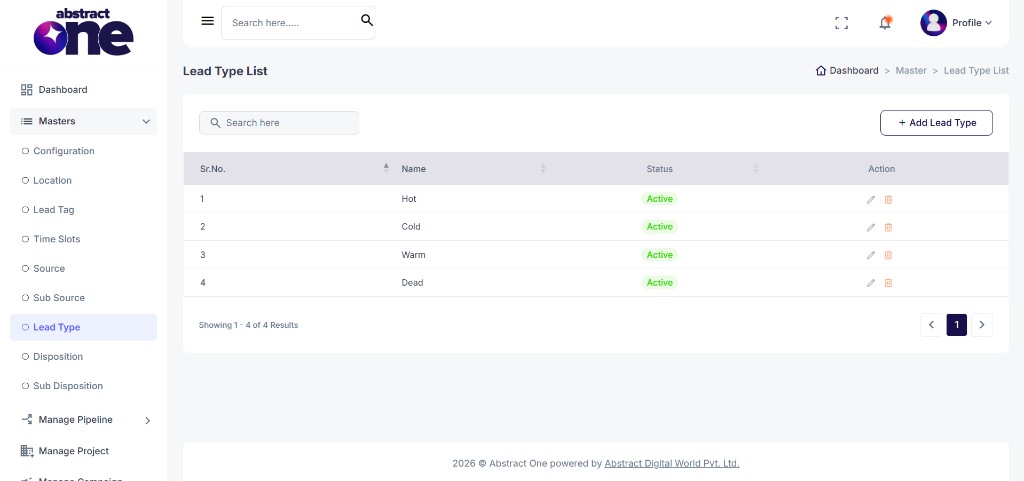
The CRM includes the following default lead types:
| Sr.No. | Lead Type |
|---|---|
| 1 | Hot |
| 2 | Cold |
| 3 | Warm |
| 4 | Dead |
Access Lead Type List
Go to:
Sidebar → Masters → Lead Type
Case 1: Add a Lead Type
To add a new lead type:
Step 1 — Open Add Lead Type
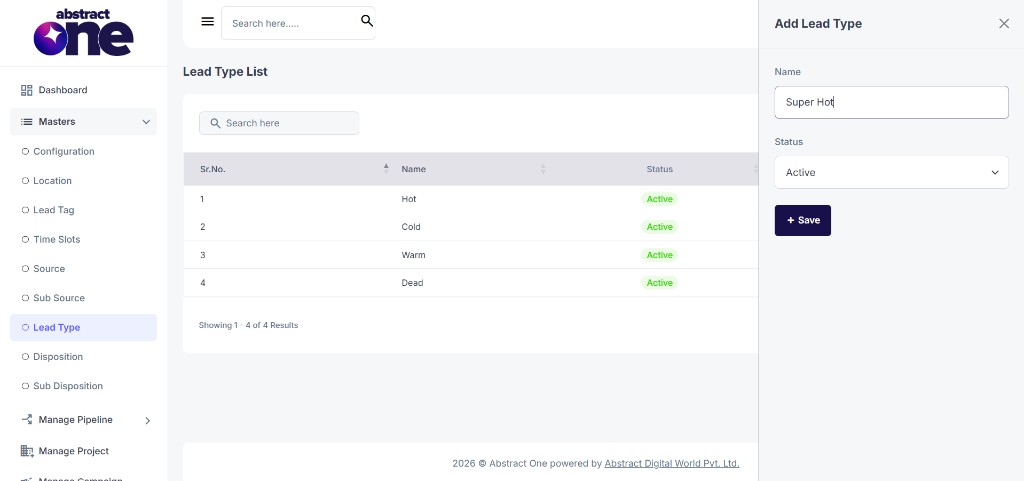
Click + Add Lead Type on the top right. The Add Lead Type drawer opens.
Step 2 — Fill and Save
Enter Name, select Status as Active, then click + Save.
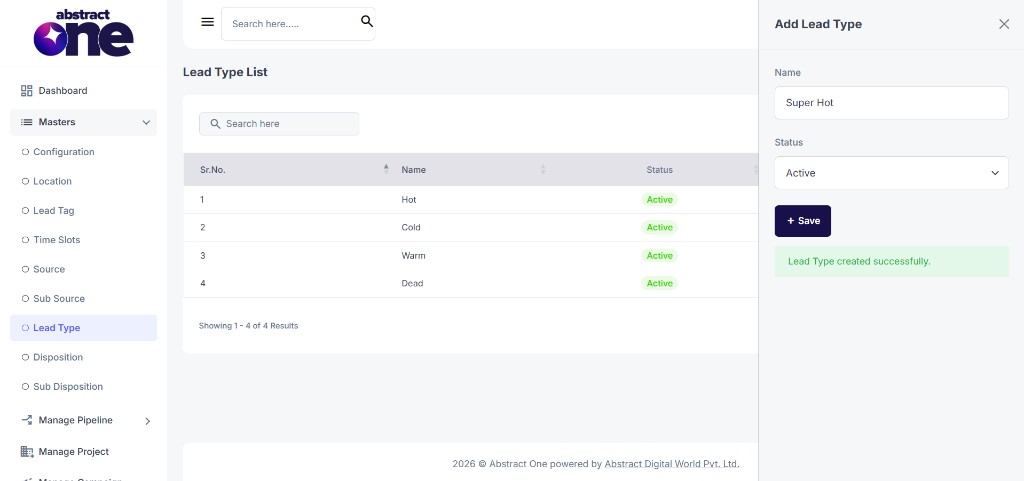
On success, the system displays:
Lead Type created successfully.
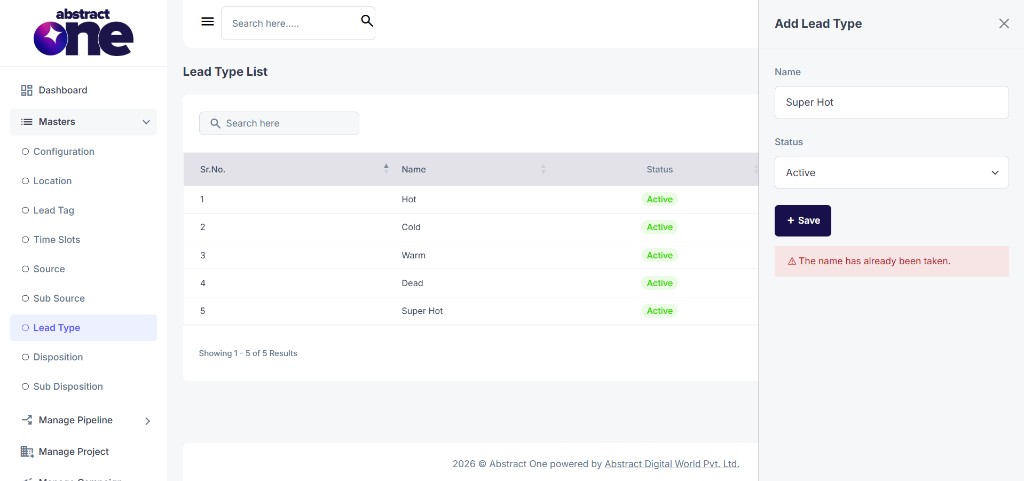
If the name already exists, the system displays:
The name has already been taken.
Case 2: Edit a Lead Type
To update an existing lead type:
Step 1 — Open Edit
Click the Edit (pencil) icon in the Action column.
Step 2 — Update and Save
Update Name or Status, then click + Save.
Only lead types with Active status appear in the remark form when adding a remark on a lead.
Case 3: Delete a Lead Type
To remove a lead type from the system:
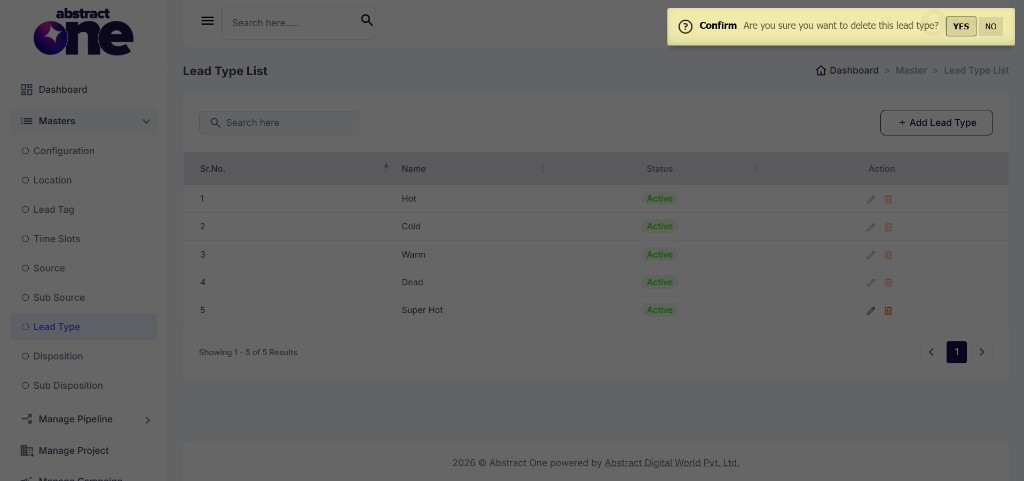
Step 1 — Click Delete
Click the Delete (trash) icon in the Action column.
Step 2 — Confirm Deletion
Click YES on the confirmation dialog.
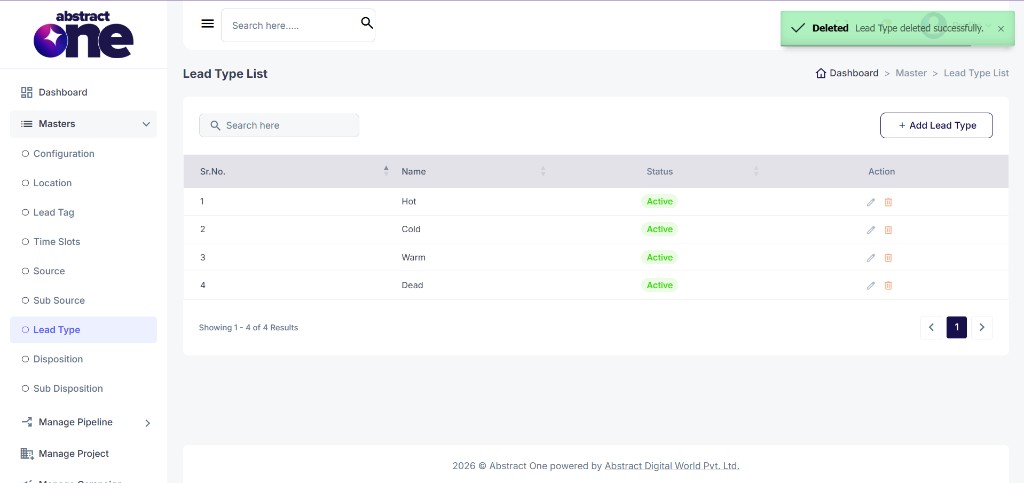
On success, the system displays:
Deleted Lead Type deleted successfully.
Where Lead Types Are Used
Lead types appear in the Select Lead Type field when adding a remark on a lead after a call. The team member selects the type that best matches the lead’s behaviour during the conversation.
Important Notes
- Only Active lead types appear in remark form inputs.
- Lead type names must be unique.
- A lead type must be selected on each remark to record lead behaviour after a call.