

Customize Remark Sub Disposition
Sub Disposition in Abstract ONE represents the detailed call outcome under a main disposition. For example, if the disposition is Not Contactable, its sub dispositions can be Wrong Number, Ringing, and Switch Off. This helps record the exact result of a call conversation when adding a remark on a lead.
From the Sub Disposition List, superadmins can:
- View existing sub dispositions
- Add custom sub dispositions to any disposition
- Edit sub dispositions
- Move a sub disposition to another disposition
- Delete sub dispositions
Only sub dispositions marked as Active appear in the remark form.
Default Sub Dispositions
The CRM includes default sub dispositions linked to default dispositions.
Examples:
| Disposition | Sub Disposition |
|---|---|
| Interested | Interested lead, Call Back Later, Request For Brochure |
| Not Interested | Not looking for a property, Low Budget, Already Bought A Property, Location Issue |
| Not Contactable | Wrong Number, Ringing, Switch Off, Not Reachable, Invalid Number |
| Site visit | Scheduled, Re-scheduled, Completed, Cancelled |
| Closed | Booked, Lost |
Access Sub Disposition List
Go to:
Sidebar → Masters → Sub Disposition
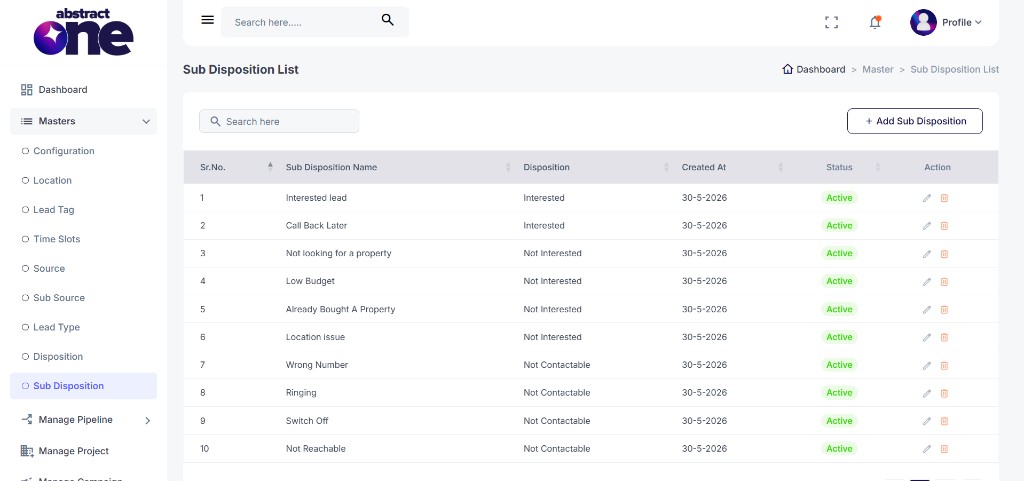
Case 1: Add a Sub Disposition
To add a sub disposition under a disposition:
Step 1 — Open Add Sub Disposition
Click + Add Sub Disposition on the top right. The Add Sub Disposition drawer opens.
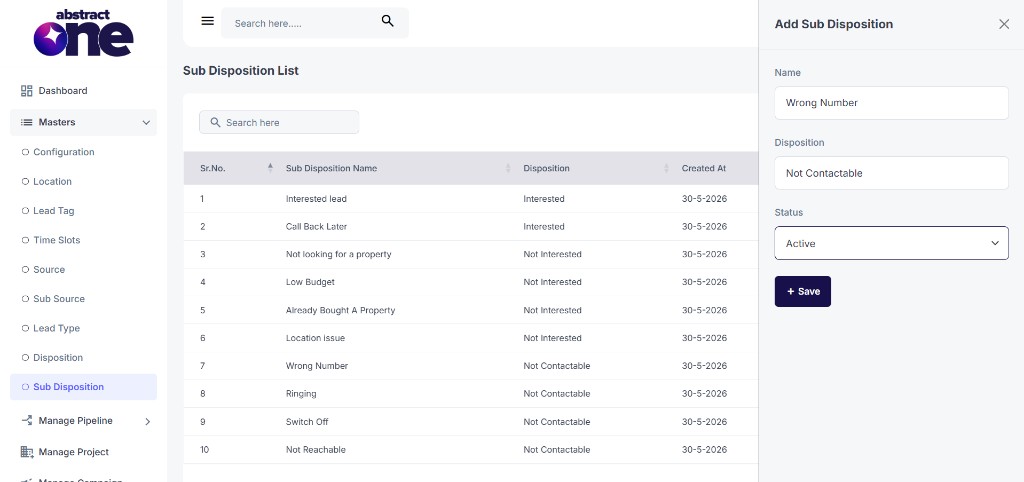
Step 2 — Fill and Save
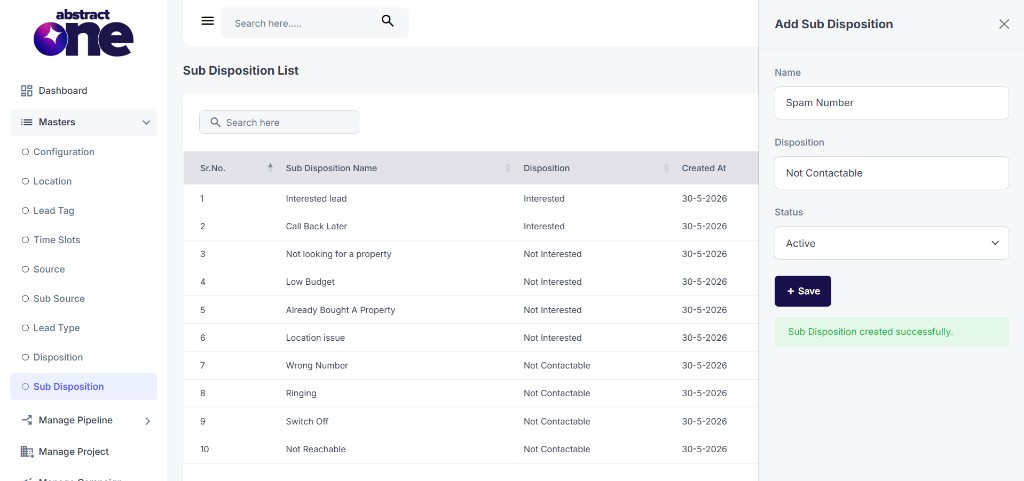
Enter Name, select the parent Disposition, set Status as Active, then click + Save.
On success, the system displays:
Sub Disposition created successfully.
If the same sub disposition name already exists under that disposition, the system displays:
The name has already been taken.
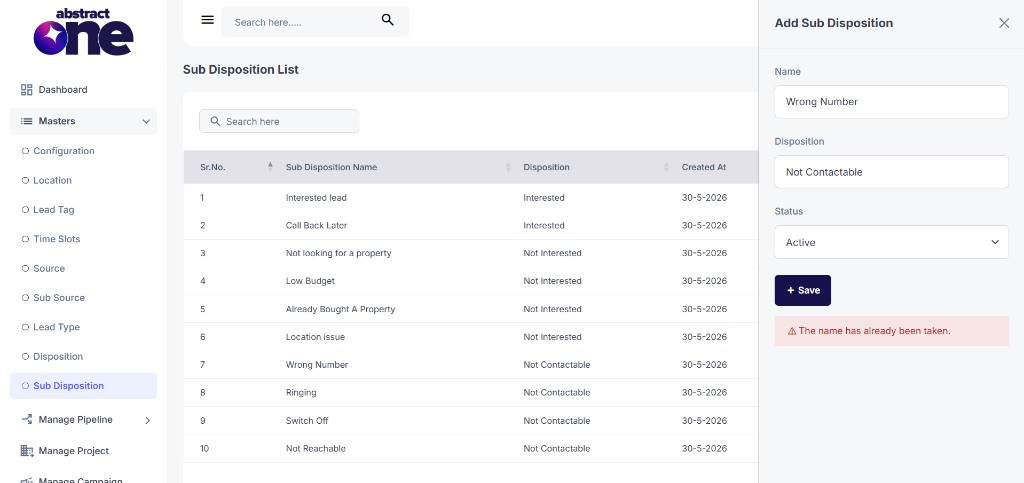
The same sub disposition name can be used under different dispositions, but not twice under the same disposition.
Case 2: Edit a Sub Disposition
To update an existing sub disposition:
Step 1 — Open Edit
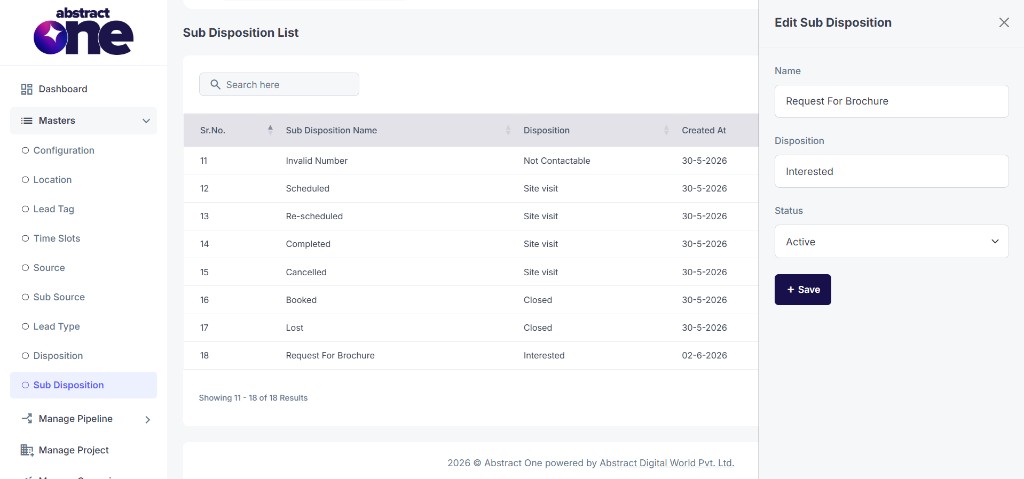
Click the Edit (pencil) icon in the Action column. The Edit Sub Disposition drawer opens with pre-filled values.
Step 2 — Update and Save
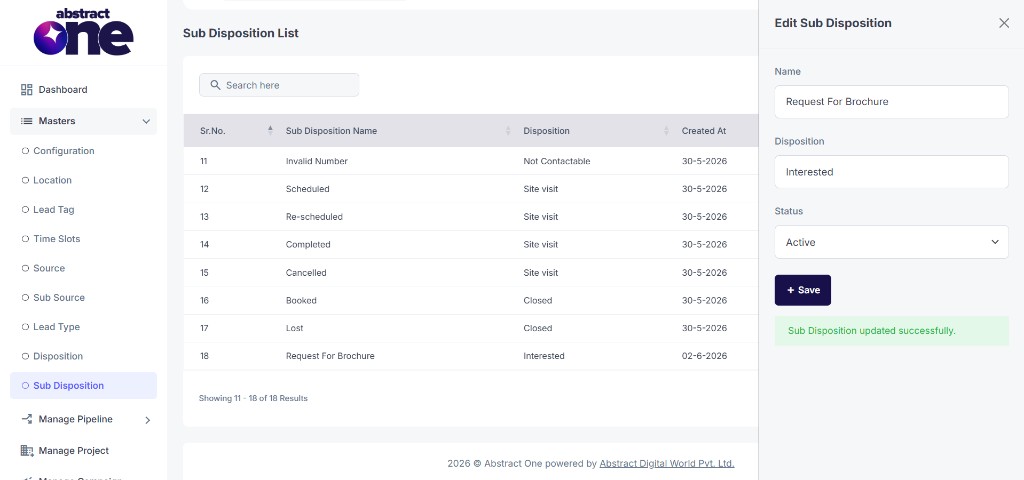
Update the sub disposition Name, change the parent Disposition to move it to another disposition, or update Status, then click + Save.
On success, the system displays:
Sub Disposition updated successfully.
Case 3: Delete a Sub Disposition
To remove a sub disposition from the system:
Step 1 — Click Delete
Click the Delete (trash) icon in the Action column.
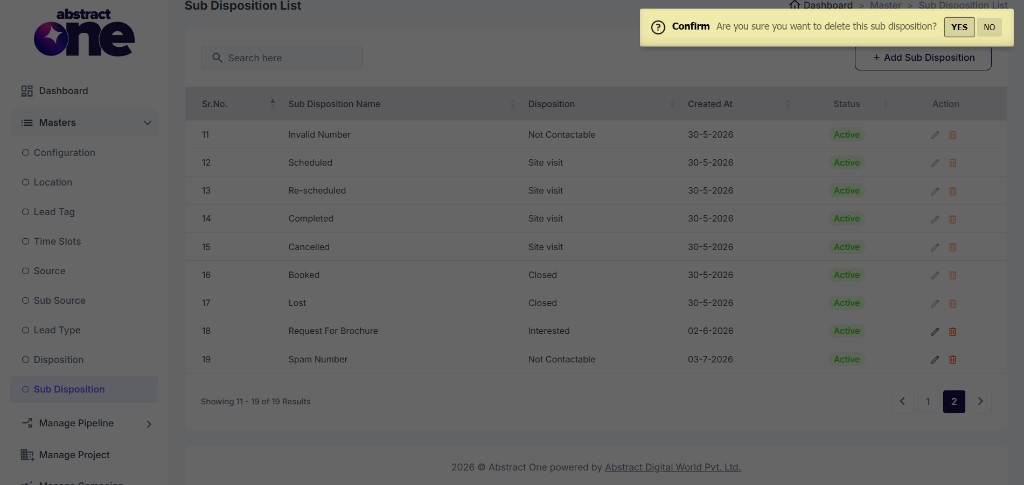
Step 2 — Confirm Deletion
Click YES on the confirmation dialog.
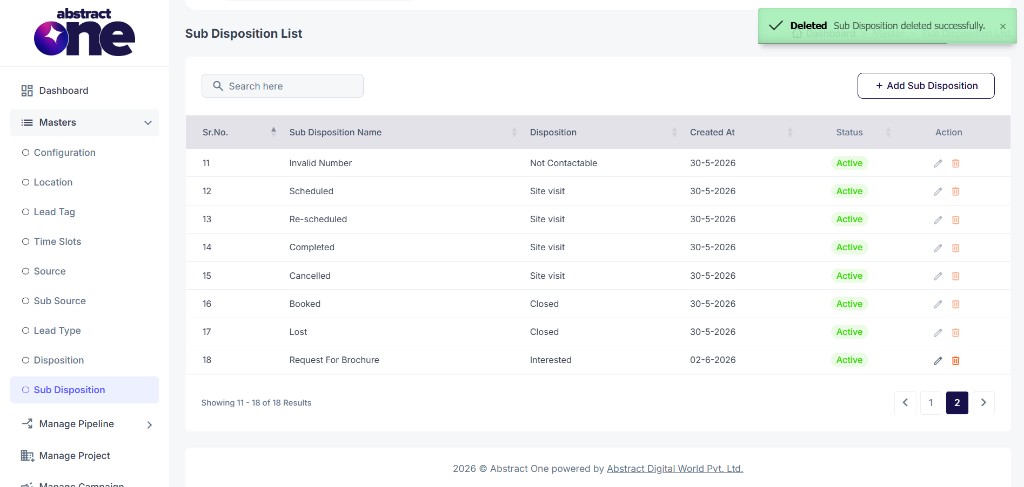
On success, the system displays:
Sub-Disposition deleted successfully.
Where Sub Dispositions Are Used
Sub dispositions appear in the Select Sub Disposition field when adding a remark on a lead after a call. The team member first selects a disposition, then selects the matching sub disposition based on the conversation outcome.
Important Notes
- Every disposition must have at least one active sub disposition to appear in the remark form. See Customize Remark Disposition List.
- Sub disposition names must be unique within the same disposition, but can repeat across different dispositions.
- Only Active sub dispositions appear in remark form inputs.
- Disposition and sub disposition are both required when adding a remark after a lead call.