

Company Profile
The Company Profile page in Abstract ONE allows you to view and update your organization details, including company logo, company name, and company address. Company ID is system-generated and cannot be edited.
From Company Profile, you can:
- View company ID and current company details
- Change the company logo
- Update company name and address
- Save changes using Update Details
Access Company Profile
Go to:
Sidebar → CRM Settings → System Settings → Company Profile
The Company Profile page opens.
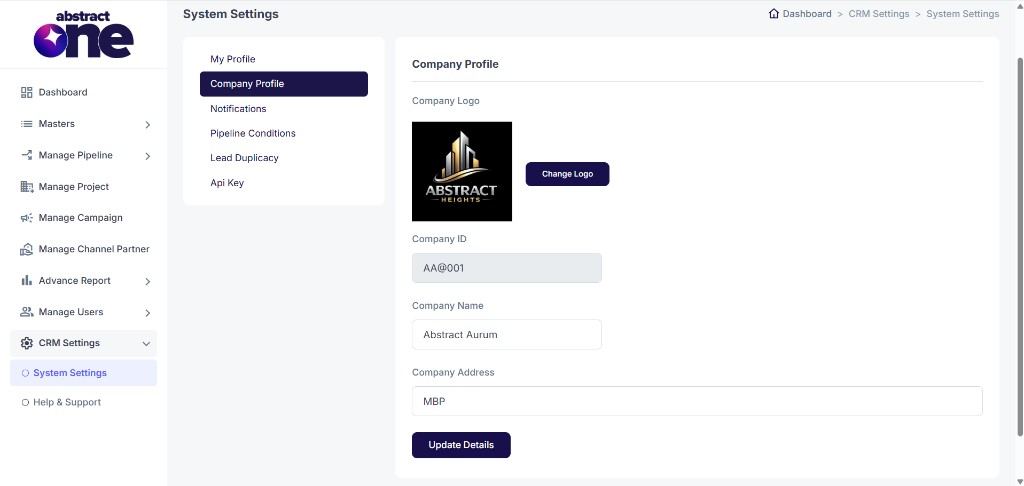
System Settings Menu
Under System Settings, the following options are available:
- My Profile
- Company Profile
- Notifications
- Pipeline Conditions
- Lead Duplicacy
- Api Key
Company Profile Fields
| Field | Editable | Description |
|---|---|---|
| Company Logo | Yes | Current company logo preview. Click Change Logo to upload a new logo. |
| Company ID | No | Unique company identifier generated by the system (read-only) |
| Company Name | Yes | Name of your organization |
| Company Address | Yes | Registered or business address of the company |
Change Company Logo
Click Change Logo next to the current logo preview. Select a new image file from your device. The new logo preview appears after selection.
Click Update Details to save the updated logo along with any other changes.
Update Company Details
To update company information:
- Edit Company Name and/or Company Address as needed
- Optionally change the company logo
- Click Update Details
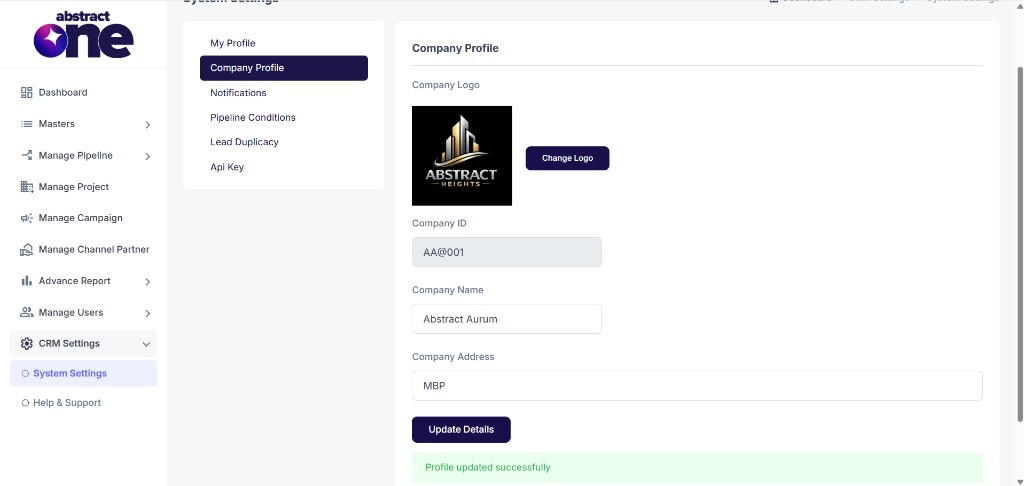
On success, the system displays:
Profile updated successfully
Important Notes
- Company ID is read-only and cannot be changed.
- Updated company name and logo may appear across CRM screens where organization branding is shown.
- Always click Update Details after making changes to save them.
- Use a clear company logo for better brand visibility in the CRM.