

Project List
The Project List is the main dashboard for all real estate projects in Abstract ONE. Every project added to the CRM appears here as a card, giving a quick overview of project name, developer, status, location, configuration, and storeys.
From the Project List, you can:
- View all projects at a glance
- Search for a specific project
- Add a new project
- Edit, view, or delete an existing project
Leads in the CRM are managed project-wise. Each project on this list represents a separate real estate project with its own leads and data.
Access Project List
Go to:
Sidebar → Manage Project
The Project List page opens by default.
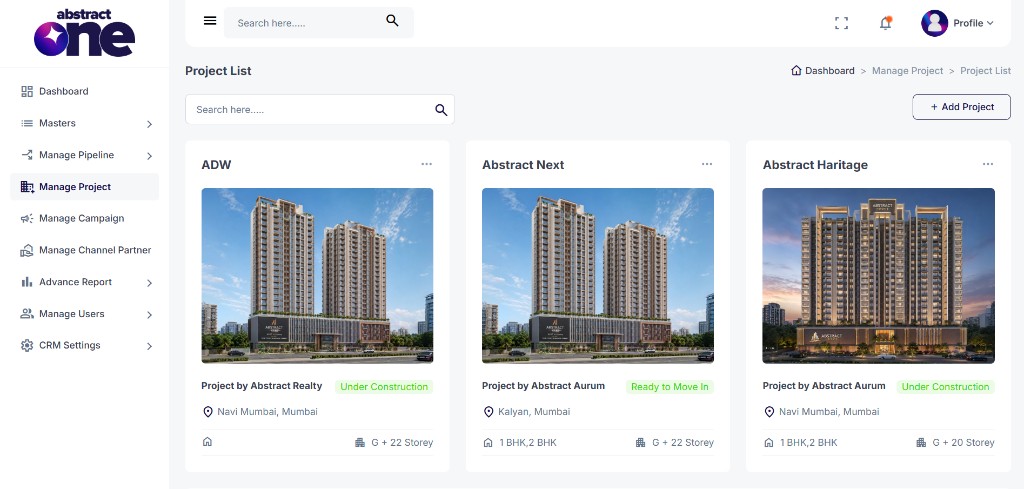
Project Card Overview
Each project is displayed as a card showing the following details:
| Detail | Description |
|---|---|
| Project Name | Name of the project (e.g. ADW, Abstract Next) |
| Elevation Image | Project building image uploaded during Add Project |
| Developer | Builder name shown as “Project by [Developer Name]” |
| Status | Current project stage (e.g. Under Construction, Ready to Move In) |
| Location | Area and city of the project |
| Configuration | Unit types (e.g. 1 BHK, 2 BHK) |
| Storeys | Building height (e.g. G + 22 Storey) |
Search a Project
Use the Search here bar above the project cards to filter projects by name or other details.
Add a New Project
Click + Add Project on the top right to open the Add Project wizard. See Add Project in CRM for the full step-by-step process.
Project Actions
Click the three-dot menu on the top right of any project card to open the action menu.
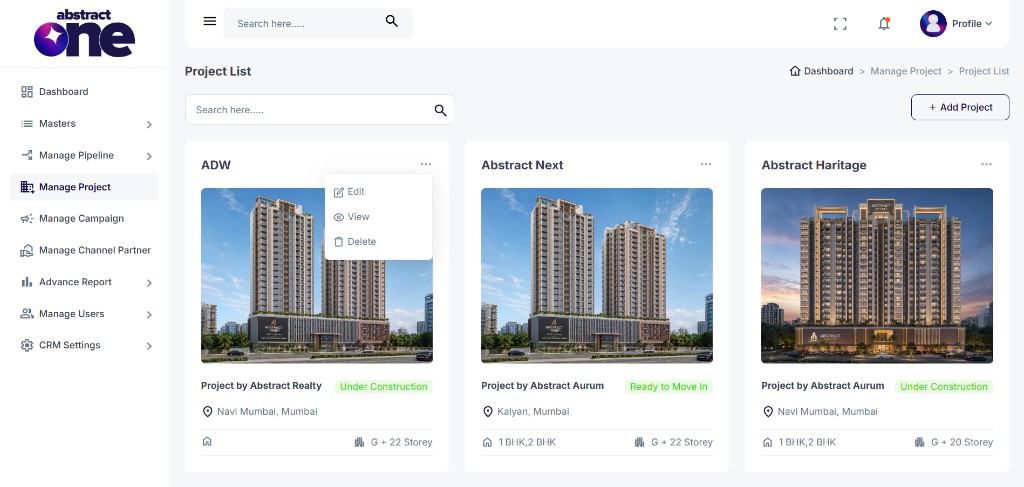
The following options are available:
| Action | Description |
|---|---|
| Edit | Open the project edit form to update project details |
| View | Open the full project details page |
| Delete | Remove the project from the CRM |
Important Notes
- All projects created through Add Project appear on this list automatically.
- Each project manages its own leads separately in the CRM.
- Only Active locations and configurations from Masters appear on project cards and forms.
- Use View to see complete project details including amenities, location advantages, and media.