

Channel Partner List
The Channel Partner List is the main dashboard for all registered channel partners in Abstract ONE. Every channel partner added to the CRM appears here in a table, showing CP name, mobile number, assigned sourcing manager, lead count, booking count, and current status.
From the Channel Partner List, you can:
- View all channel partners at a glance
- Search and filter channel partners
- Add a new channel partner
- View leads and bookings generated through a channel partner
- Edit or view channel partner details
Access Channel Partner List
Go to:
Sidebar → Manage Channel Partner
The Channel Partner List page opens by default.
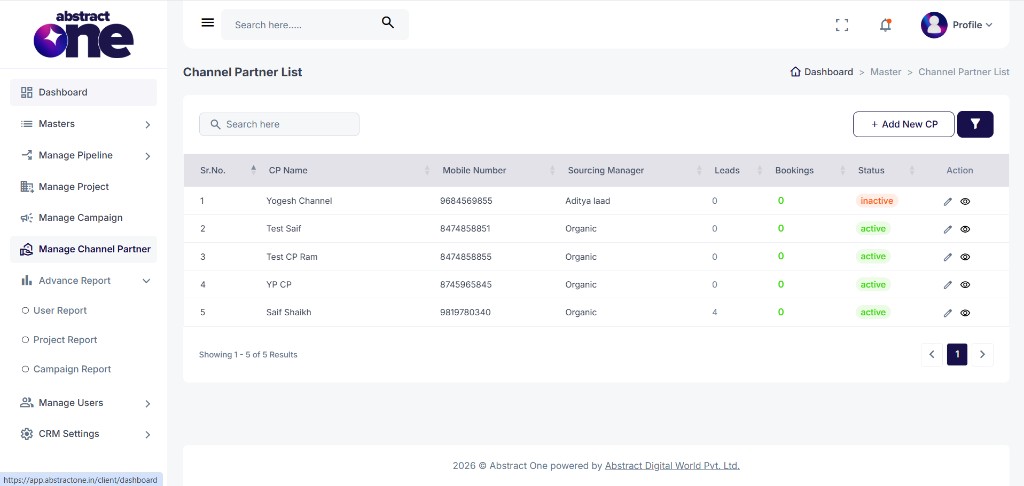
Channel Partner Table Overview
The table displays the following columns:
| Column | Description |
|---|---|
| Sr.No. | Serial number of the entry |
| CP Name | Name of the channel partner |
| Mobile Number | Contact number of the channel partner |
| Sourcing Manager | Assigned sourcing manager for the channel partner (e.g. Organic, Aditya laad) |
| Leads | Total number of leads received from the channel partner. Click the count to open the leads page. |
| Bookings | Total number of site visit bookings done through the channel partner. Click the count to open the site visit booking page. |
| Status | Current status — active or inactive |
| Action | Edit (pencil) and View (eye) options |
Search a Channel Partner
Use the Search here bar above the table to filter channel partners by CP name, mobile number, sourcing manager, or other details.
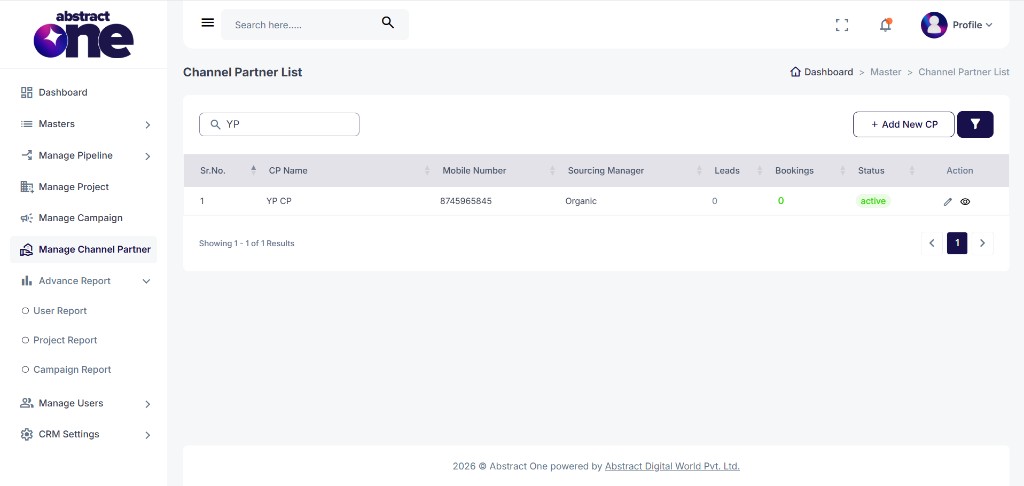
The table updates instantly to show only matching records.
Add a New Channel Partner
Click + Add New CP on the top right to open the Add Channel Partner drawer. Enter the required details and save the new channel partner.
Refer to Add Channel Partner for the complete add flow.
Filter Channel Partners
Click the Filter icon next to the Add New CP button. The Filter Channel Partner drawer opens on the right.
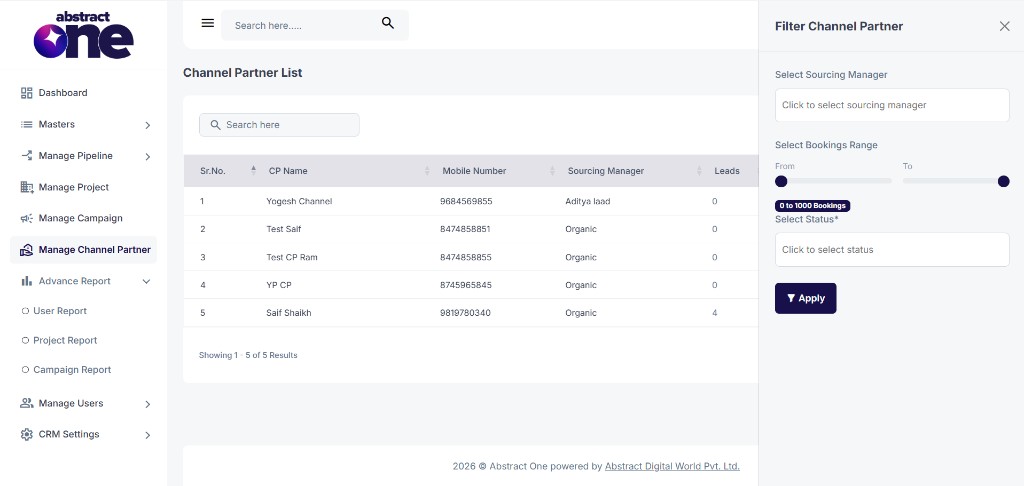
The following filter options are available:
| Filter | Description |
|---|---|
| Select Sourcing Manager | Filter channel partners by one or more sourcing managers |
| Select Bookings Range | Filter by booking count using the range slider (e.g. 0 to 1000 Bookings) |
| Select Status | Filter by Active or Inactive status |
Click Apply to filter the list. The table updates to show only matching channel partners.
View Leads from a Channel Partner
Click the number under the Leads column for any channel partner. The system redirects to the Leads page and shows all leads received from that channel partner.
View Bookings from a Channel Partner
Click the number under the Bookings column for any channel partner. The system redirects to the Site Visit Booking page and shows how many bookings were done through that channel partner.
Edit a Channel Partner
Click the Edit (pencil) icon in the Action column. The Edit Channel Partner drawer opens on the right with all existing details pre-filled. Update any field and click Update Channel Partner to save changes.
Refer to Edit Channel Partner for the complete edit flow.
View Channel Partner Details
Click the View (eye) icon in the Action column. The Channel Partner Details drawer opens and displays the full profile of the selected channel partner.
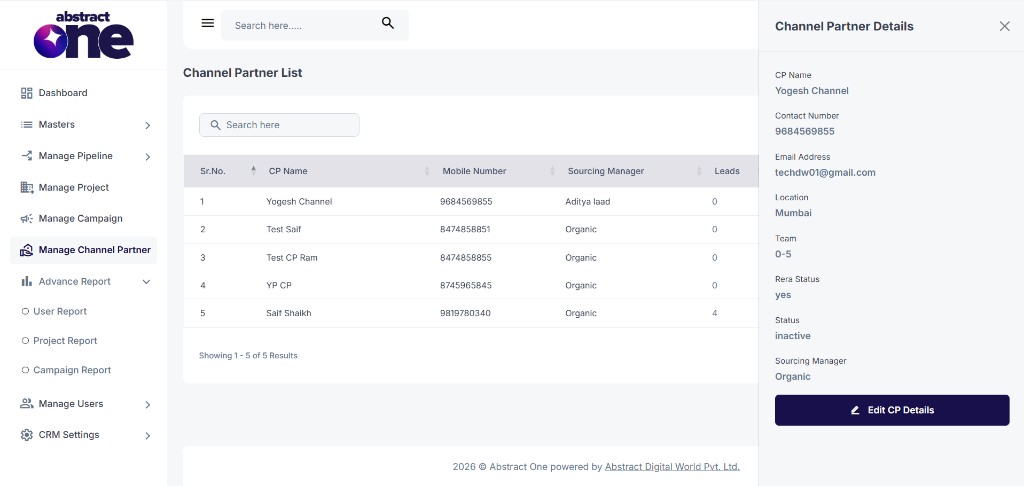
The details drawer shows:
- CP Name
- Contact Number
- Email Address
- Location
- Team Size
- RERA Status
- Status
- Sourcing Manager
From the details drawer, click Edit CP Details at the bottom to open the edit form and update the channel partner information.
Important Notes
- All channel partners added through Add Channel Partner appear on this list automatically.
- Lead and booking counts update as leads and site visit bookings are added in the CRM.
- Clicking Leads or Bookings opens the respective page filtered for that channel partner.
- Use Edit from the list or Edit CP Details from the view drawer to update channel partner information.
- Only Active channel partners remain available for lead assignment and related CRM workflows.