

Help and Support
The Help & Support module in Abstract ONE allows CRM users to raise support tickets, track ticket status, view ticket details, and communicate with the support team through replies and attachments.
From Help & Support, you can:
- View all raised support tickets
- Filter tickets by status
- Search tickets by Ticket ID or subject
- Raise a new support ticket
- View ticket details and conversation history
- Reply to tickets with attachments
Access Help & Support
Go to:
Sidebar → CRM Settings → Help & Support
The Help & Support list page opens by default.
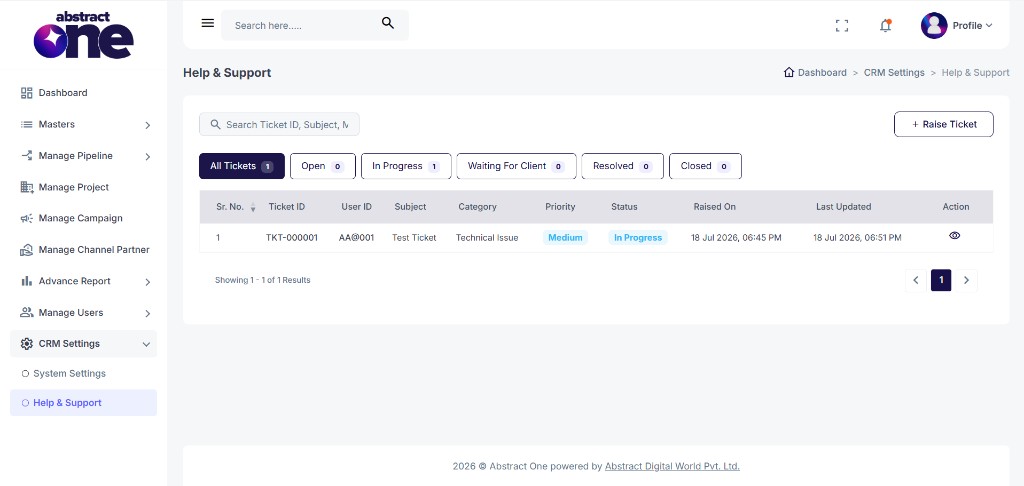
Help & Support List Overview
The ticket list shows all support tickets with short details:
| Column | Description |
|---|---|
| Sr. No. | Serial number of the ticket entry |
| Ticket ID | Unique ticket identifier (e.g. TKT-000001) |
| User ID | User ID of the ticket raiser |
| Subject | Short title of the issue |
| Category | Ticket category (e.g. Technical Issue) |
| Priority | Ticket priority (e.g. Low, Medium, High) |
| Status | Current ticket status |
| Raised On | Date and time when the ticket was created |
| Last Updated | Date and time of the latest ticket activity |
| Action | View (eye) button to open ticket details |
Filter Tickets by Status
Use the status tabs above the table to filter tickets:
- All Tickets
- Open
- In Progress
- Waiting For Client
- Resolved
- Closed
Each tab shows the ticket count for that status.
Search a Ticket
Use the Search Ticket ID, Subject, M... bar to quickly find a ticket by Ticket ID, subject, or related details.
Raise a Support Ticket
Click + Raise Ticket on the top right to open the Raise Support Ticket page.
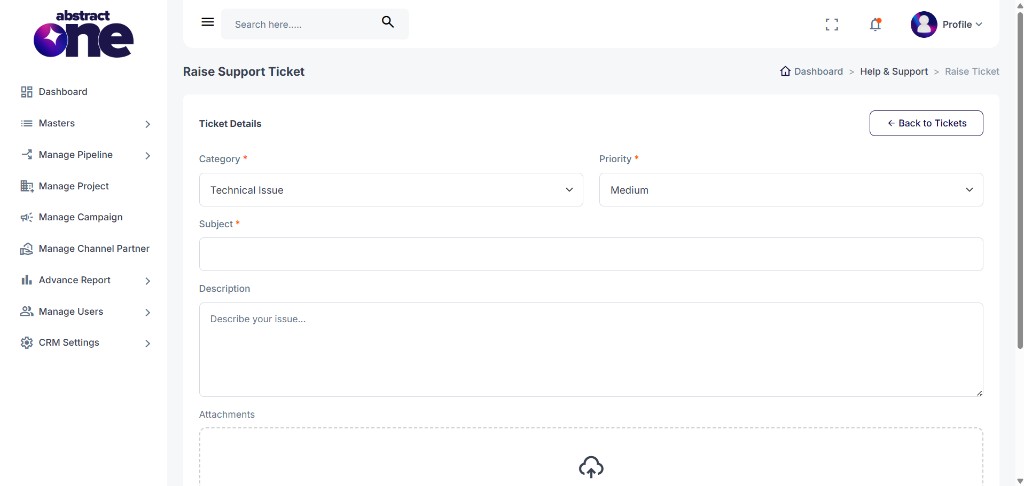
Fill in the ticket details. Fields marked with * are required.
| Field | Required | Description |
|---|---|---|
| Category | Yes | Select ticket category (e.g. Technical Issue) |
| Priority | Yes | Select priority level (e.g. Low, Medium, High) |
| Subject | Yes | Short summary of the issue |
| Description | No | Detailed explanation of the issue |
| Attachments | No | Upload supporting files (screenshots, documents, videos) |
Supported attachment formats: JPG, PNG, PDF, DOC, DOCX, ZIP, MP4, MOV, AVI, WEBM, MKV (max 100 MB each).
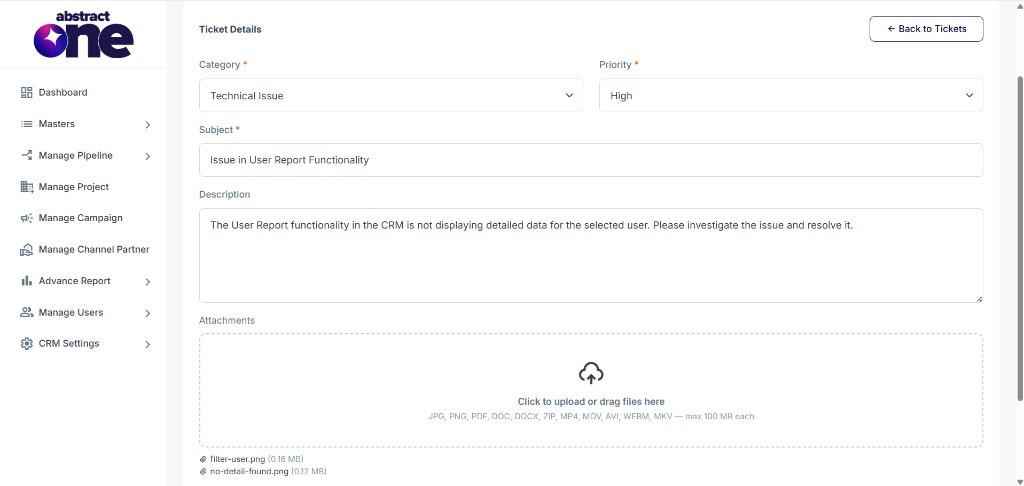
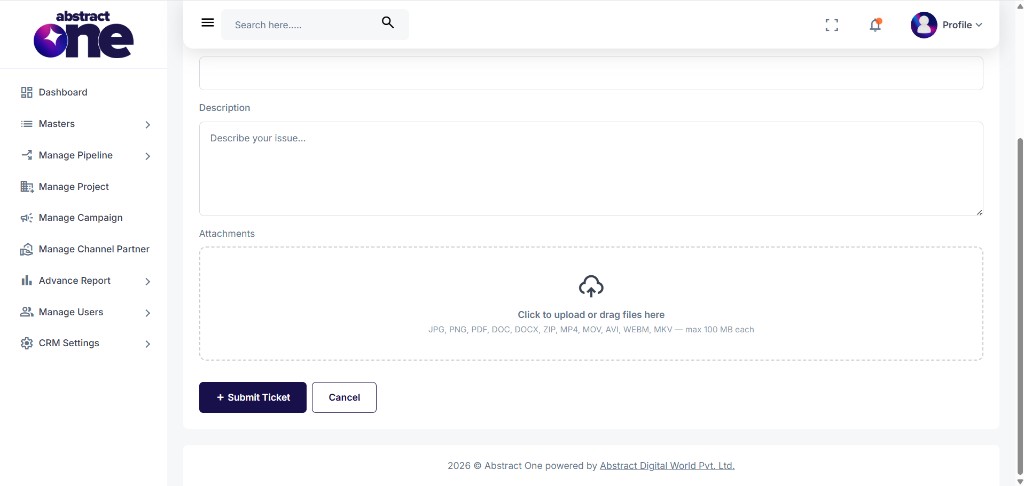
Click + Submit Ticket to create the ticket, or Cancel to go back without saving.
View Ticket Details
Click the View (eye) icon from the ticket list to open the Ticket Details page.
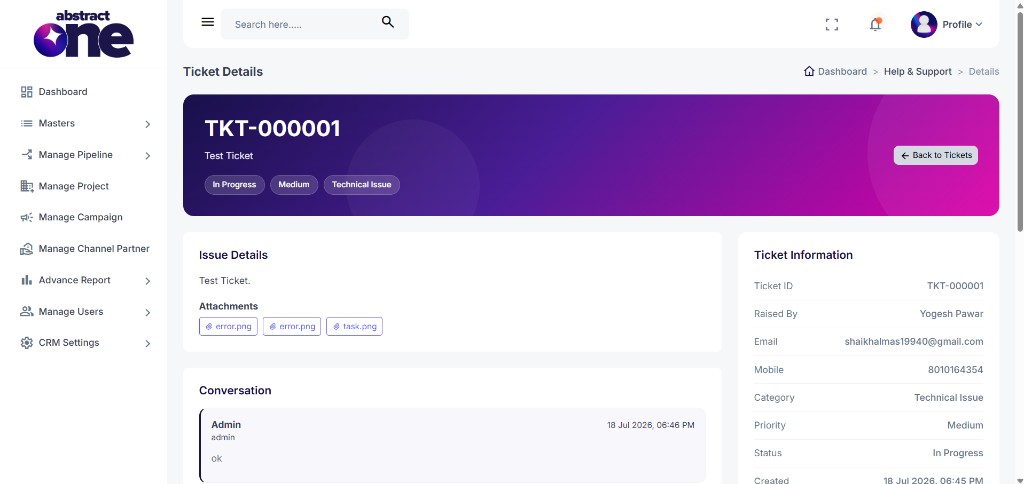
The Ticket Details page shows:
- Ticket ID, subject, status, priority, and category
- Issue description and attachments
- Conversation history between client and support/admin
- Ticket information panel (Raised By, Email, Mobile, Created date, and more)
Reply to a Ticket
On the Ticket Details page, scroll to the reply section to respond to the ticket.
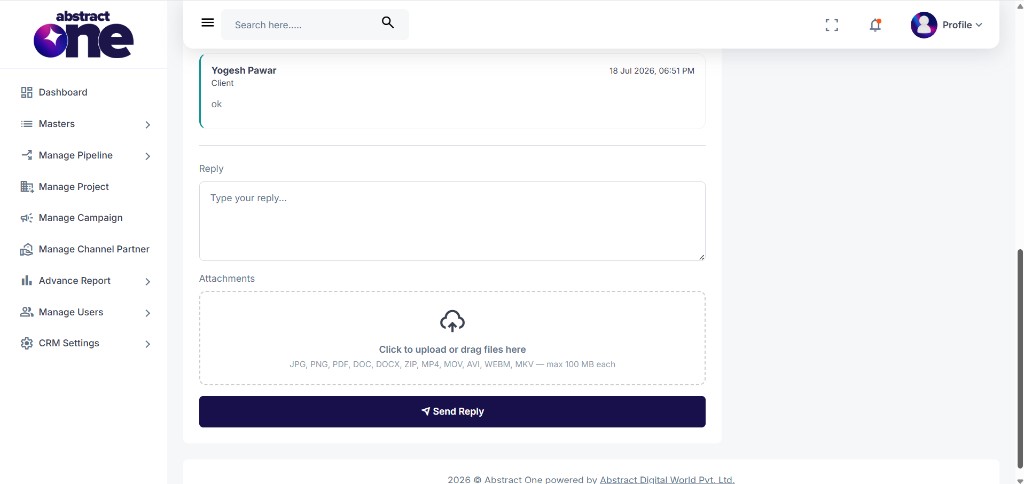
Enter your reply in the Reply text area. You can also attach supporting files before sending.
Click Send Reply to submit your response. The conversation updates immediately in the ticket thread.
Click Back to Tickets to return to the Help & Support list.
Important Notes
- Use clear subject and description while raising a ticket for faster resolution.
- Attach screenshots or files whenever possible to explain the issue better.
- Ticket status updates are visible on both the list page and ticket details page.
- All ticket replies and attachments remain available in the conversation history.
- Use status tabs and search to quickly track open, in-progress, and closed tickets.