

User Report
The Users Report module helps you monitor user-wise lead performance in Abstract ONE. It includes a list view for all users and an individual report view with lead analytics, site visit status, pipeline status, filter options, and export options.
From Users Report, you can:
- View all users with short lead summary data
- Search users and apply filters for quick analysis
- Open individual user report using the View action
- Export all users summary from the list page
- Export detailed individual user report to Excel
- Download chart data in SVG, PNG, and CSV formats
Access Users Report
Go to:
Sidebar → Advance Report → User Report
The Users Report list page opens by default.
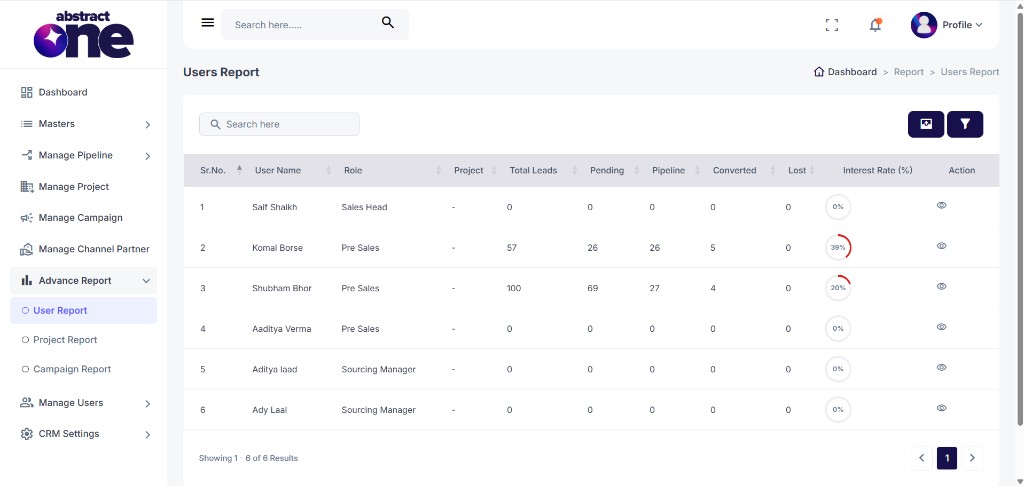
Users List Overview
The list shows short details for each user:
| Column | Description |
|---|---|
| User Name | Name of the CRM user |
| Role | User role (e.g. Sales Head, Pre Sales, Sourcing Manager) |
| Project | Assigned project (if any) |
| Total Leads | Total leads assigned to the user |
| Pending | Pending leads count |
| Pipeline | In pipeline leads count |
| Converted | Converted leads count |
| Lost | Lost leads count |
| Interest Rate (%) | User interest rate shown as a circular indicator |
| Action | View (eye) button to open individual user report |
Search and Filter Users
Use the Search here bar at the top to quickly find a user.
Click the Filter icon to open the Filter Users drawer.
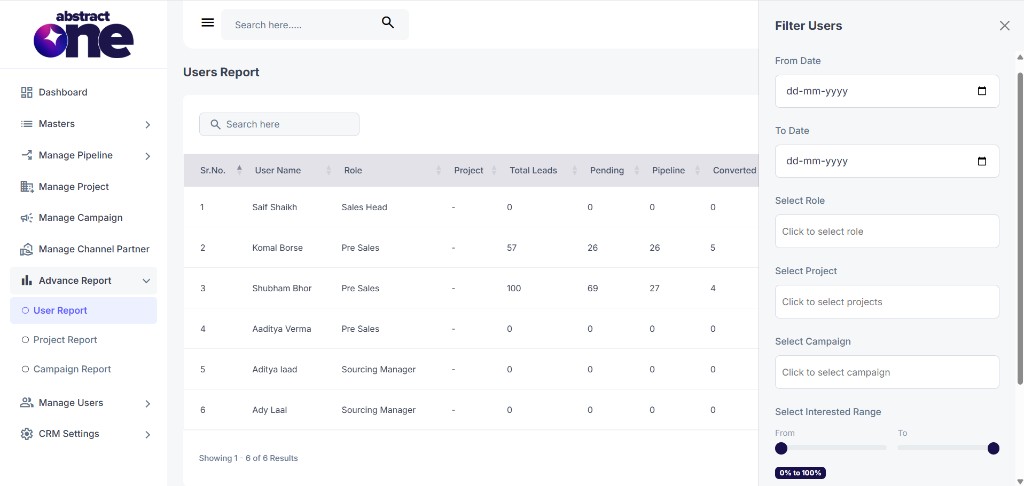
Available filters include:
- From Date and To Date
- Select Role
- Select Project
- Select Campaign
- Select Interested Range
Click Apply to view report data according to your preferred filter combination.
Export Users Report from List Page
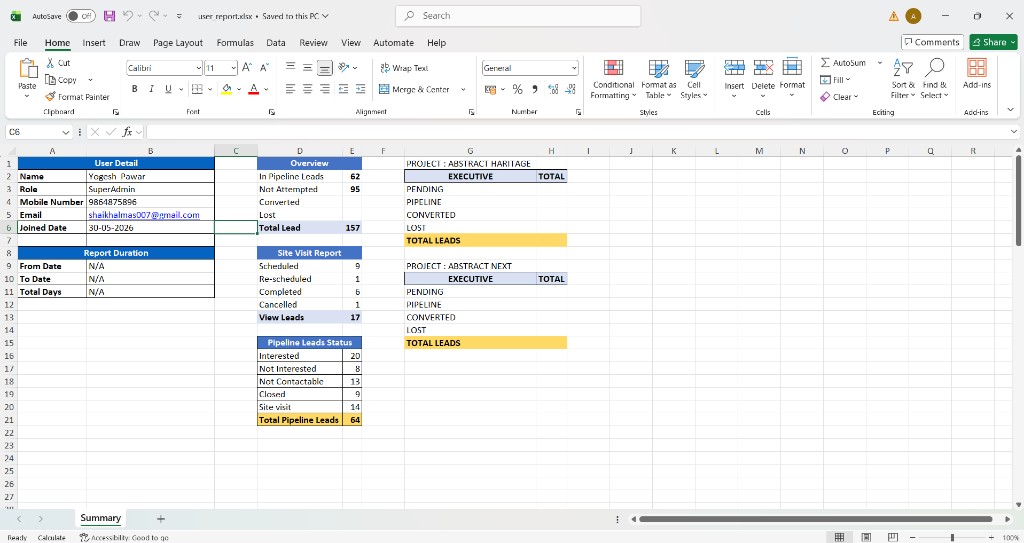
On the Users Report list page, use the Export button at the top right (next to the Filter icon) to download a summary Excel report for all users currently shown in the list.
The export uses the active list data, including any search or filter applied before export.
Click the export button to download the Excel file. The exported sheet includes user-wise summary details such as:
- User Detail (Name, Role, Mobile Number, Email, Joined Date)
- Report Duration (From Date, To Date, Total Days)
- Overview (In Pipeline Leads, Not Attempted, Total Lead)
- Site Visit Report (Scheduled, Re-scheduled, Completed, Cancelled)
- Pipeline Leads Status breakdown
- Project-wise lead summary (Pending, Pipeline, Converted, Lost)
Open Individual User Report
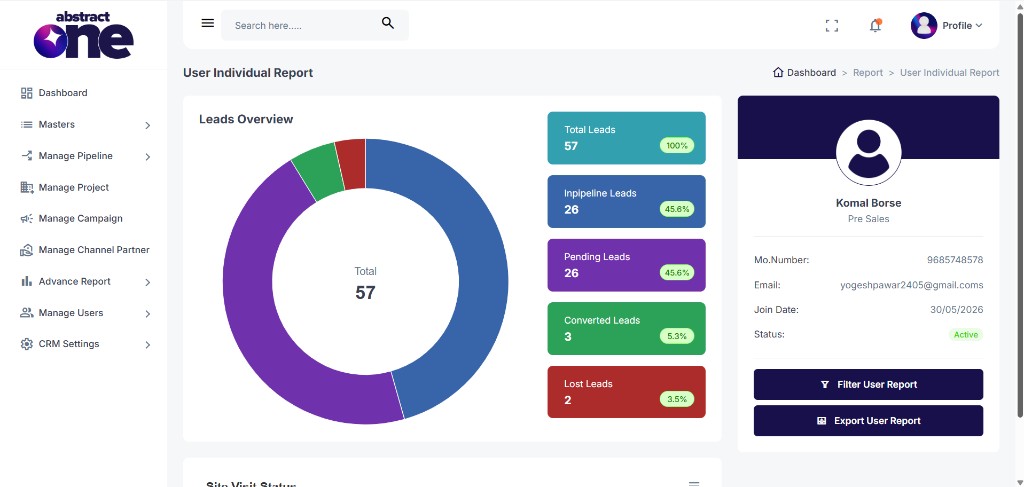
Click the View action for any user from the list. The system opens User Individual Report.
User Individual Report Layout
On the right side, the user profile card shows user details and quick action buttons:
- Mobile Number
- Join Date
- Status
- Filter User Report button
- Export User Report button
On the left side, performance charts are shown section-wise.
Leads Overview
The first chart shows overall lead distribution for the selected user:
- Total Leads
- In pipeline leads
- Pending leads
- Converted leads
- Lost leads
Site Visit Status
The second chart shows site visit funnel stages such as Scheduled, Re-schedule, Cancelled, and Completed.
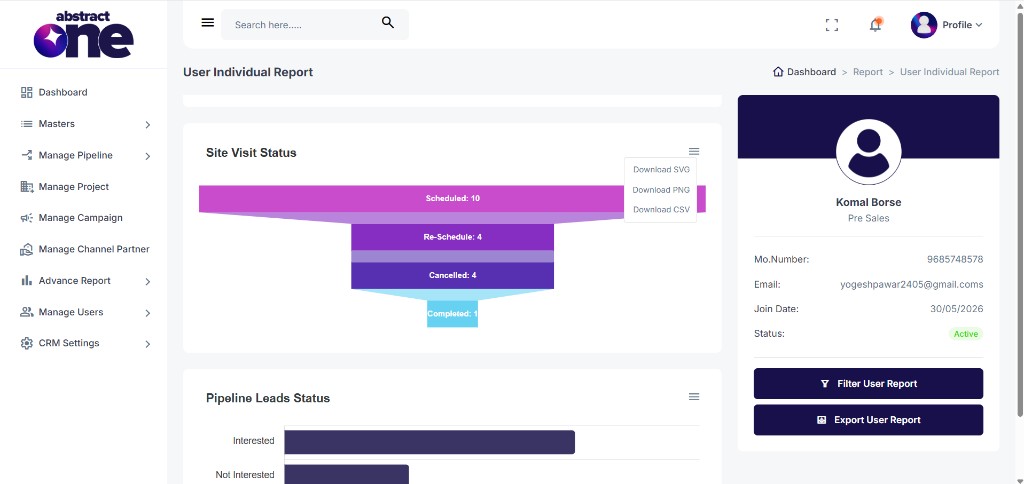
You can download this chart using the menu in:
- SVG format
- PNG format
- CSV format
Pipeline Leads Status
The next chart shows pipeline stage performance such as Interested, Not Interested, Not Contactable, Site Visit, and Converted.
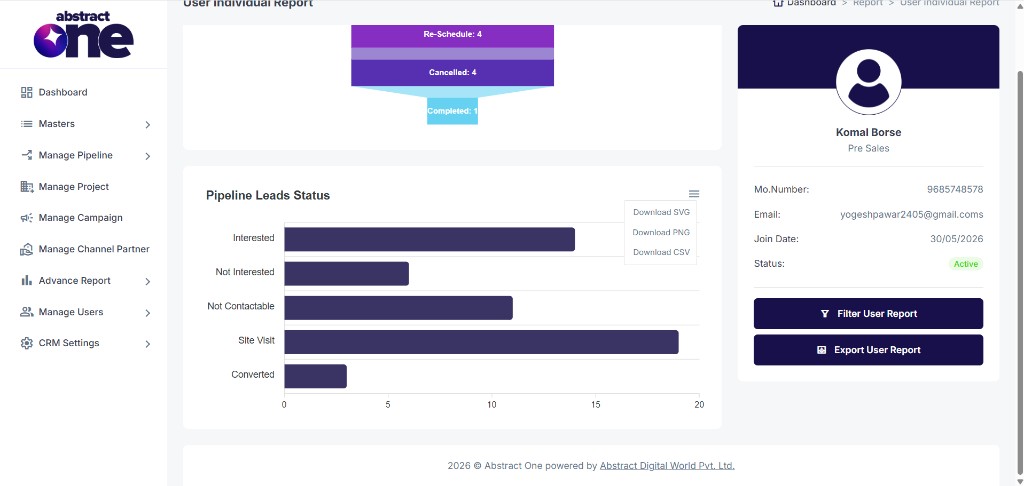
This chart also supports download in:
- SVG format
- PNG format
- CSV format
Filter User Individual Report
Click Filter User Report from the right panel in user individual report. A filter drawer opens.
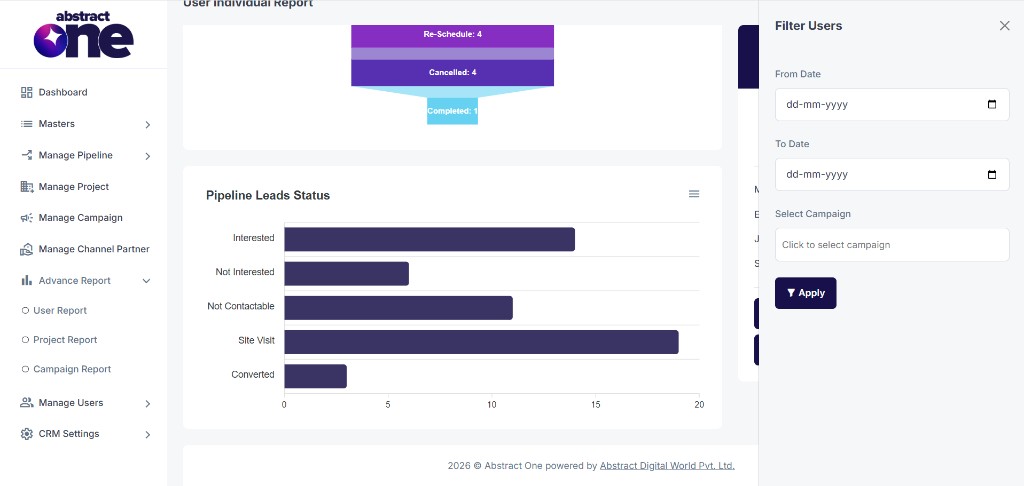
Use these filters to narrow down the selected user data:
- From Date
- To Date
- Select Campaign
Click Apply to refresh chart and summary data.
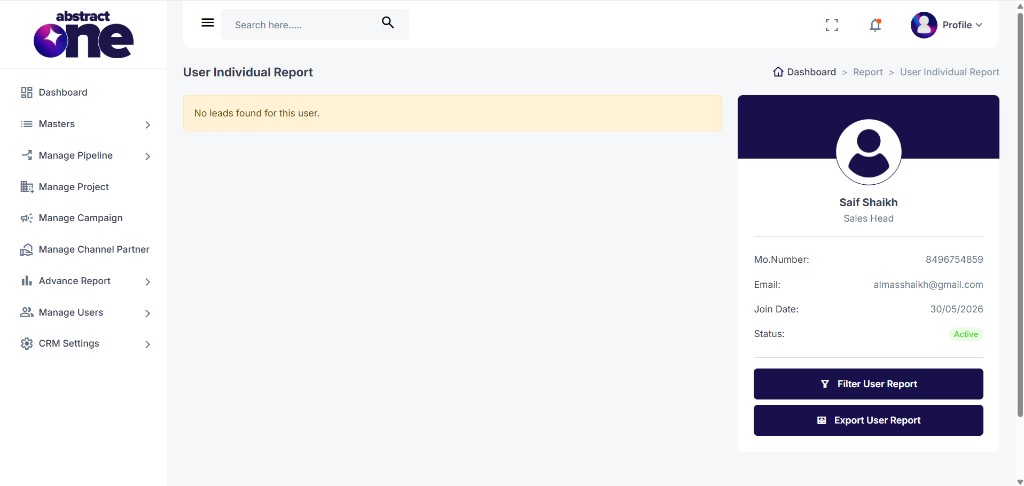
No Leads Found State
If there is no report data for a selected user or the selected filter combination, the page shows:
No leads found for this user.
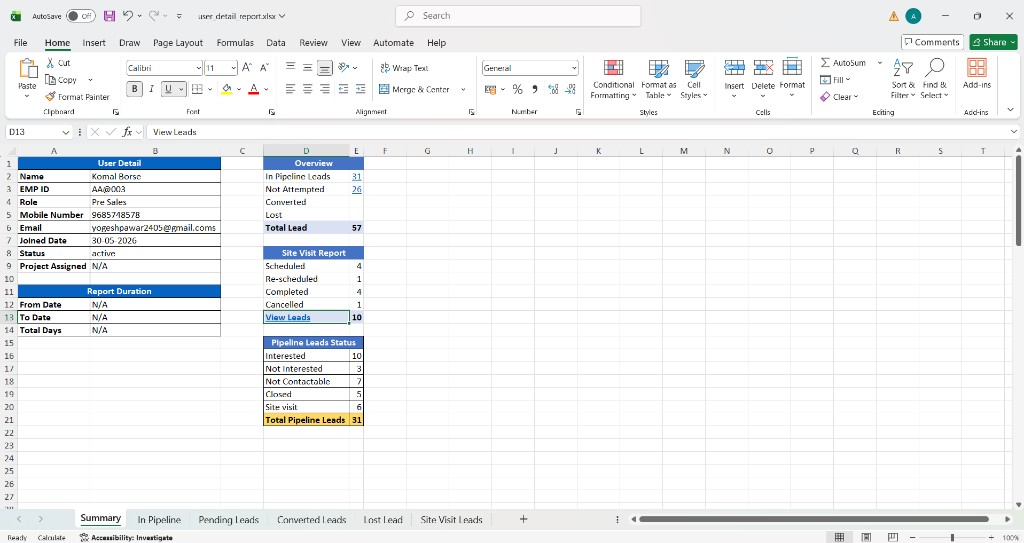
Export User Individual Report
On the User Individual Report page, click Export User Report from the right-side user profile card to download a detailed Excel report for the selected user.
The exported file includes multiple sheets such as:
- Summary
- In Pipeline
- Pending Leads
- Converted Leads
- Lost Lead
- Site Visit Leads
The Summary sheet contains user details, report duration, overview counts, site visit report, and pipeline lead status for that user.
Important Notes
- Use list-level filters for broad user analysis across roles, projects, and campaigns.
- Use individual report filters for user-specific date and campaign analysis.
- Chart download options (SVG, PNG, CSV) are available from chart action menus.
- Use list-page export for all-user summary Excel. Use individual export for one user’s detailed multi-sheet report.
- Exported Excel reports help share user performance data offline.
- When no leads match criteria, the page clearly shows the no-data state.