

Notifications
The Notifications page allows you to control when and how you receive alerts for important CRM activities. You can enable or disable notifications separately for Desktop and Email for each action.
From Notifications, you can:
- View all available notification actions
- Enable or disable desktop notifications
- Enable or disable email notifications
- Customize alerts based on your workflow
Access Notifications
Go to:
Sidebar → CRM Settings → System Settings → Notifications
The Notification Settings page opens. Breadcrumb: Dashboard → CRM Settings → System Settings.
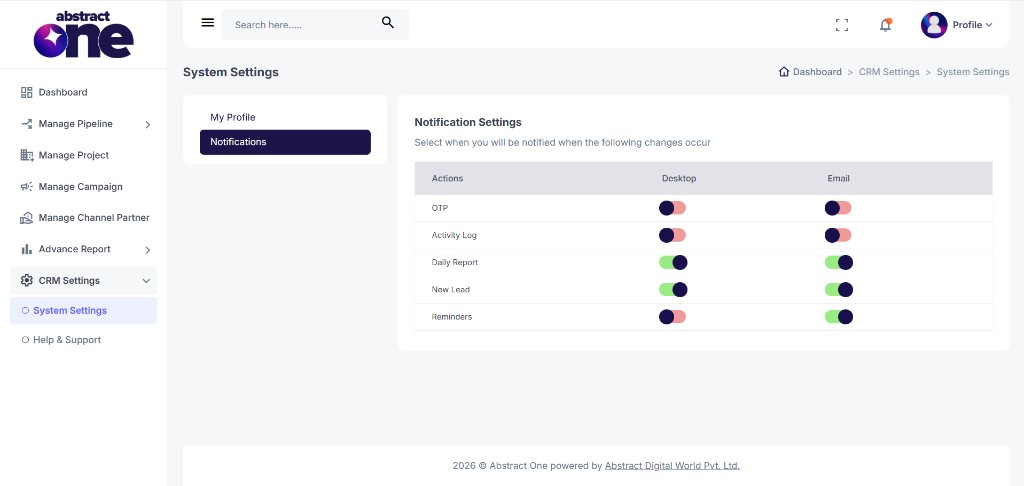
System Settings Menu
Under System Settings, the following options are available for web application users:
- My Profile
- Notifications
Notification Settings Overview
The page heading shows Notification Settings with the description:
Select when you will be notified when the following changes occur
The settings are displayed in a table with three columns:
| Column | Description |
|---|---|
| Actions | CRM event or activity that can trigger a notification |
| Desktop | Toggle to enable or disable in-app/desktop notifications |
| Toggle to enable or disable email notifications |
Available Notification Actions
The following notification actions can be configured:
| Action | Description |
|---|---|
| OTP | Notifications related to OTP generation and verification |
| Activity Log | Notifications for CRM activity log updates |
| Daily Report | Notifications for daily performance or summary reports |
| New Lead | Notifications when a new lead is added to the CRM |
| Reminders | Notifications for scheduled reminders and follow-ups |
Enable or Disable Notifications
Use the toggle switch in the Desktop or Email column for each action.
- ON (green) — notifications are enabled for that channel
- OFF (red) — notifications are disabled for that channel
Desktop and Email can be configured independently. For example, you can enable Daily Report on Email only, or enable New Lead on both Desktop and Email.
Important Notes
- Notification preferences apply to the logged-in user account.
- Desktop notifications appear within the CRM interface.
- Email notifications are sent to the registered email address on your profile.
- You can turn off non-critical alerts such as OTP or Activity Log if not required.
- Keep New Lead and Reminders enabled to avoid missing important follow-ups.
- You don’t have access to multiple settings under System Settings as they are restricted by the Superadmin. Only My Profile and Notifications are available for web application users.