

How to Manage Site Visits
The Site Visit Management process in Abstract ONE is handled through the Add Remark workflow inside the Take Action drawer.
Using this process, users can:
- Schedule new site visits
- Reschedule existing visits
- Mark visits as Completed
- Mark visits as Cancelled
- Track current visit status
All site visit activities are managed using:
- Disposition
- Sub Disposition
- Schedule Visit form
This helps teams maintain proper visit tracking and real-time lead updates.
Access Site Visit Management
Users can manage site visits from:
Lead List → Action Menu → Take Action
Or from the Lead Details page using the:
Take Action
button.
Step 1 — Open Take Action Drawer
After clicking Take Action, the lead action drawer opens.
Inside the drawer:
- Select the Add Remark checkbox
- The Add Remark section becomes active
Step 2 — Select Site Visit Disposition
Inside the Add Remark section:
- Select Site Visit from the Disposition dropdown.
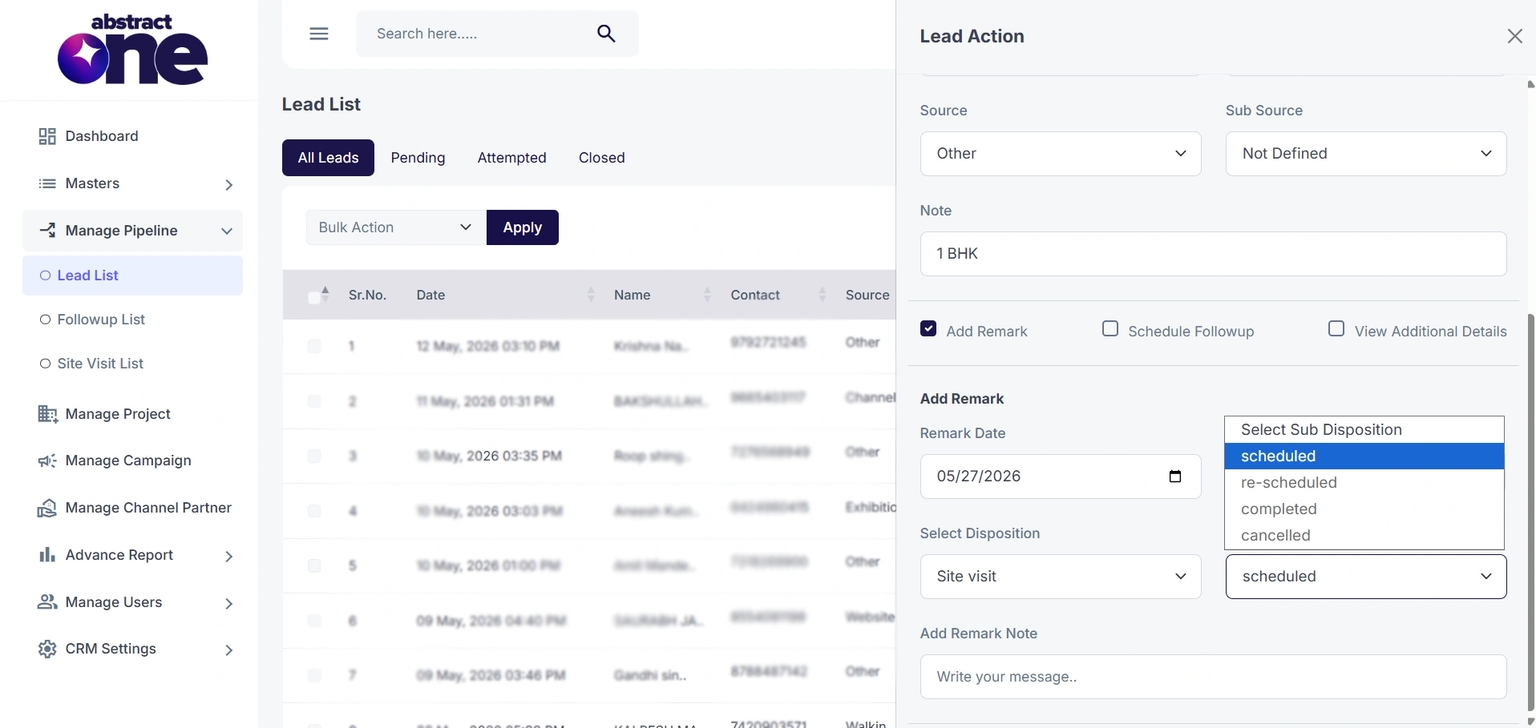
- After selecting Site Visit, the available Site Visit Sub Dispositions will appear.
Available Sub Dispositions:
- Scheduled
- Re-Scheduled
- Completed
- Cancelled
Case 1: Schedule New Site Visit
To schedule a new site visit:
Step 1 — Select Scheduled
Choose Scheduled from the Sub Disposition dropdown.
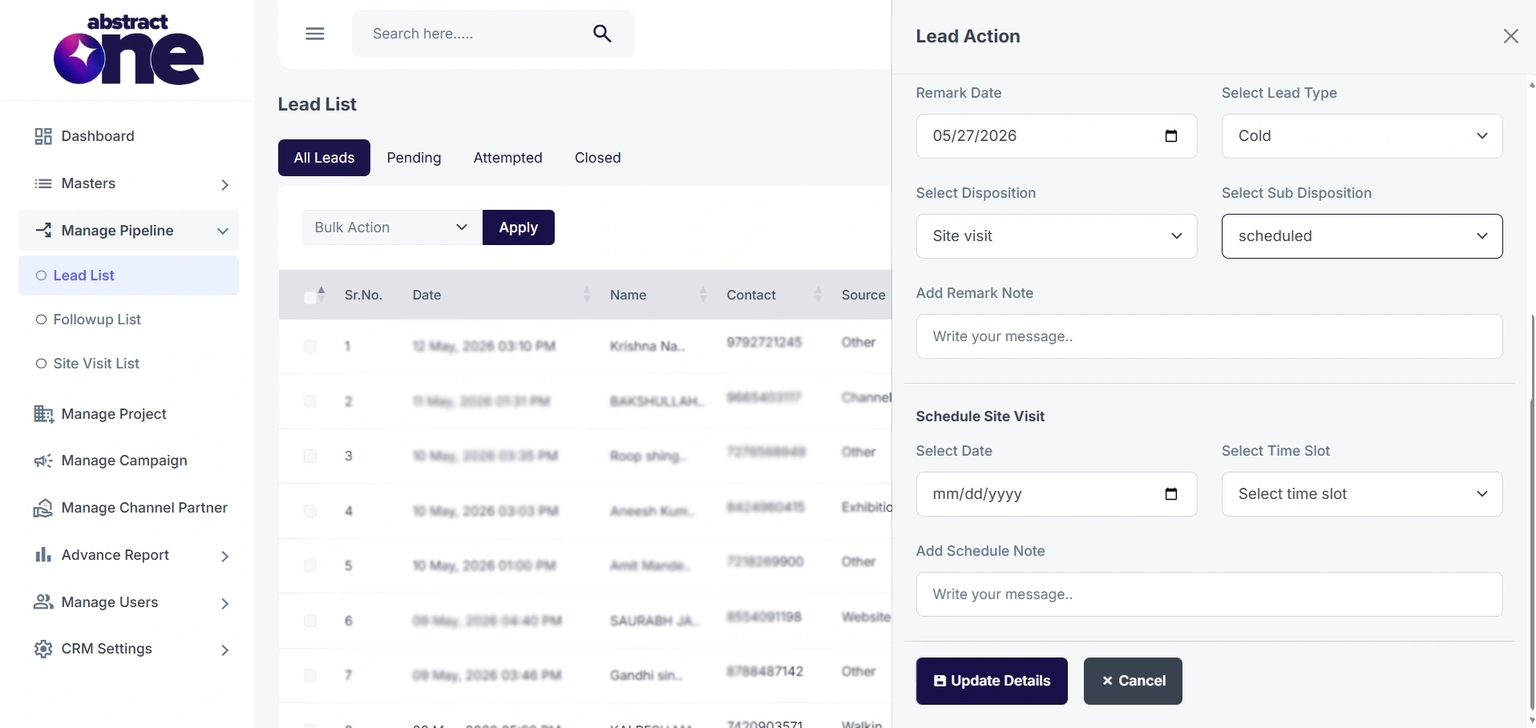
Step 2 — Schedule Form Appears
After selecting Scheduled, additional fields become visible:
- Site Visit Date
- Time Slot
- Visit Note
Step 3 — Enter Site Visit Details
Fill the required information:
| Field | Description |
|---|---|
| Select Date | Visit date |
| Select Time Slot | Visit timing |
| Add Schedule Note | Visit-related note |
Step 4 — Update Details
Click Update Details.
After successful update:
- Remark gets added
- Site visit gets scheduled
- Lead timeline updates in real time
Case 2: Re-Schedule Existing Site Visit
If the customer requests a new date or timing:
Step 1 — Select Re-Scheduled
Choose Re-Scheduled from the Sub Disposition dropdown.
Step 2 — Update New Visit Details
Enter:
- New site visit date
- New time slot
- Updated schedule note
Step 3 — Update Details
Click Update Details.
The previous visit gets updated with the new schedule information.
Important Scheduling Rule
If a customer already has an active:
- Scheduled visit
or - Re-Scheduled visit
then the Scheduled option becomes disabled.
Before scheduling a new visit, users must first close the current visit by marking it as:
- Completed
or - Cancelled
Case 3: Mark Site Visit as Completed
If the customer successfully visits the site:
Step 1 — Select Completed
Choose Completed from the Sub Disposition dropdown.
Step 2 — Current Visit Details Display
Instead of the scheduling form, the current visit details become visible.
Users can review:
- Existing visit date
- Existing schedule details
- Current visit status
Step 3 — Update Details
Click Update Details.
The visit status gets updated as Completed and the current visit gets closed successfully.
Case 4: Mark Site Visit as Cancelled
If the customer cancels the visit:
Step 1 — Select Cancelled
Choose Cancelled from the Sub Disposition dropdown.
Step 2 — Review Current Visit Details
The current scheduled visit information becomes visible.
Step 3 — Update Details
Click Update Details.
The visit status gets updated as Cancelled and the current visit gets closed.
Site Visit Tracking
All scheduled, rescheduled, completed, and cancelled visits can be tracked from the Site Visit List page.
Access URL:
https://app.abstractone.in/client/lead/site-booking
Important Notes
- Site visit management is completely controlled through remarks
- Proper disposition updates help maintain accurate pipeline tracking
- Active scheduled visits must be completed or cancelled before creating a new schedule
- Real-time visit updates improve sales coordination and reporting
- Visit notes help teams understand customer visit intent and activity