

Manage Project
The Manage Project module allows you to view all projects assigned to your account and open any project to see its complete details and lead statistics.
From Manage Project, you can:
- View all projects on the Project List page
- Search projects by name
- Open any project to view its full details
- See lead statistics and all project information configured for that project
Access Manage Project
Go to:
Sidebar → Manage Project
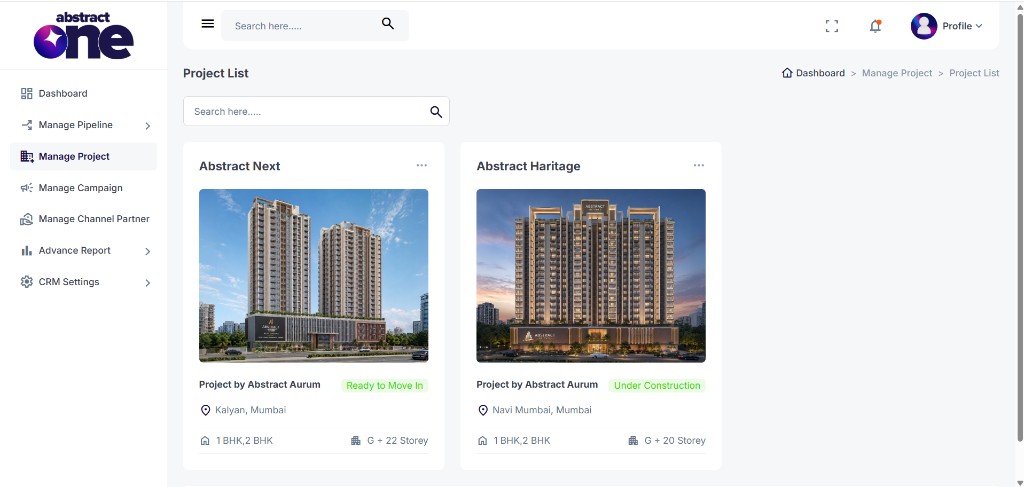
The Project List page opens. Breadcrumb: Dashboard → Manage Project → Project List.
Project List
The Project List displays all projects as cards. Each card shows:
| Element | Description |
|---|---|
| Project Image | Visual rendering or photo of the project |
| Project Name | Name of the project (e.g. Abstract Next, Abstract Heritage) |
| Developer | Project developer name (e.g. Project by Abstract Aurum) |
| Status Badge | Project stage (e.g. Ready to Move In, Under Construction) |
| Location | City and area of the project |
| Configuration | Available unit types (e.g. 1 BHK, 2 BHK) |
| Storey | Number of floors (e.g. G + 22 Storey) |
Use the search bar above the project cards to find a project by name.
View Project Details
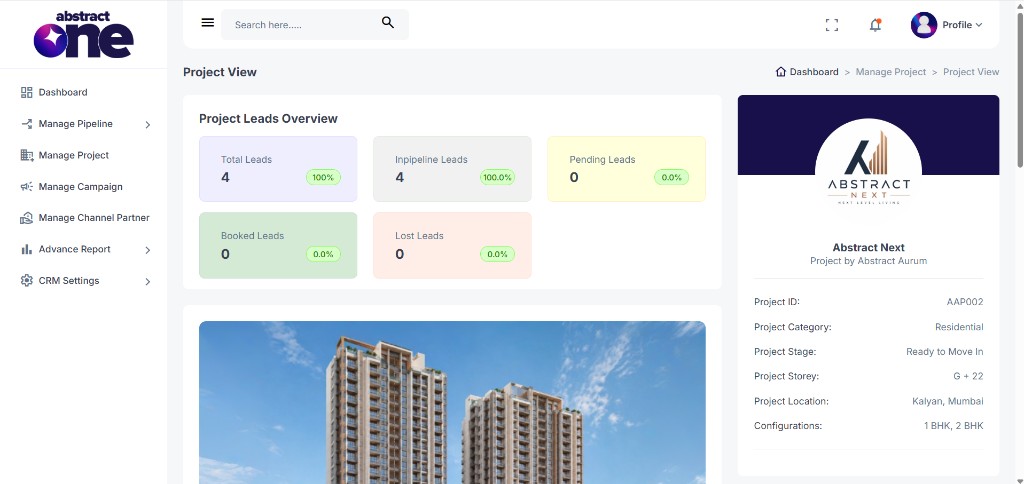
Click on any project card to open the Project View page. Breadcrumb: Dashboard → Manage Project → Project View.
Lead Statistics
At the top of the Project View page, five summary cards show lead counts for the project:
| Card | Description |
|---|---|
| Total Leads | Total number of leads associated with the project |
| Inpipeline Leads | Leads currently active in the pipeline |
| Pending Leads | Leads that have not been attempted yet |
| Booked Leads | Leads that have been booked |
| Lost Leads | Leads marked as lost |
Project Details Card
The right sidebar displays key project information:
| Field | Description |
|---|---|
| Project Name | Name and developer of the project |
| Project ID | Unique project identifier |
| Project Category | Category type (e.g. Residential) |
| Project Stage | Current construction stage (e.g. Ready to Move In) |
| Project Storey | Floor count (e.g. G + 22) |
| Project Location | City and area |
| Configurations | Available unit types |
Additional Project Information
Scroll down on the Project View page to see more details configured for the project. The sections shown may vary depending on how the project was set up by the Superadmin.
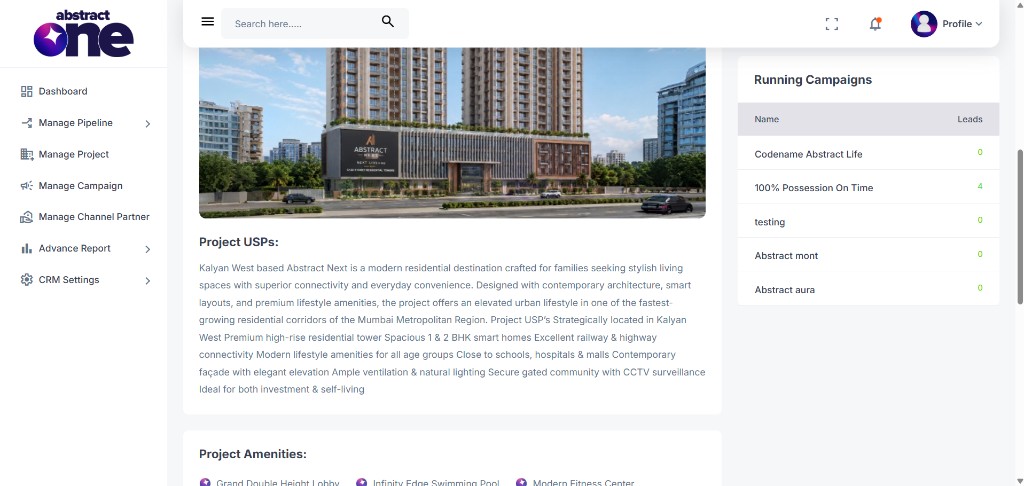
This may include project images, descriptions, USPs, running campaigns with lead counts, and other project-related content.
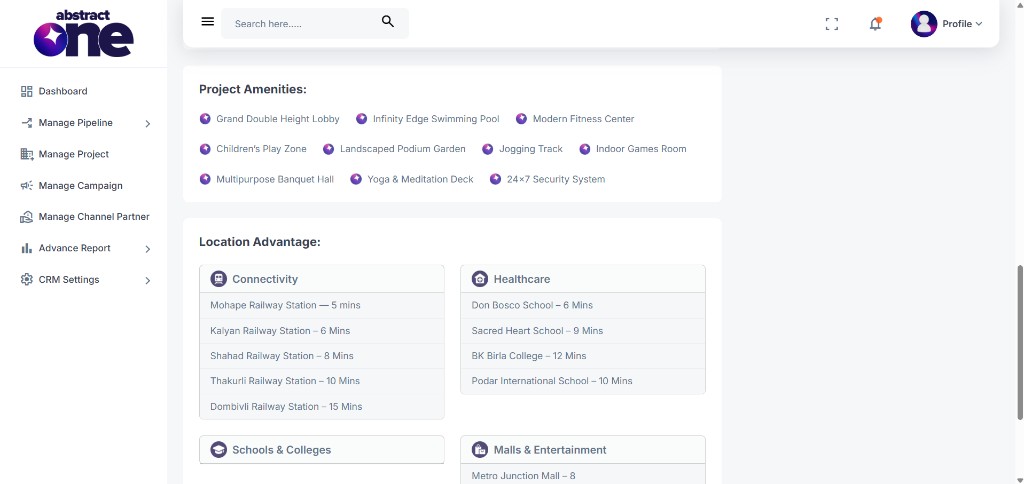
Further sections can display any additional information added to the project, such as features, highlights, or location-related details. The available sections differ from project to project.
Important Notes
- The Project List shows only projects assigned to your account.
- Lead statistics on the Project View page reflect leads linked to that specific project.
- The sections and details shown on the Project View page depend on what has been configured for each project by the Superadmin.
- Running Campaigns, when visible, shows active campaigns linked to the project along with lead counts.
- You don’t have access to multiple features in Manage Project as they are restricted by the Superadmin. Some actions such as adding, editing, or configuring projects may not be visible or available depending on your role and permissions set by the Superadmin.