

Get Sub Source
The Sub Source value is used in the Website Form Integration API to identify which website or landing page a lead came from. This helps you track leads separately when you run multiple websites or landing pages connected to the same CRM account.
Pass the sub source name (not an ID) in the sub_source field of your API request. The value must exactly match a sub source configured in your CRM under the Website source.
Note: Sub sources can only be created or provided by a Super Admin. If you do not need website-wise tracking, use the default sub source Organic in your API requests.
When to use sub source
- Multiple websites or landing pages — create a separate sub source for each site (e.g.
Corporate Site,Abstract Next Landing Page) so leads are tagged by origin in CRM. - Single website, no split tracking — use the default sub source
Organicfor all website form leads.
How to get or create a sub source
Follow these steps to view existing sub sources or add a new one in Abstract One CRM.
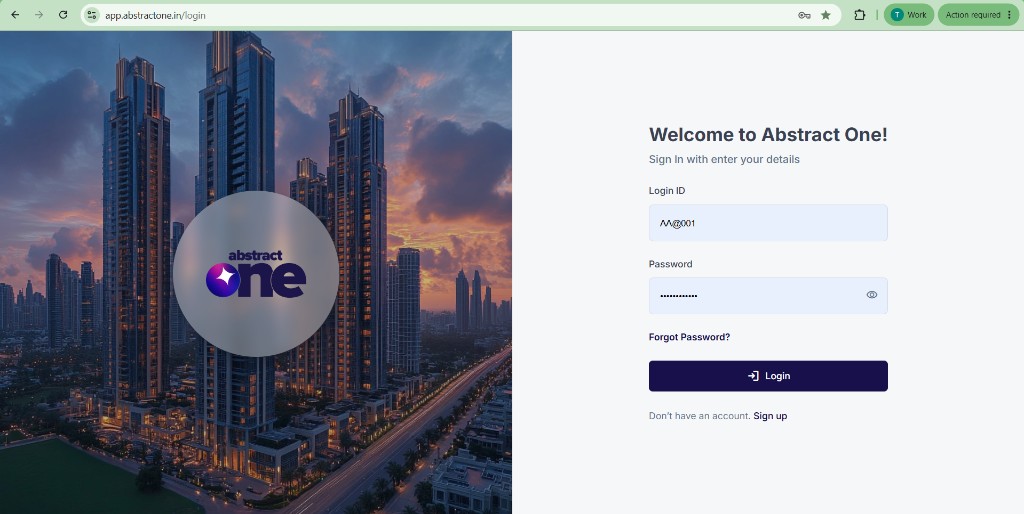
Step 1 — Log in with Super Admin credentials
Open the Abstract One CRM login page and sign in using your Super Admin credentials.
https://app.abstractone.in/login
Step 2 — Open Sub Source under Masters
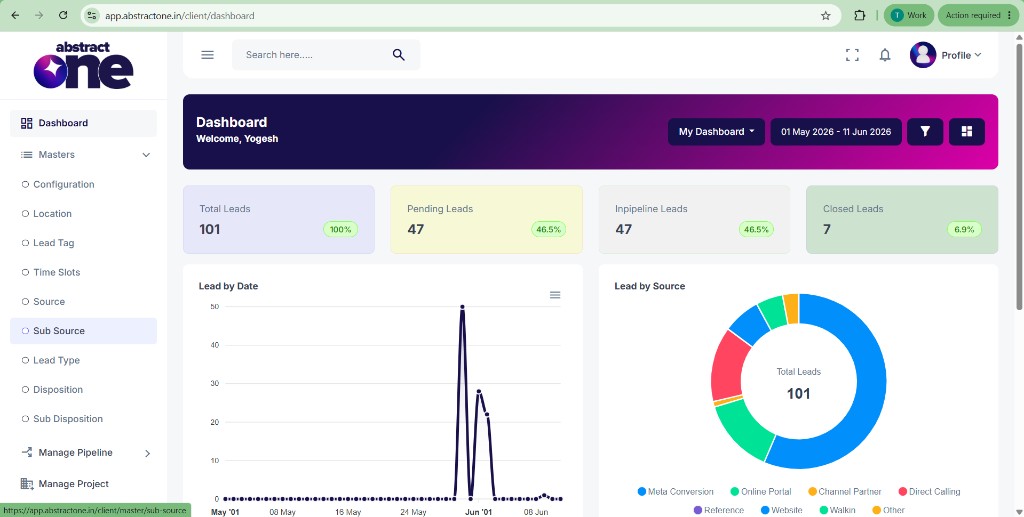
From the left sidebar, expand Masters and click Sub Source.
Step 3 — View existing sub sources
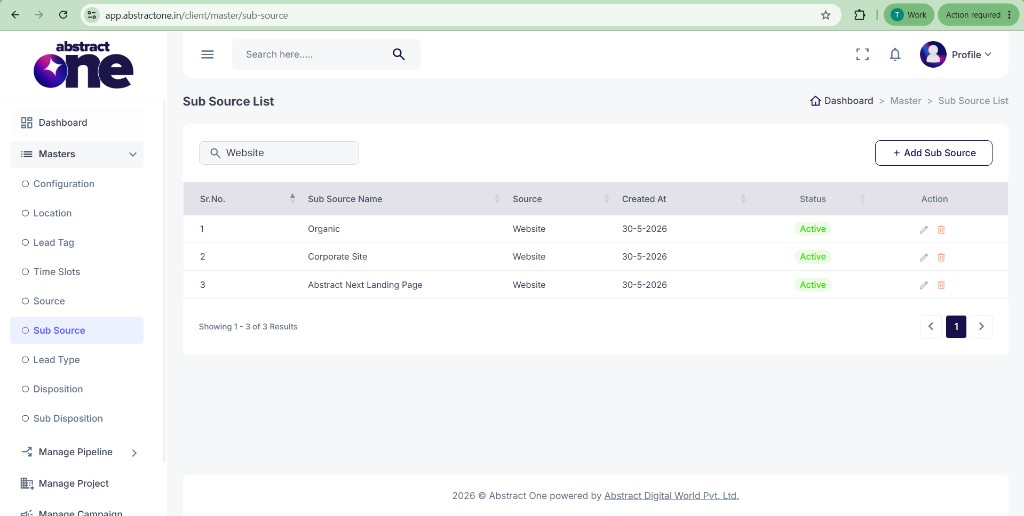
On the Sub Source List page, you will see all sub sources configured in your CRM. Each entry shows the Sub Source Name and its parent Source (Website). Copy the name you need for your API integration.
Examples: Organic, Corporate Site, Abstract Next Landing Page
Step 4 — Add a new sub source (optional)
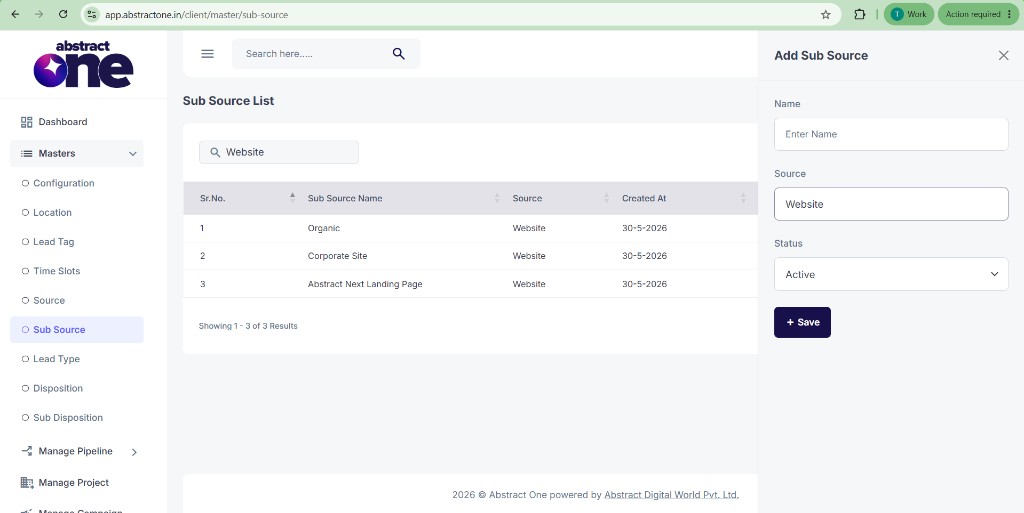
To track a new website or landing page, click + Add Sub Source. Enter a name for the site or page, set Source to Website, keep Status as Active, and click Save.
Use this exact name in the sub_source field when submitting leads from that website.
Use sub source in your API requests
Include the sub source name in every website lead submission request:
sub_source: Abstract Next Landing PageOr use the default if you do not need per-website tracking:
sub_source: OrganicSee the full Website Form Integration guide for the complete API request format.