

Get Campaign ID
Every Abstract One API request that creates or submits a lead requires a Campaign ID. This ID links the lead to a specific marketing campaign inside Abstract One, so you can track lead performance and source attribution campaign-wise in CRM.
Pass the Campaign ID of the campaign under which the lead should be recorded. If you run multiple campaigns across different projects, use the correct Campaign ID for each integration.
Note: The Campaign ID you pass in the API must belong to the selected project. For example, if your request usesproject_id: AAP002, thecampaign_idmust be a campaign linked to that same project — not a campaign from a different project.
How to find your Campaign ID
Follow these steps to locate the Campaign ID for any campaign in your Abstract One CRM account.
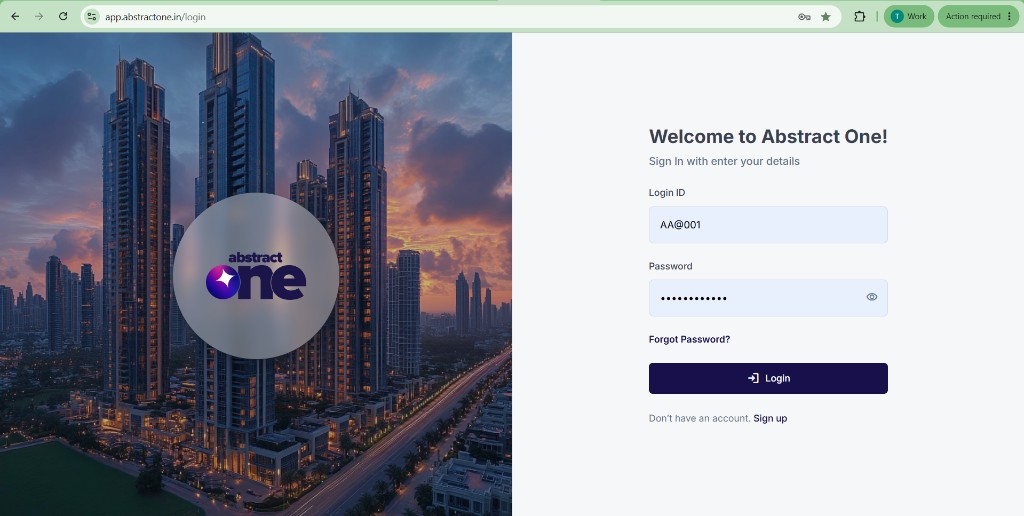
Step 1 — Log in with Super Admin credentials
Open the Abstract One CRM login page and sign in using your Super Admin credentials.
https://app.abstractone.in/login
Step 2 — Open the Campaign List
From the left sidebar, go to Manage Campaign. This opens the Campaign List page showing all campaigns configured in your CRM.
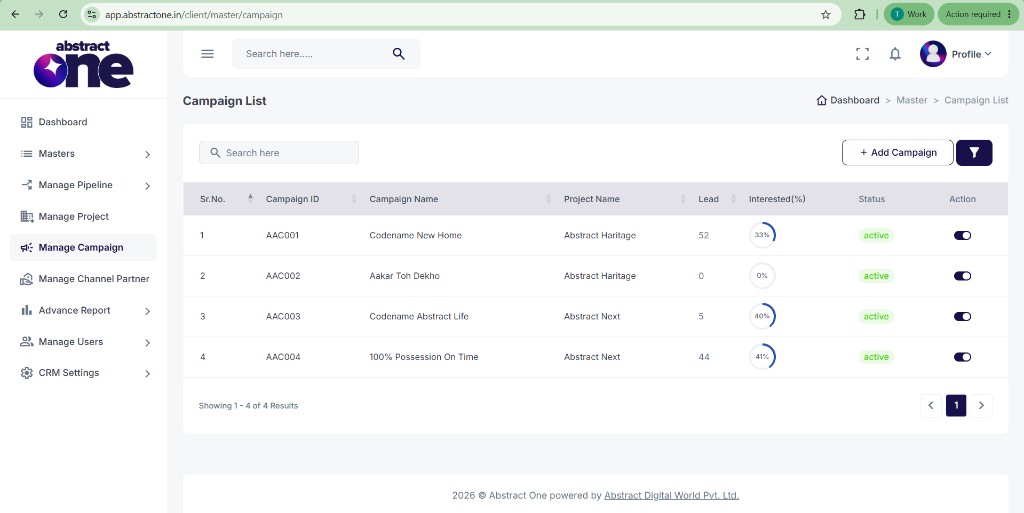
Step 3 — Copy the Campaign ID
On the Campaign List page, find the campaign you need in the table. The Campaign ID is shown in the second column (for example, AAC001, AAC002). Check the Project Name column to confirm the campaign belongs to the project you are integrating with, then copy the matching Campaign ID.
Use the Campaign ID in your API requests
Include the Campaign ID in every lead submission request along with the Project ID and API key:
x-api-key: your_api_key_here
project_id: AAP002
campaign_id: AAC001
Make sure the campaign_id matches a campaign under the project_id you pass in the same request. Mismatched project and campaign IDs may cause leads to be rejected or assigned incorrectly.