

Generate API Key
Every Abstract One API request requires an API key in the request header. Pass your key using the x-api-key header parameter so your integration is mapped to the correct Abstract One CRM profile.
This header is mandatory for authenticating requests and fetching your CRM profile. Make sure the API key you use is valid and active — you can copy an existing key or generate a new one from the CRM admin panel.
Note: Keep your API key confidential. Do not share it publicly or commit it to source control. Only Super Admin users can view and manage API keys from System Settings. If a key is compromised, deactivate it and generate a new one immediately.
How to get your API key
Follow these steps to retrieve or generate an API key from your Abstract One CRM account.
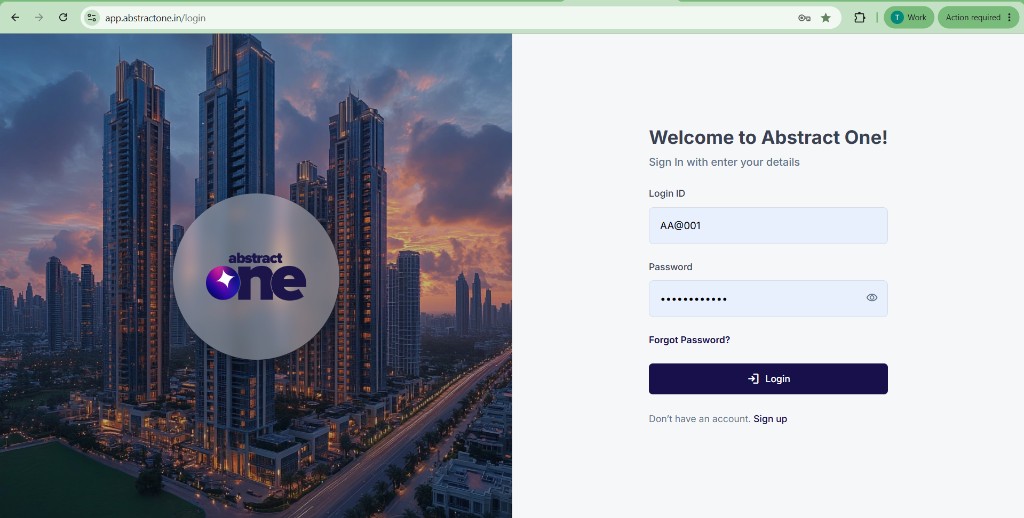
Step 1 — Log in with Super Admin credentials
Open the Abstract One CRM login page and sign in using your Super Admin credentials.
https://app.abstractone.in/login
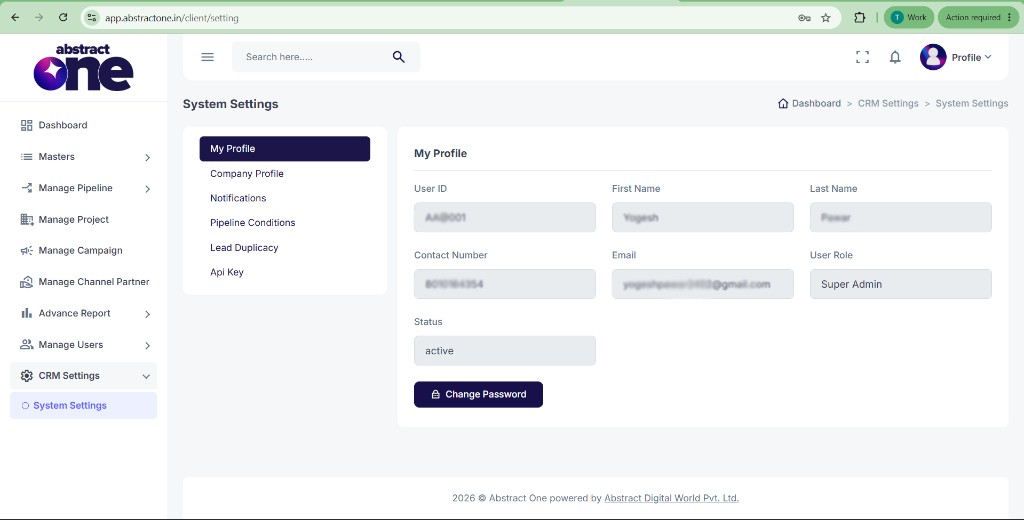
Step 2 — Open System Settings
After logging in, go to CRM Settings > System Settings from the left sidebar.
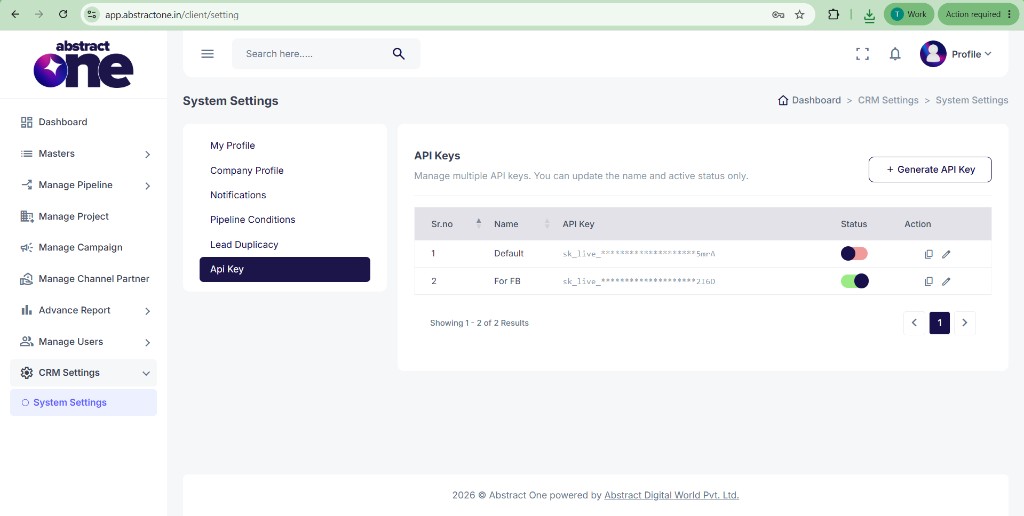
Step 3 — Copy or generate an API key
Click the Api Key tab. From the API Keys list, copy an existing key using the copy action, or click Generate API Key to create a new one.
Use the API key in your requests
Include the key in every API request header:
x-api-key: your_api_key_hereRequests without a valid x-api-key header will not be mapped to your CRM profile and may be rejected.